Remote Desktop
VNC Connection to Gnome Desktop
Start the VNC Service
bash
/opt/aidlux/app/ubuntu-desktop/vncserver.sh startConnect to Ubuntu Desktop (Gnome Desktop) via VNC
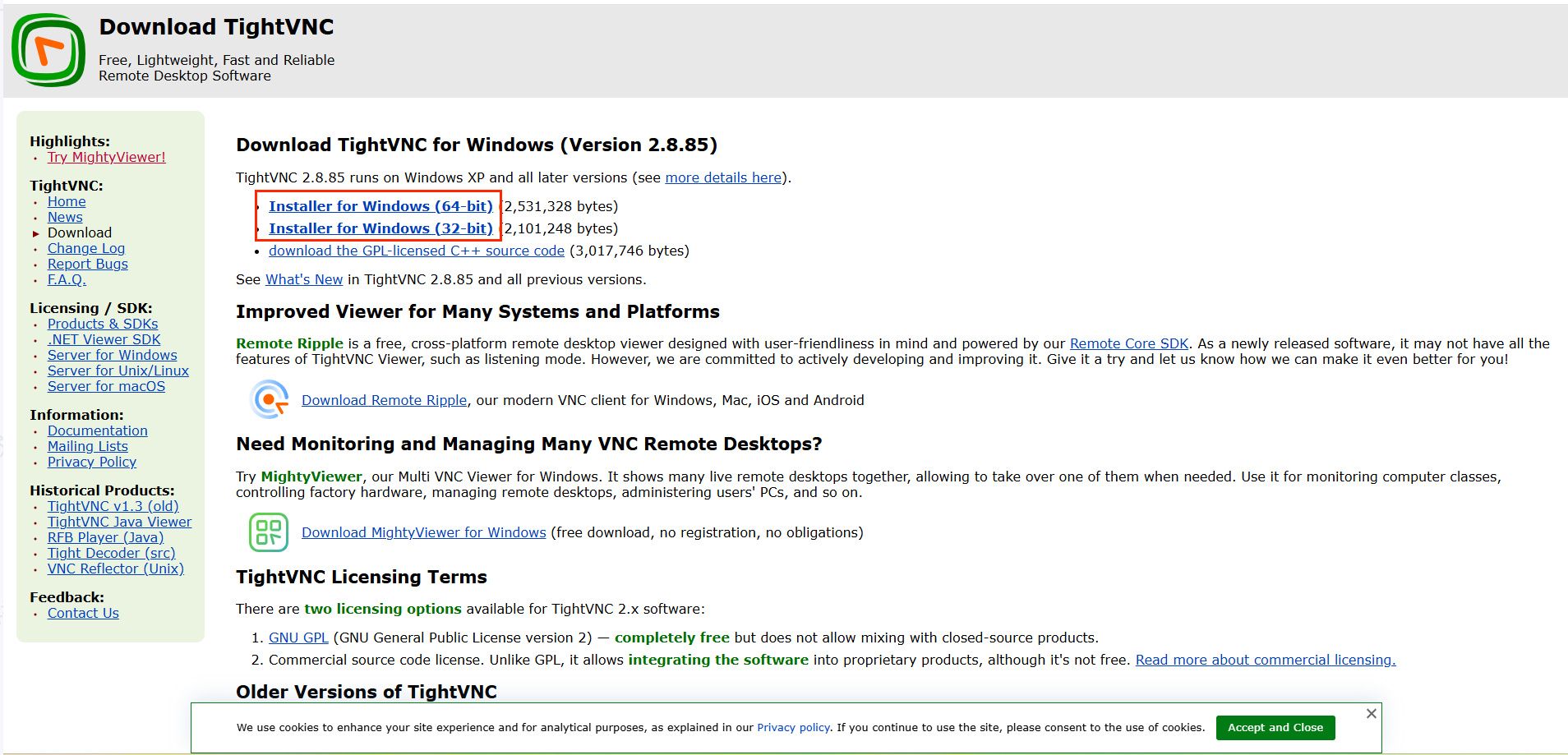
Download VNC Tool:
You can download the TightVNC tool from the link below, or use other VNC tools for connection.
Download link: https://www.tightvnc.com/download.php
- Download and install the version corresponding to your computer's operating system.
Open the VNC Tool and Connect to the Gnome Desktop
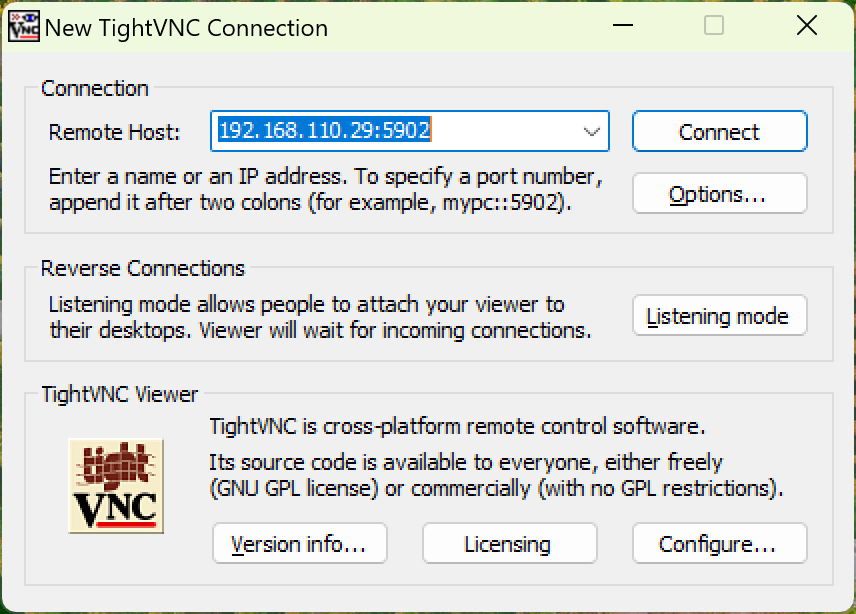
- Open TightVNC, enter the device address
IP:5902, and click "connect" to establish the connection.
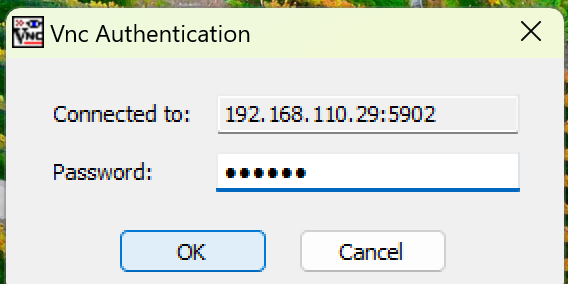
- After redirection, you will be prompted to enter the password:
aidlux. Click theokbutton to complete the connection.
Stop the VNC Service
bash
/opt/aidlux/app/ubuntu-desktop/vncserver.sh stop