LiDAR Sensor
Warning
The device tests below are verified in the ROS2 environment. Please refer to the Tool Installation section to install all ROS-related tools.
Laser LDS-50C-E
Preparation
- Rhino Pi-X1
- Laser LDS-50C-E BlueSea LiDAR
- 12V power supply for the LiDAR
Hardware Connection and Network Configuration
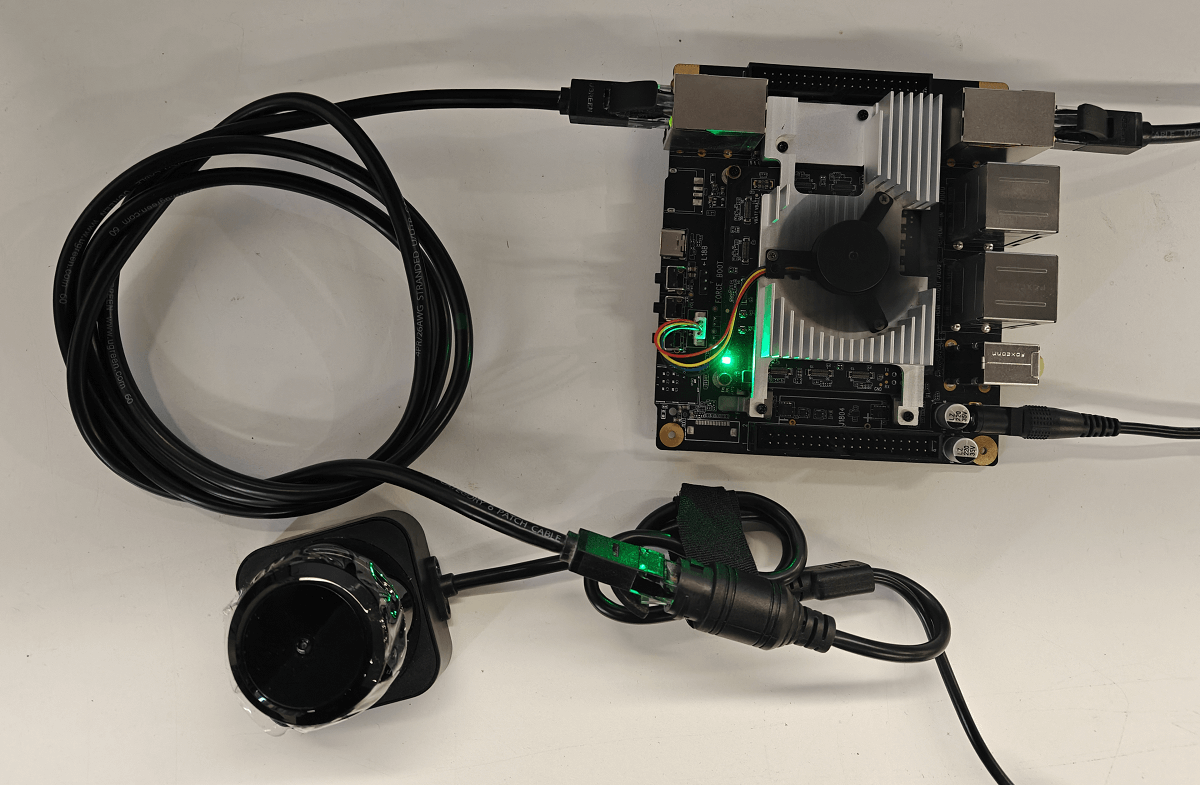
Connect the LiDAR to a 12V power supply, and connect its Ethernet port to any Ethernet port of Rhino Pi-X1. Configure a temporary IP address (you can use the ifconfig command for temporary IP configuration).
The LDS-50C-E and Rhino Pi-X1 are connected via a standard Ethernet interface with a network cable. To ensure normal communication between the LiDAR and Rhino Pi-X1, they must be on the same network segment. The factory settings of the LiDAR are as follows:
- LiDAR IP Address:
192.168.158.98 - LiDAR Subnet Mask:
255.255.255.0 - LiDAR Gateway:
192.168.158.1 - LiDAR Default Upload Address:
192.168.158.15
The network settings for Rhino Pi-X1 are as follows:
adb root // Obtain root privileges
adb shell // Enter the system
/vendor/bin/lan_wan_config.sh set 1 192.168.158.15 1500 // Configure IP for the hybrid system
/etc/lan_wan_config.sh set 1 192.168.158.15 // Configure IP for the Ubuntu-only system- Ethernet Port IP Address:
192.168.158.15 - Ethernet Port Subnet Mask:
255.255.255.255.0 - Ethernet Port Gateway:
192.168.158.1
After connecting the network cable and configuring the IP address, use the Ping command to check if the network is connected.
Obtain and Build the BlueSea ROS2 Driver Package
Open the Ubuntu Desktop via the VNC tool and execute the following commands in sequence:
- Obtain the BlueSea ROS2 driver program from GitHub and deploy it to the corresponding directory
sudo su  // Password: aidlux

mkdir bluesea2
cd bluesea2
git clone https://github.com/BlueSeaLidar/bluesea-ros2.git src- Install dependencies
sudo apt update
sudo apt install -y python3-colcon-common-extensions- Build the package
colcon build- Update the current ROS2 package environment
source ./install/setup.sh- Run the driver using ROS2 launch
ros2 launch bluesea2 udp_lidar.launch
Testing
Open the Ubuntu Desktop via the VNC tool and execute the following commands in sequence:
- Data Verification: Check if the scan data is output normally
ros2 topic echo /scan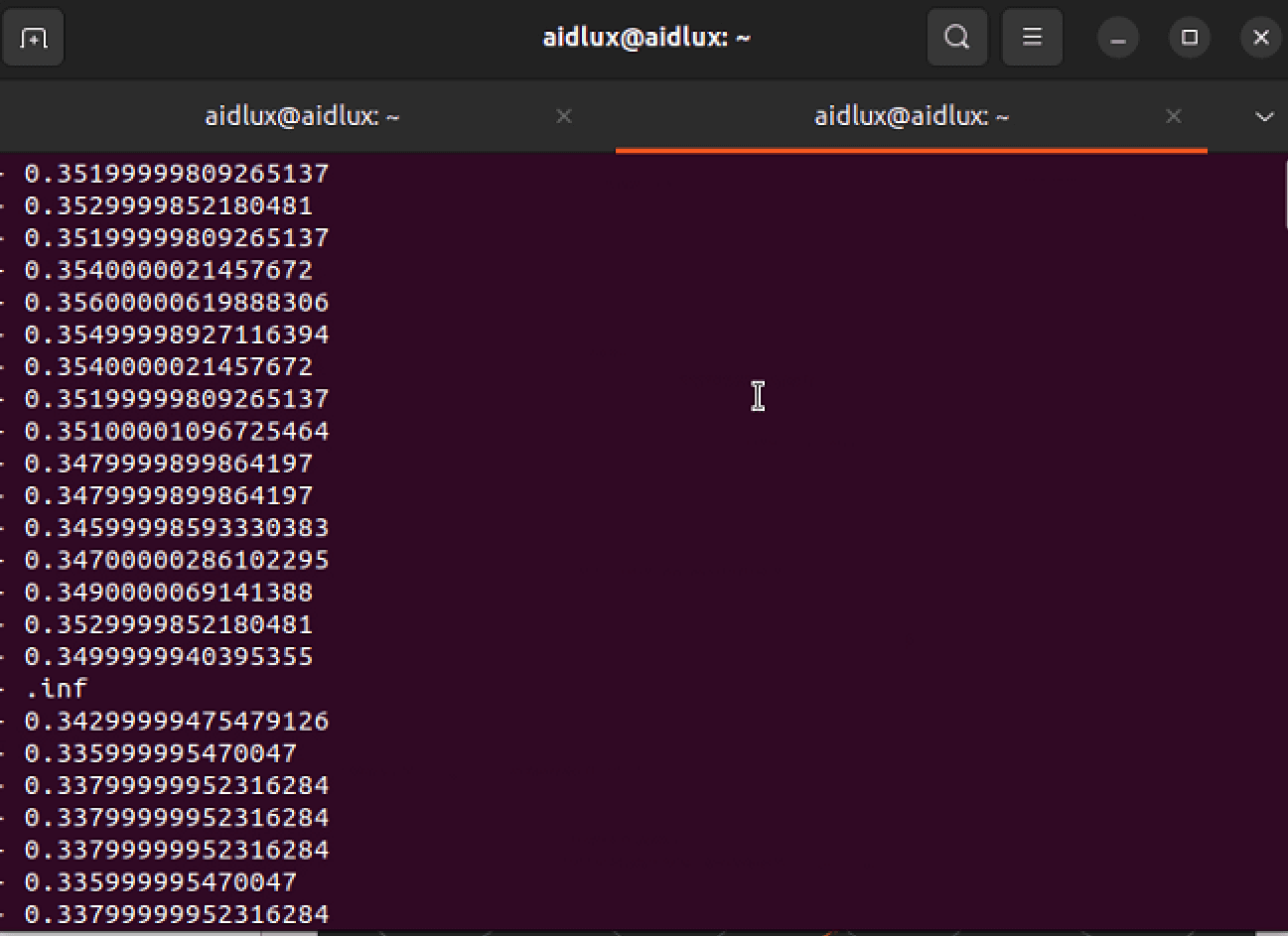
- Open the visualization tool RViz2
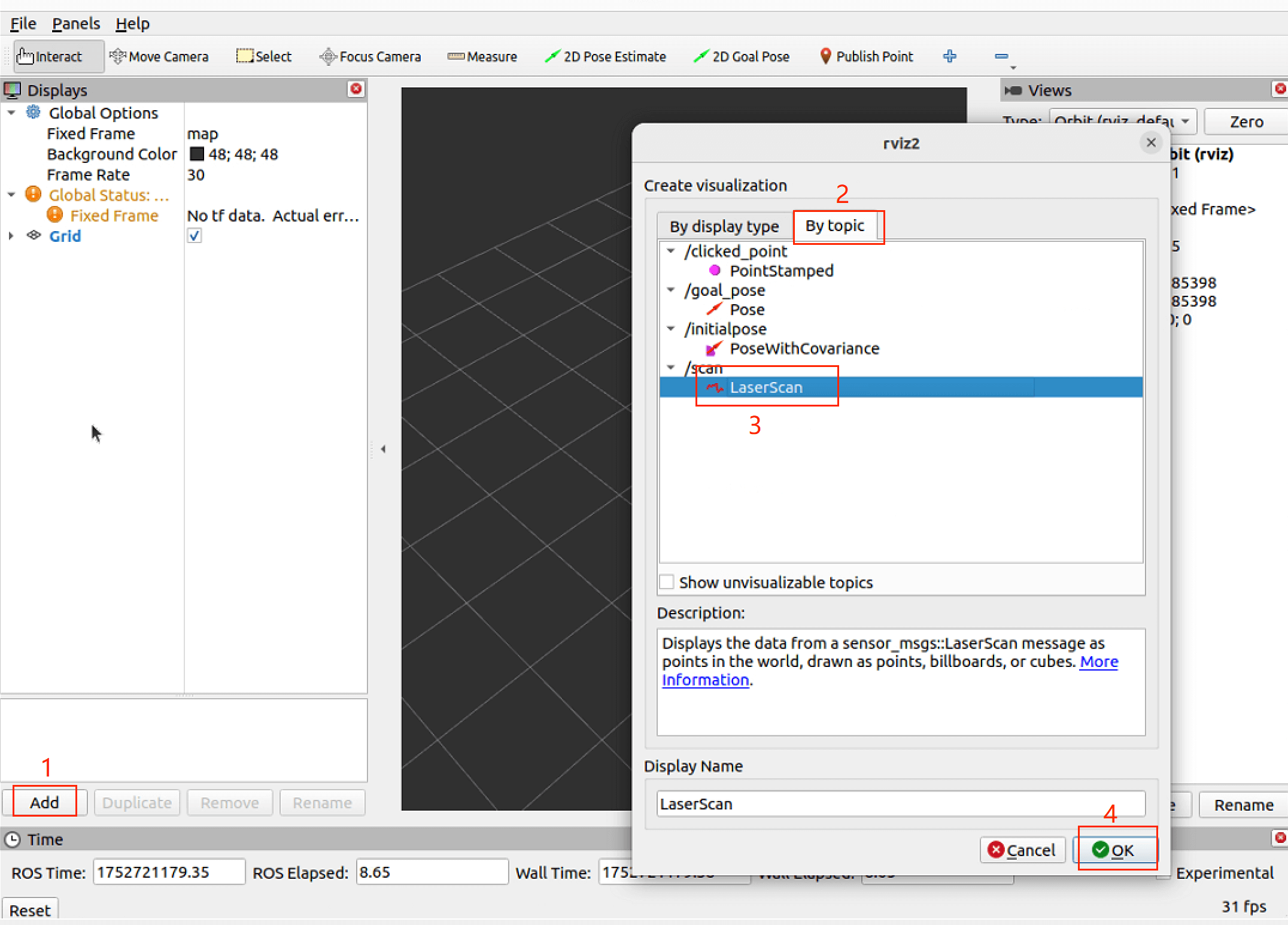
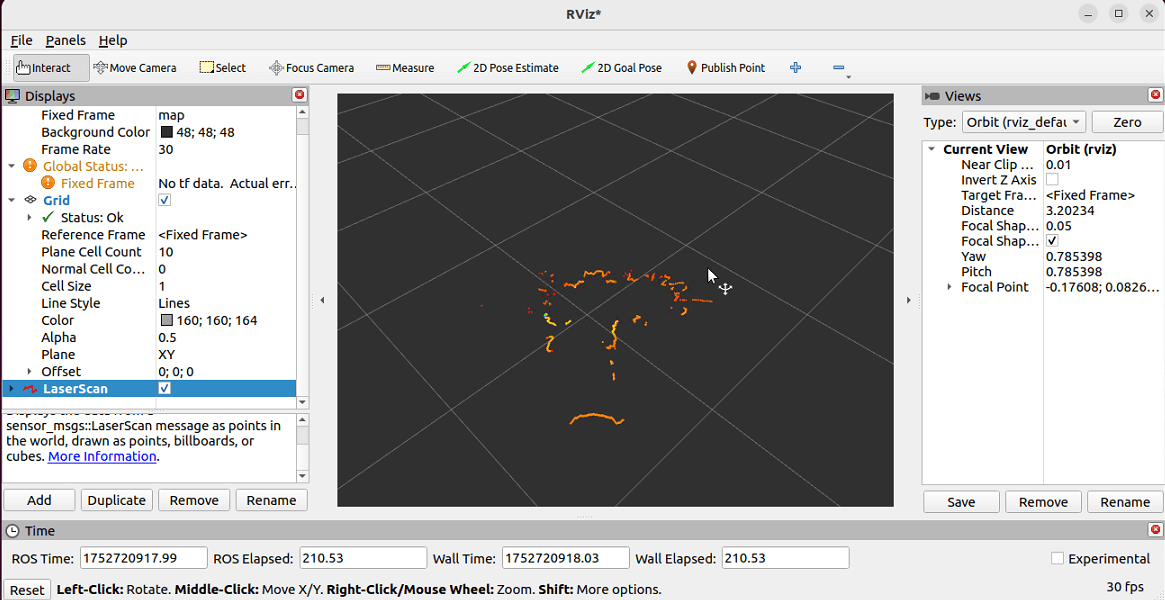
rviz2- After opening, click the following buttons in sequence to launch the visualization interface
LDS50C-keshihua.png