Browser Login
Prerequisites
- Mainboard: Rhino Pi X1
- Power supply: DC12V 5A power adapter
- Input device: USB TYPE-A to TYPE-C cable
- Communication device: Standard Ethernet cable
Start the Board
The board comes pre-installed with the Ubuntu 22.04 system. After powering it with a 12V power adapter, the board will start the system automatically.
- Boot process: Power indicator red light stays on
- Use a USB TYPE-A to TYPE-C cable: insert the TYPE-A port into the Windows computer's USB port, and the TYPE-C port into the board's C port.
- System started successfully: The RGB light is solid green light stays on and the fan starts running, indicating the boot is complete
Obtain IP Address via ADB
Install ADB Software
Visit the link ADB Download and select the corresponding platform to download the ADB software.
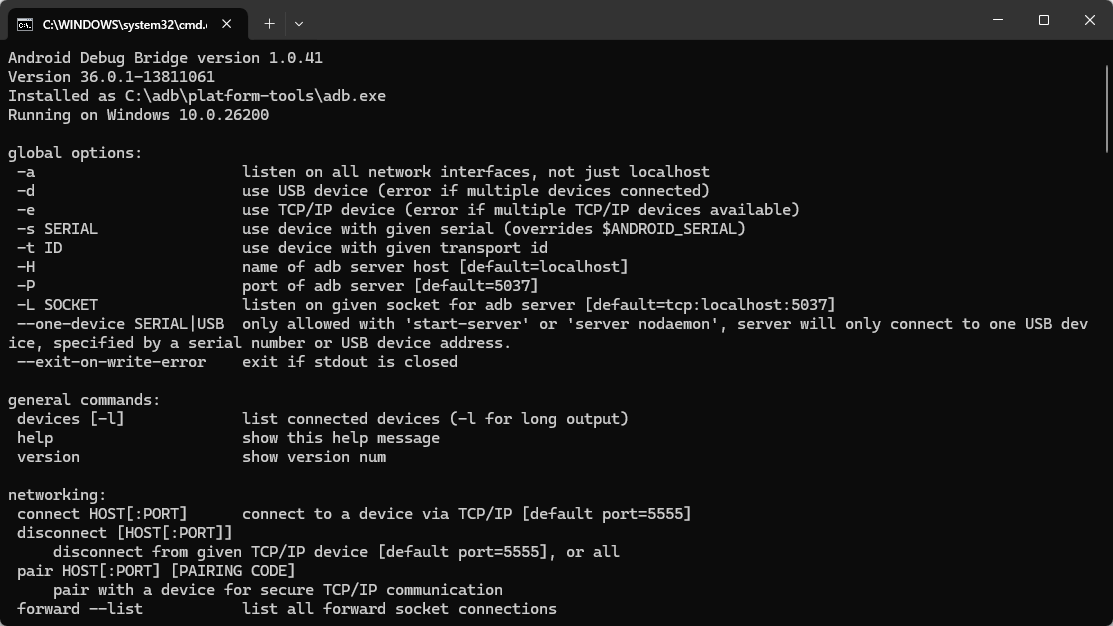
Open Terminal in the ADB folder directory and enter adb. If ADB-related command descriptions are output, the environment is normal.
Note
For more ADB usage, refer to Basic ADB Usage.
Obtain IP Address
# Access the device
adb shell

# Obtain IP address
ifconfig eth0
The following output will be displayed:
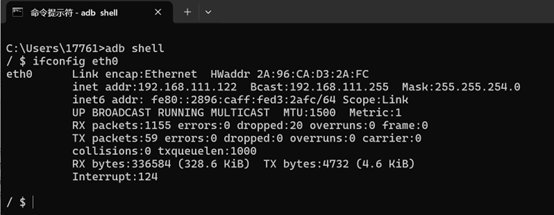
The inet addr parameter indicates the device's IP address.
Note
For more methods to obtain IP address, refer to IP Address Obtaining.
Log into the Web Page
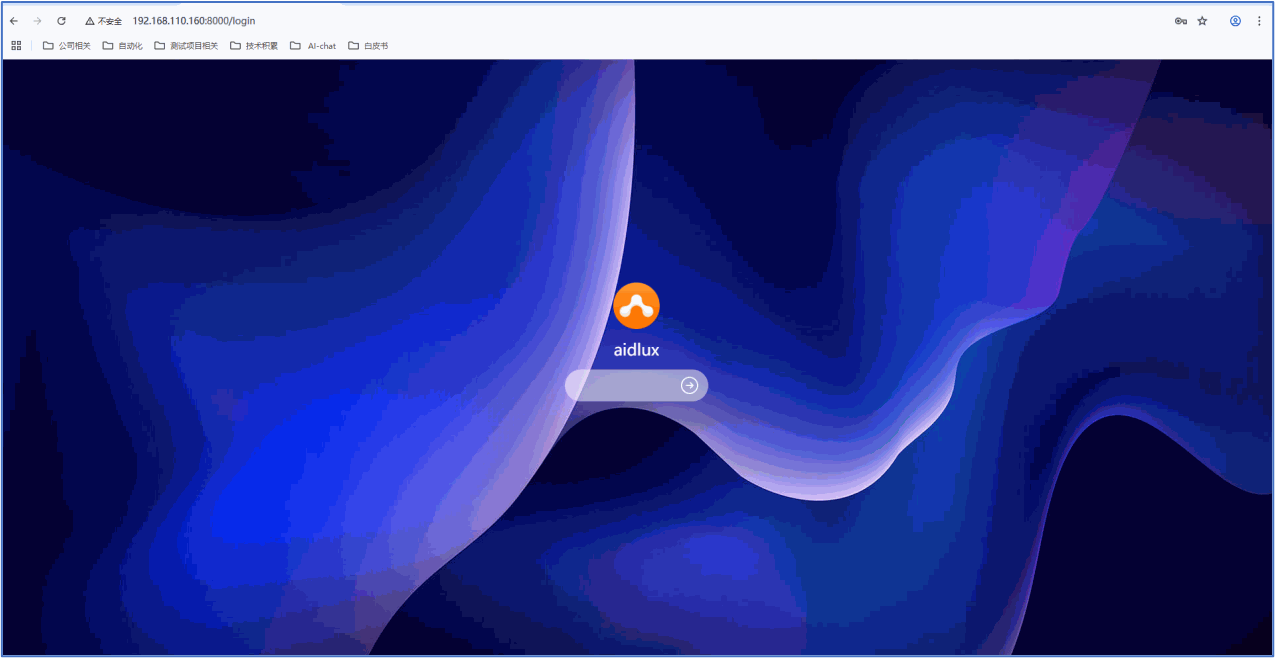
After obtaining the device's IP address, you can log into the hybrid system's web interface using the following method:
- Ensure the PC and the board are on the same local area network.
- Enter the URL in the browser:
http://ip:8000/login. Replaceipin the URL with the device's actual IP address. Username/Password: aidlux/aidlux
Use the System
After successfully starting the system, developers can officially use the Ubuntu 22.04 system on the Rhino-X1. For details, refer to System Usage
Note
If developers need to reinstall the system or perform an OTA upgrade, refer to: System Burning