ADB Login
Prerequisites
Developers need to prepare the following hardware devices in advance:
- Mainboard: Rhino Pi X1
- Power supply: DC12V 5A power adapter
- Input device: USB TYPE-A to TYPE-C cable
ADB Software Installation
Visit the link ADB Download and select the corresponding platform to download the ADB software.
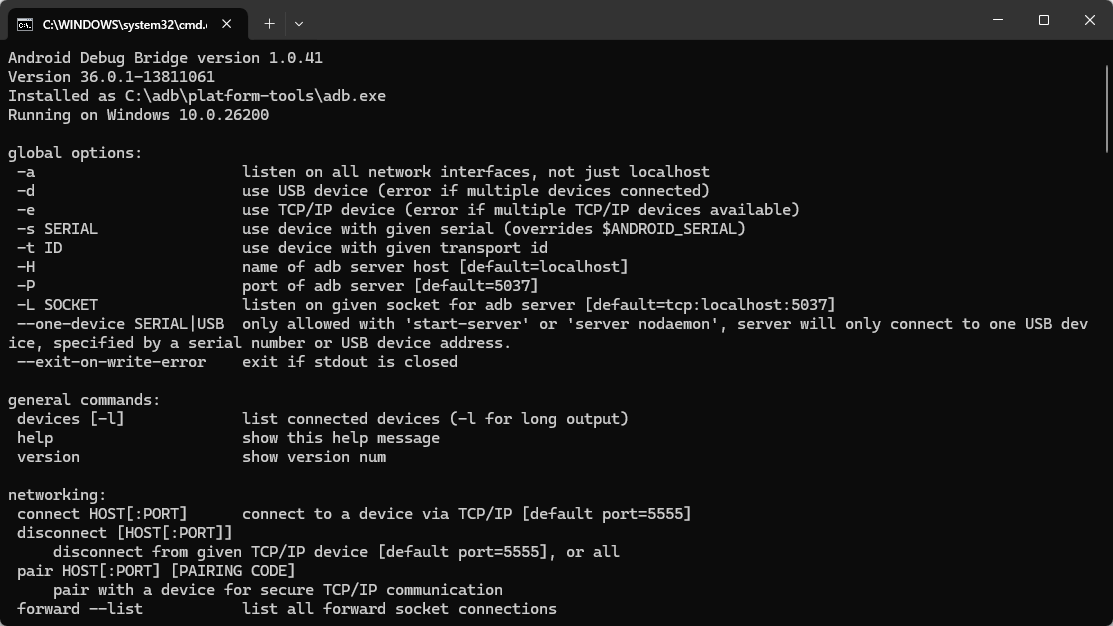
Open Terminal in the ADB folder directory and enter adb. If ADB-related command descriptions are output, the environment is normal.
Start the Board
The board comes pre-installed with the Ubuntu 22.04 system. After powering it with a 12V power adapter, the board will start the system automatically.
- Boot process: Power indicator red light stays on
- System started successfully: The RGB light is solid green light stays on and the fan starts running, indicating the boot is complete
Connect the Device
Use the USB TYPE-A to TYPE-C cable: insert the TYPE-A port into the Windows computer's USB port, and the TYPE-C port into the board's C port.
Access the System via ADB
After starting the board, developers can log into the Ubuntu system using the ADB tool with the following command:
adb shellNote
For more ADB usage, refer to Basic ADB Usage.
Use the System
After successfully starting the system, developers can officially use the Ubuntu 22.04 system on the Rhino Pi-X1. For details, refer to System Usage