Line IN/OUT Usage
Audio Testing
Note
- The Line-in interface only supports active microphones.
- Audio devices cannot be used simultaneously by the Android and Ubuntu systems. A switch is required when using the device across different systems.
Hardware Connection
- Connect the microphone to the device's LINE IN interface (red 3.5mm interface).
- Connect the speaker to the device's LINE OUT interface (green 3.5mm interface).
Using Audio on Android System
Log in to the AidLux Web desktop by referring to the Web Login, then execute the following steps:
- Switch the audio device to be used by the Android system (this is the default setting if not modified, so manual switching is unnecessary):
shell
audio-route-qcs8550 --os Android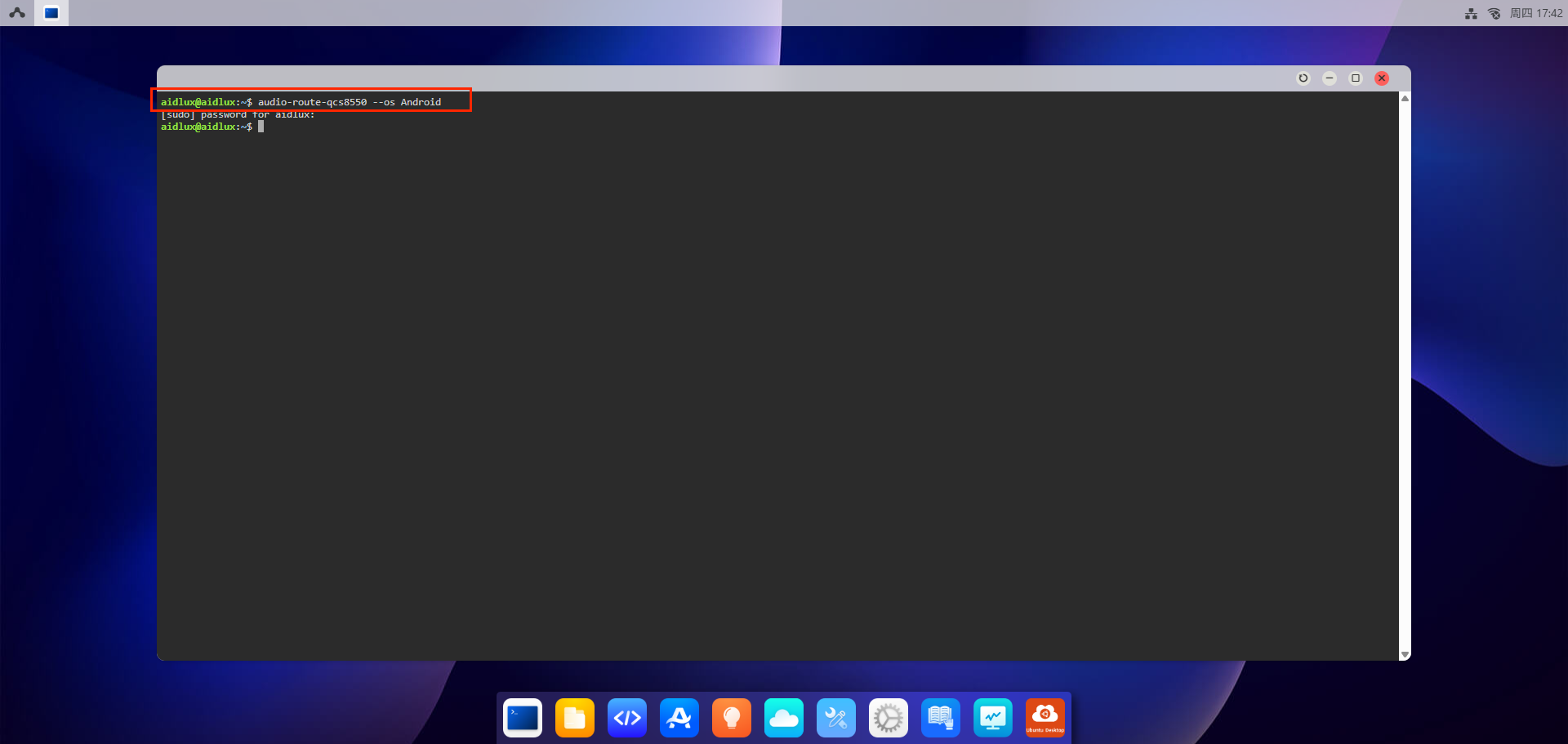
- Log in to the Android home screen via screen mirroring or direct display connection.
Note
For screen mirroring and direct display connection methods, refer to the Quick Start section.
Swipe upward with the left mouse button to open the Voice Recorder app.
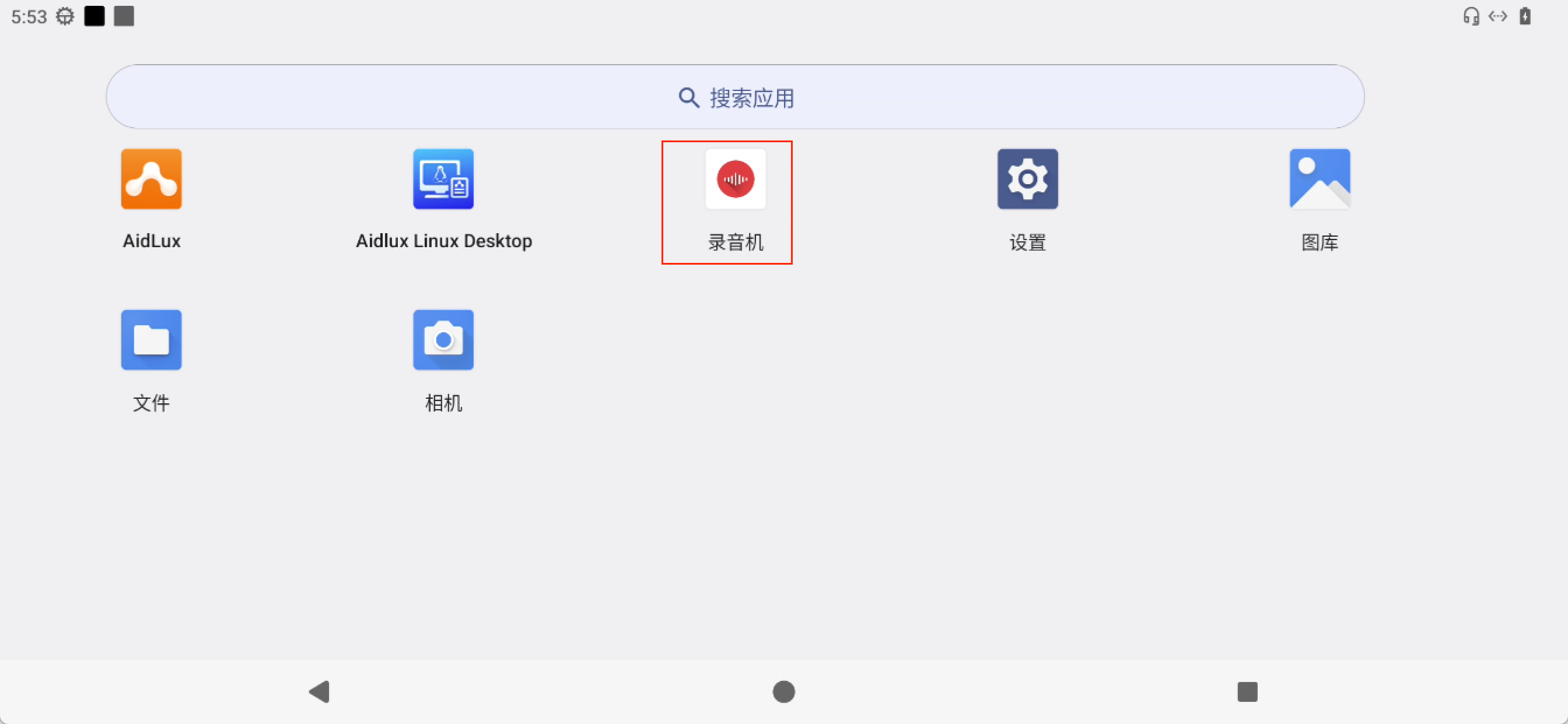
Perform recording and playback tests using this app.
Using Audio on Ubuntu System
Log in to the AidLux Web desktop by referring to the Web Login, then execute the following steps:
- Switch the audio device to be used by the Linux system:
shell
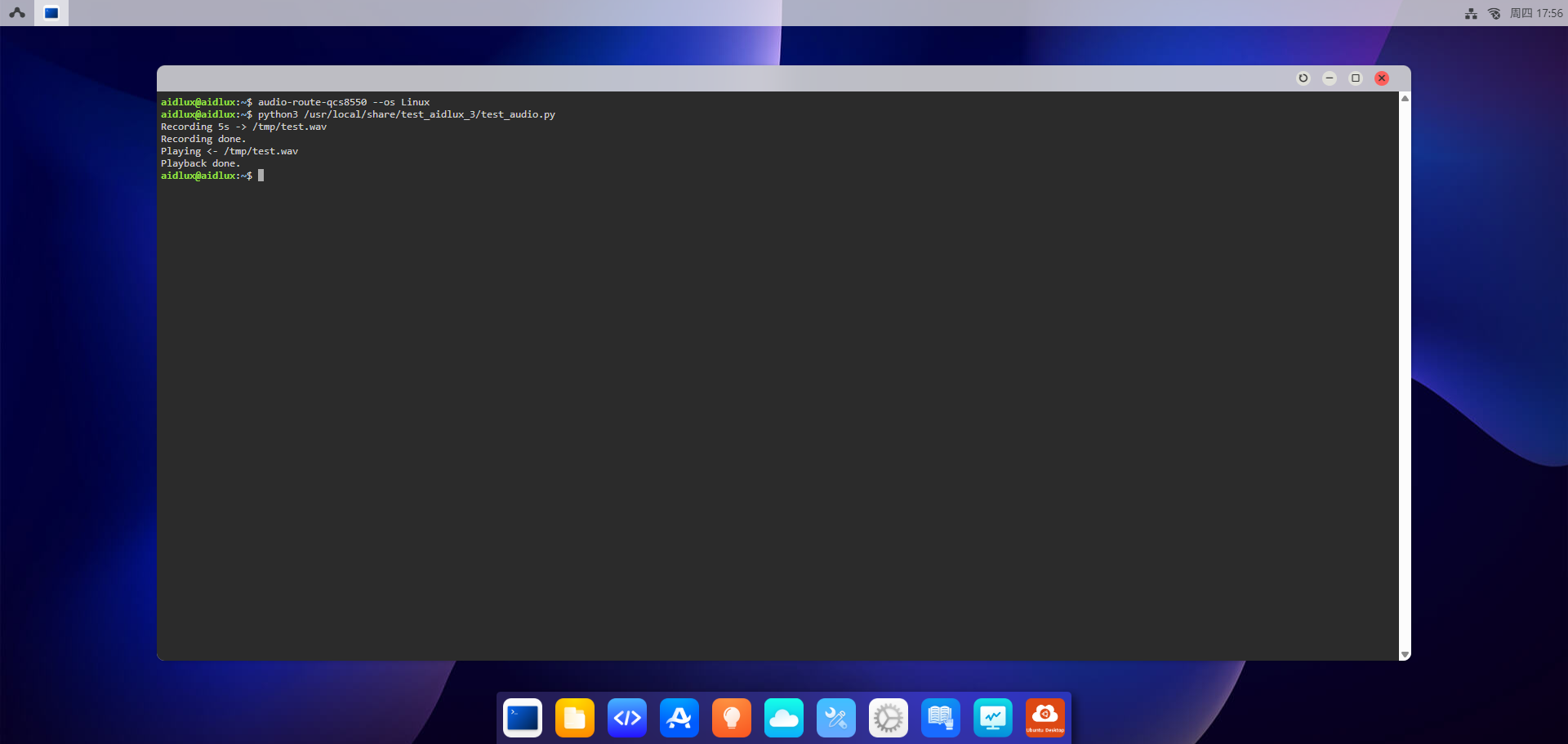
audio-route-qcs8550 --os Linux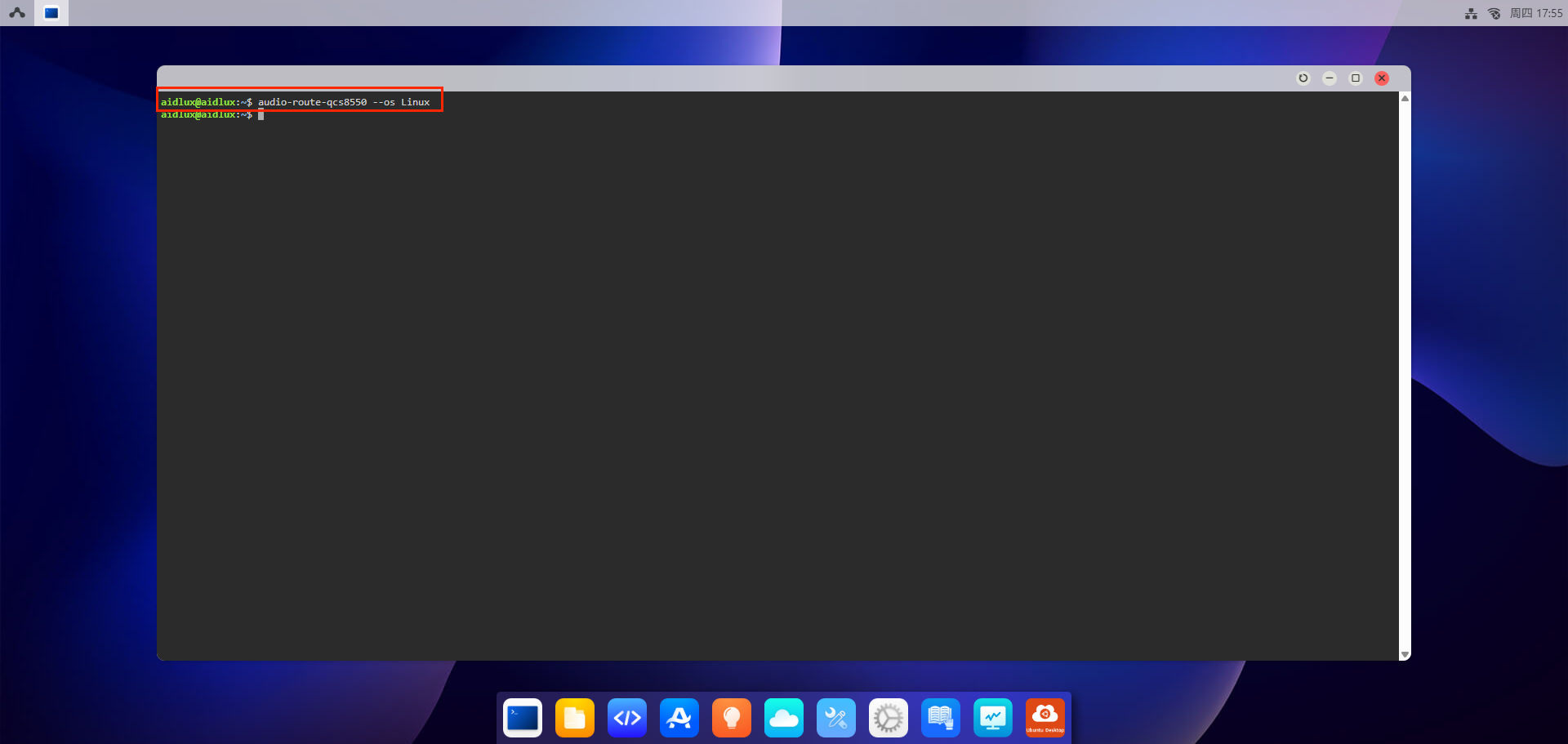
- Run the script to perform recording and playback tests:
shell
python3 /usr/local/share/test_aidlux_3/test_audio.pyAfter executing the script, the system will automatically record audio for 5 seconds and then play back the recorded content.