Network
Note
The Ethernet ports of Rhino Pi-X1 are in 1WAN + 3LAN mode. To access the external network, connect the network cable to port 17 of the device (see the Hardware Information section for details).
Configure Dynamic IP Address for WAN Port
When the developer's environment has a local area network (LAN) with a DHCP server that assigns DHCP IP addresses to downstream devices, follow these steps to obtain a dynamic IP address:
Rhino Pi-X1 is set to use a DHCP IP address by default, so it will automatically acquire an IP address when a network cable is connected after booting. On a Windows computer, press Win+R, enter cmd in the pop-up window to open a terminal, then execute the following commands:
- Enter
adb shellto access the host system:
adb shell- Run the command:
ifconfig eth0to check the displayed IP address.
ifconfig eth0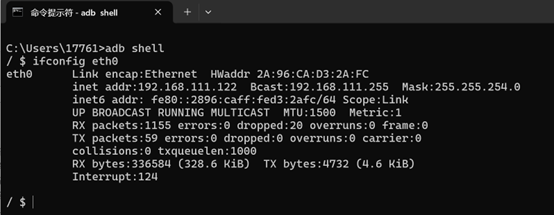
Configure Static IP Address for WAN Port
Rhino Pi-X1 supports static IP address configuration. Developers can follow these steps to configure it:
- If the network cable is connected to the WAN port, set a static IP address for eth0 accordingly. On a Windows computer, press Win+R, enter
cmdin the pop-up window to open a terminal, then execute the following command:
adb shell
am broadcast -a a.e.c --es eth1 ia:s,ip:192.168.3.3,sm:255.255.255.0
💡Note
The IP address and subnet mask set here are for reference only; configure them according to actual requirements. The settings will take effect after a restart.
Restore Dynamic IP Settings
- To revert to dynamic IP settings, press Win+R on a Windows computer, enter
cmdin the pop-up window to open a terminal, then execute the following command:
adb shell
am broadcast -a a.e.c --es eth1 ia:d
Configure Wireless WIFI
Note
An antenna must be connected to the device when connecting to WIFI.
Rhino Pi-X1 supports network connection via WIFI. To connect the development board to a LAN WIFI, follow these steps:
- Connect the Windows computer to the development board using a Type-C cable, then open the screen mirroring software (QtScrcpy).
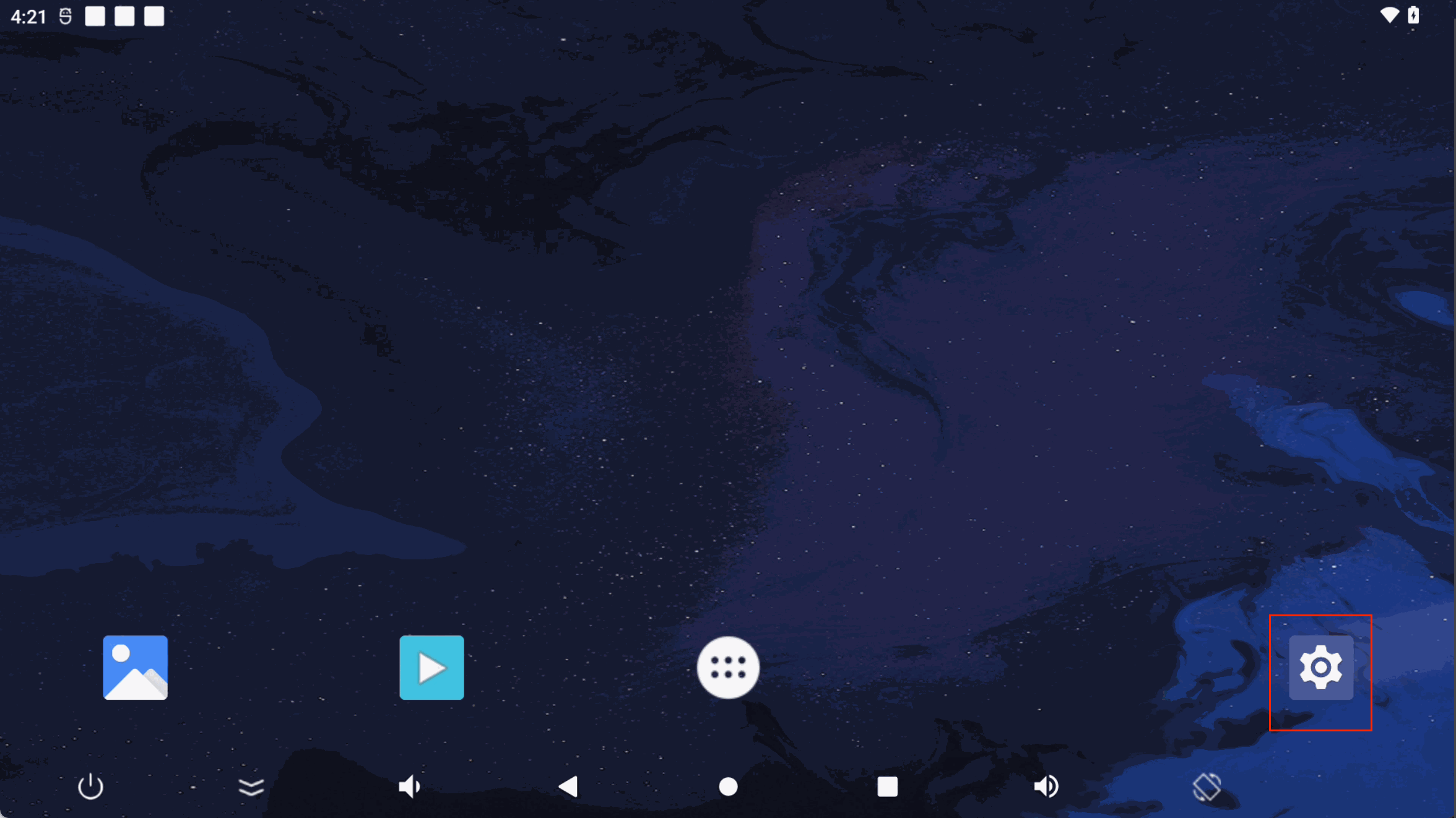
- After accessing the Android desktop via the screen mirroring software, click the
Settingsbutton with the left mouse button to open the Android system settings interface.
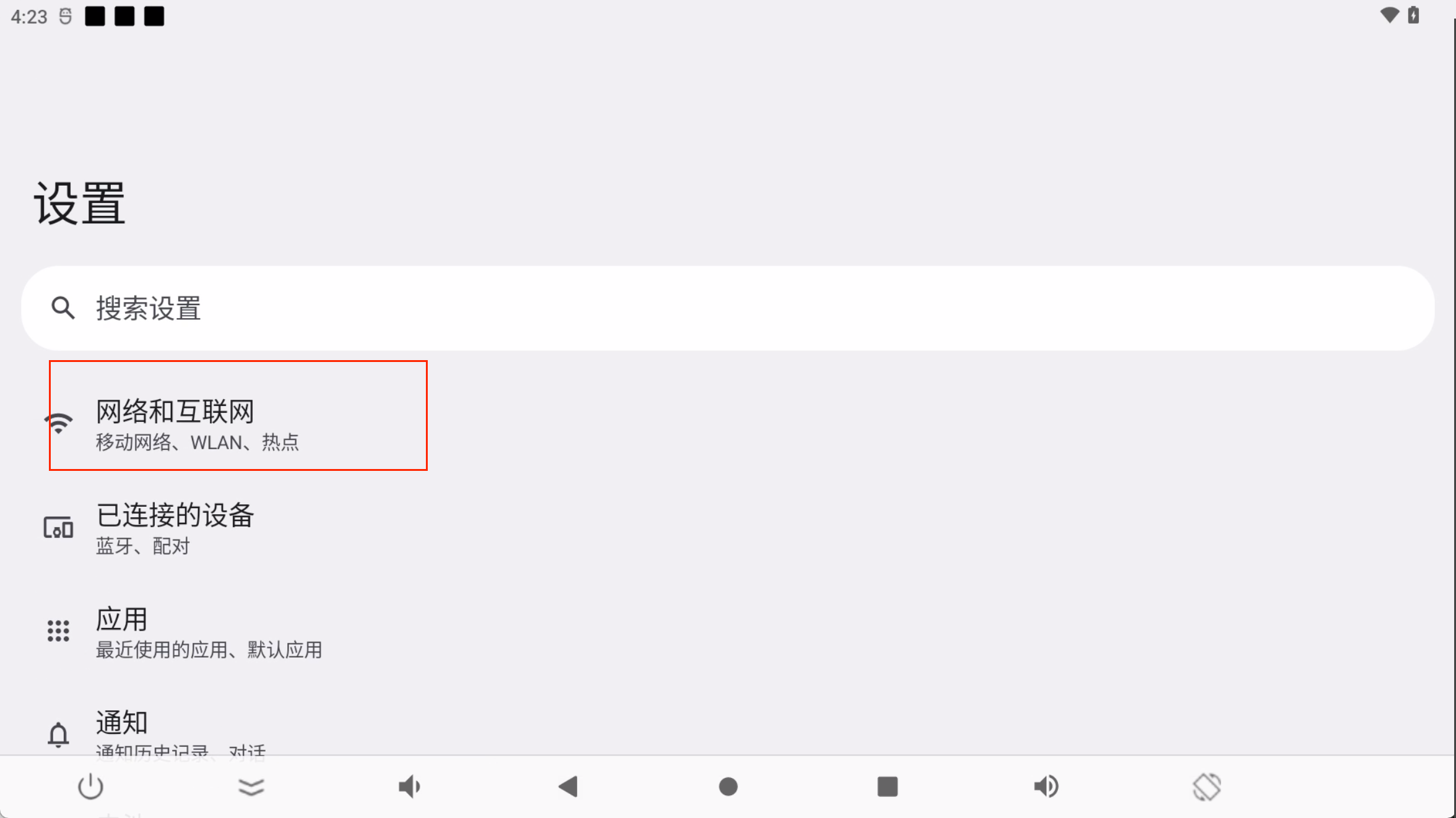
- Click
Network & internet settings.
- Click
Internet.
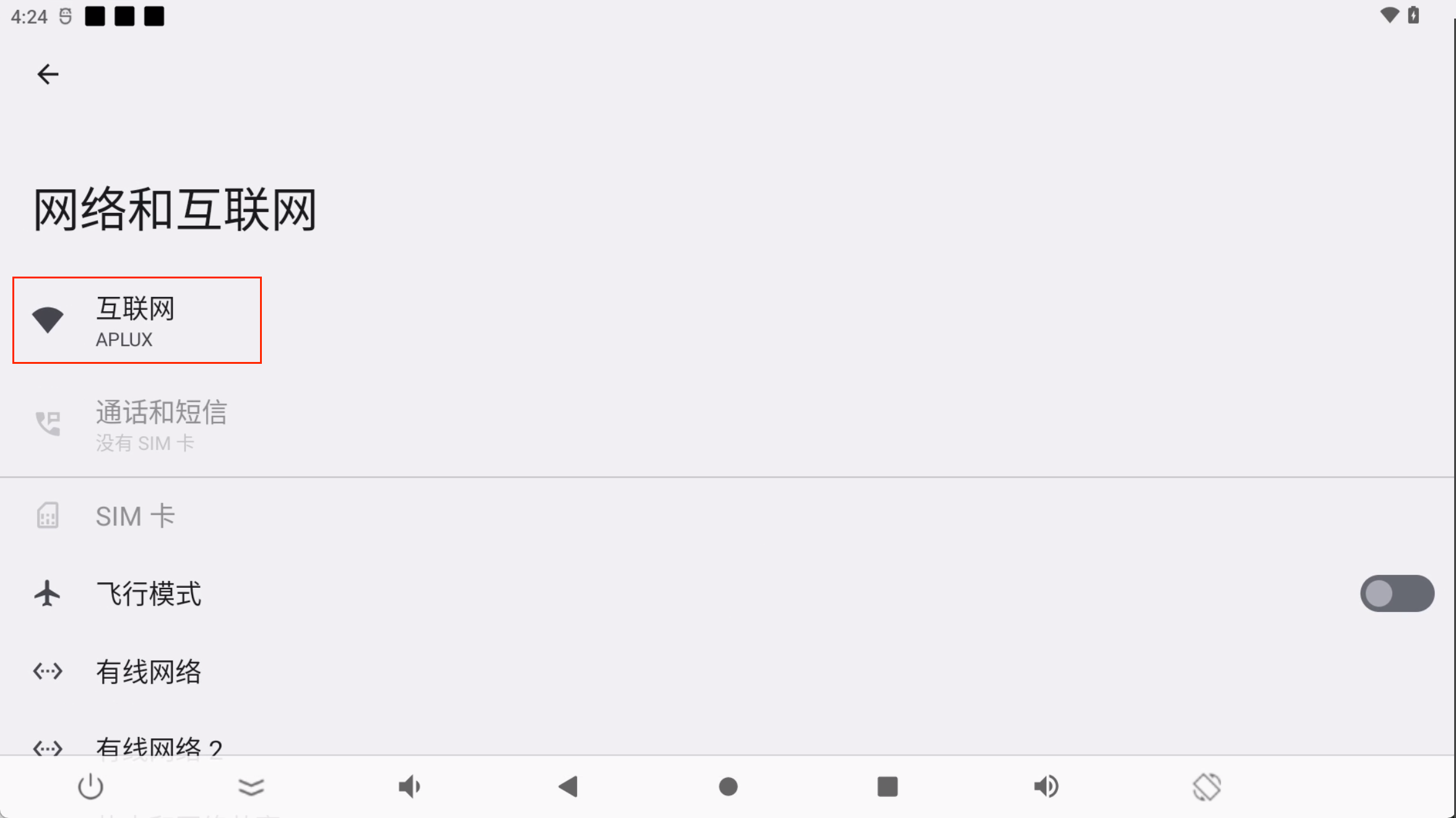
- Enable
WLANsettings and connect to the corresponding WIFI network.
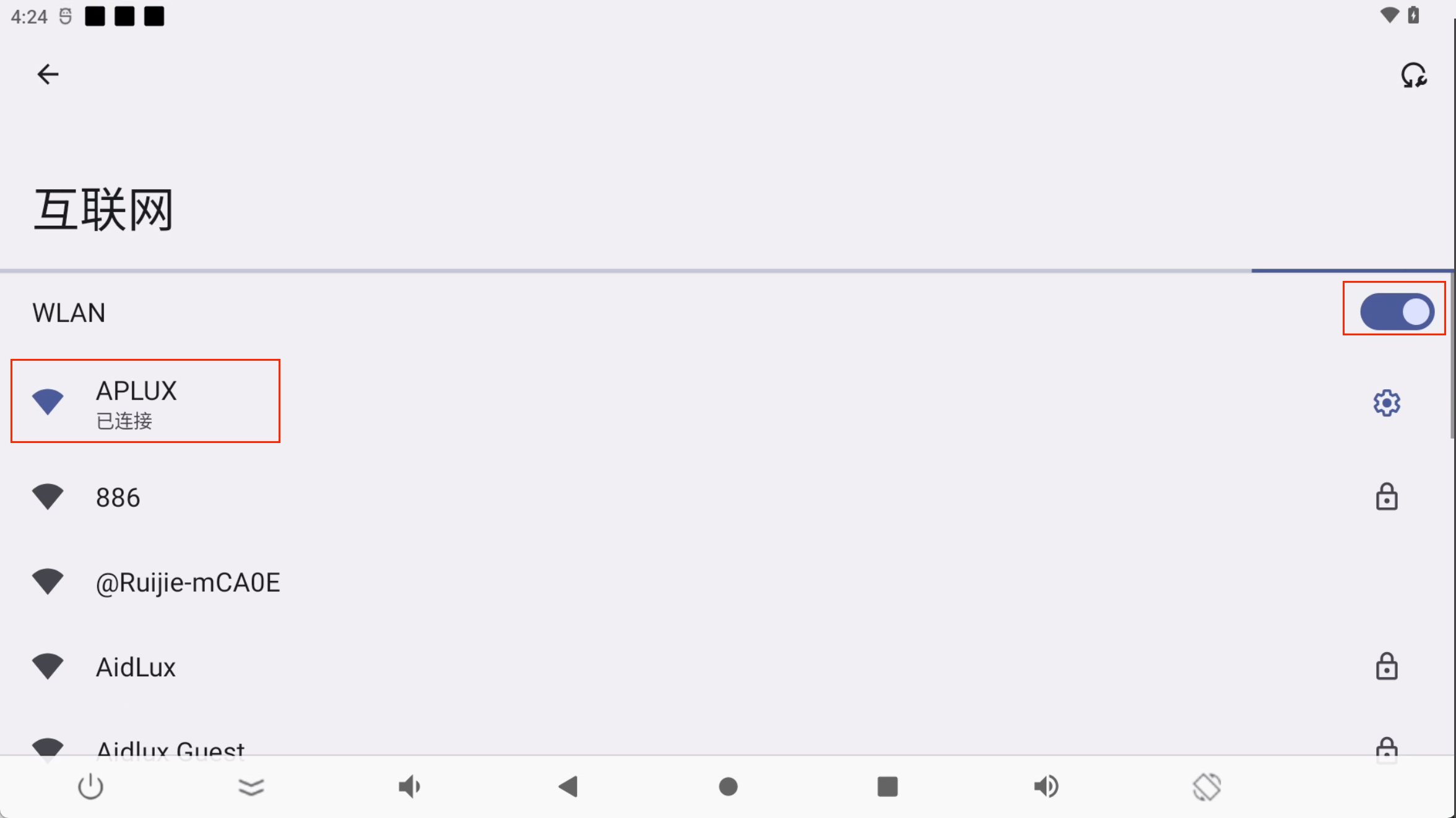
- After the connection is completed, run the command:
ifconfig wlan0to check the displayed IP address.
adb shell
ifconfig wlan0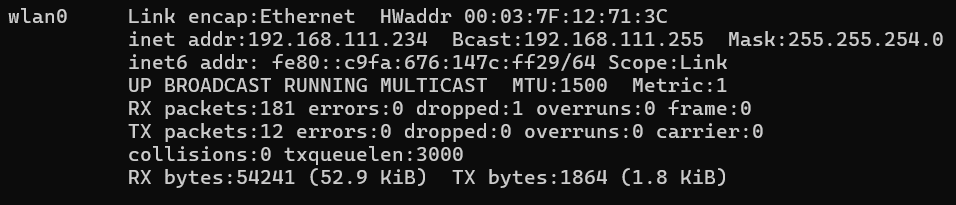
LAN Port Settings
Using LAN Ports
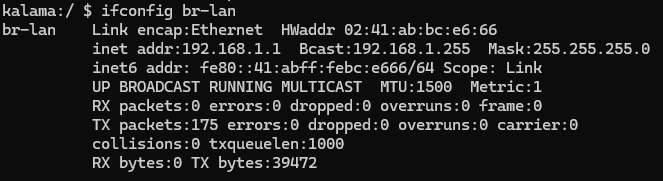
The 3 LAN ports of Rhino Pi-X1 can be connected to other network devices (e.g., IPCs, LiDAR sensors). After connection, the system will automatically assign IP addresses in the 192.168.1.x/24 network segment to downstream devices, with the gateway address: 192.168.1.1. The system bridge interface is br-lan, as shown in the figure below:
Modify LAN Port Network Segment
The LAN port network segment can also be customized. Follow these steps to modify it:
- Connect the device via ADB and log into the system using the following command:
adb shell- Execute the command to obtain root privileges (password:
P@ssw0rd4aidlux):
su- Modify the network segment:
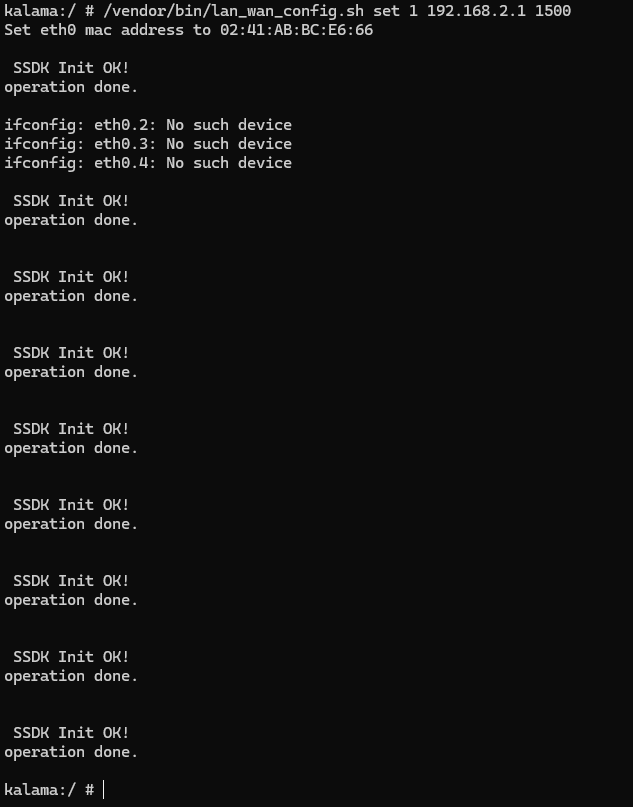
/vendor/bin/lan_wan_config.sh set 1 192.168.2.1 1500