Direct Display Login
Prerequisites
Developers need to prepare the following hardware devices in advance:
- Mainboard: Rhino Pi-X1
- Power Supply: DC 12V 5A power adapter
- Display Device: HDMI cable and monitor
- Input Devices: Keyboard and mouse (for graphical interface operations)
Starting the Board
The board comes pre-installed with the Android 13 system. After supplying power using the 12V power adapter, the board will automatically boot the system.
- Boot-up Process: The power indicator light is solid red.
- Normal system startup: The RGB light is solid red and the fan is running, indicating that the system has completed booting up.
Logging into the Android System
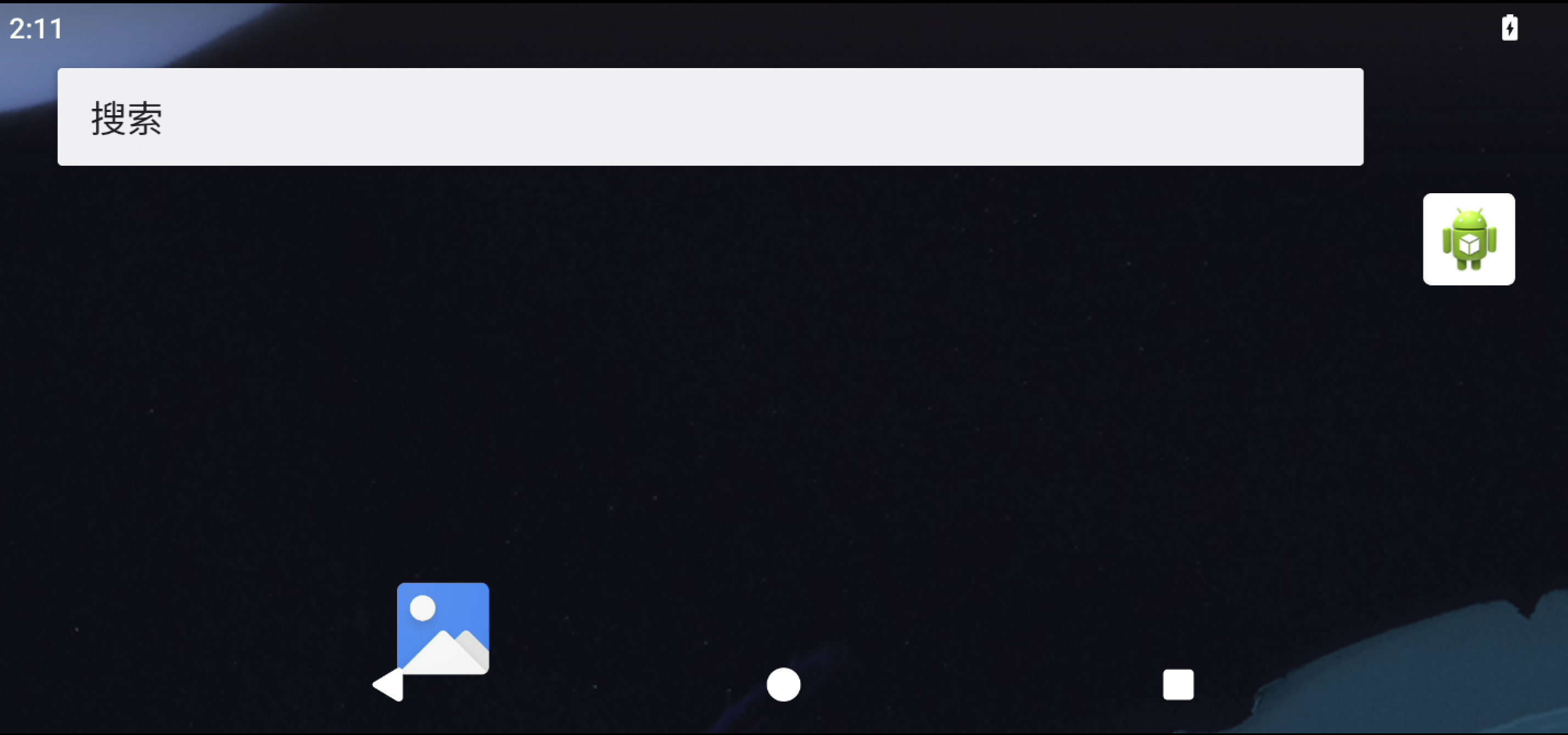
Upon the first startup of the board, developers will see the Android system home screen. Swipe up on the screen using the mouse to bring up the application menu.
Checking the AidLux System
Developers can check if the AidLux system is installed on the board.
After entering the Android system, swipe up on the screen using the mouse to bring up the application menu. If the AidLux application icon is present, the AidLux system is pre-installed:
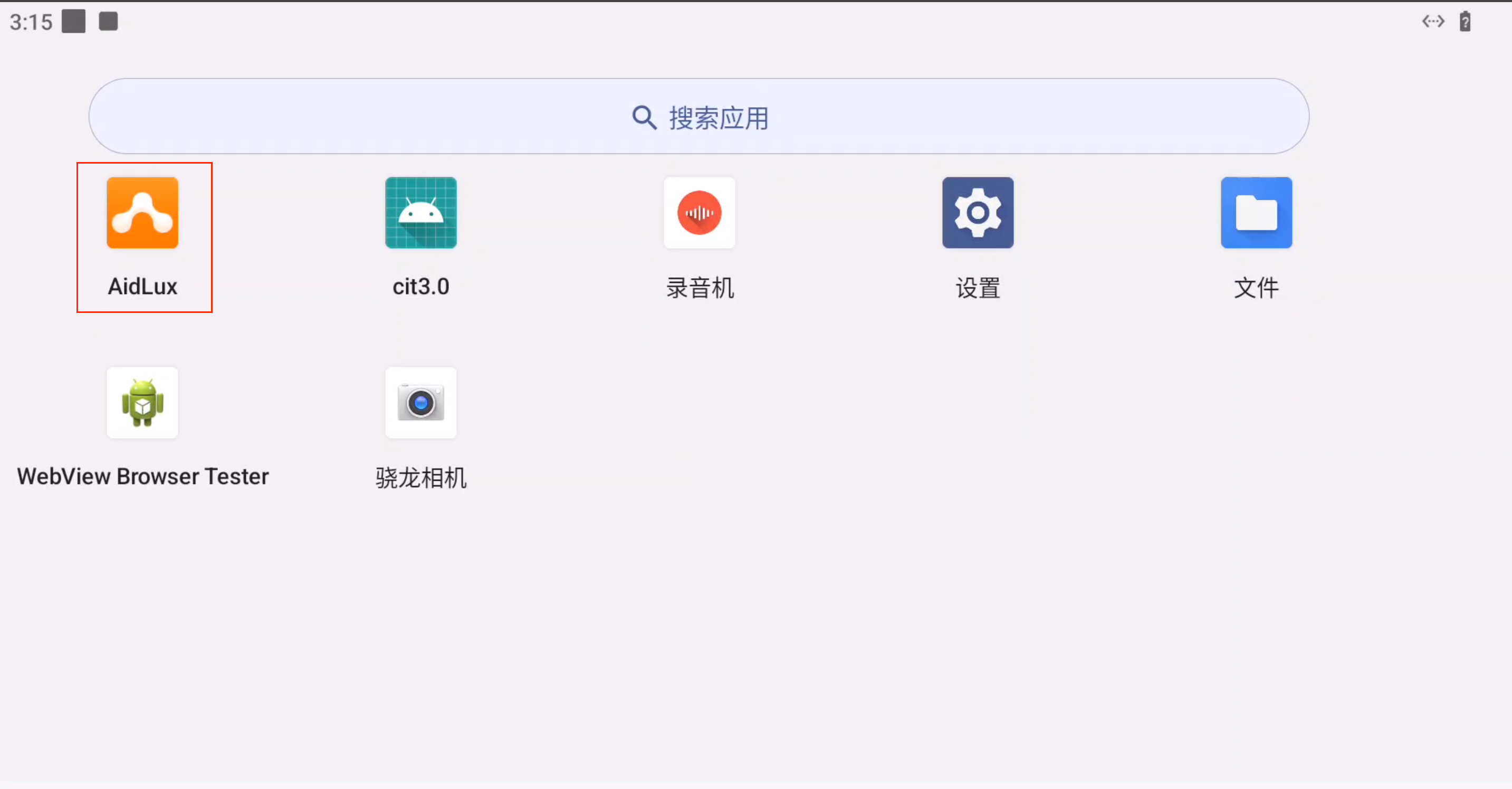
Click the AidLux application icon to enter the Aid-Desktop interface of the AidLux system.
Reminder
If the AidLux application icon is not in the application menu, the developer needs to install the AidLux system manually. Please refer to Install AidLux System
Logging into the AidLux Converged System
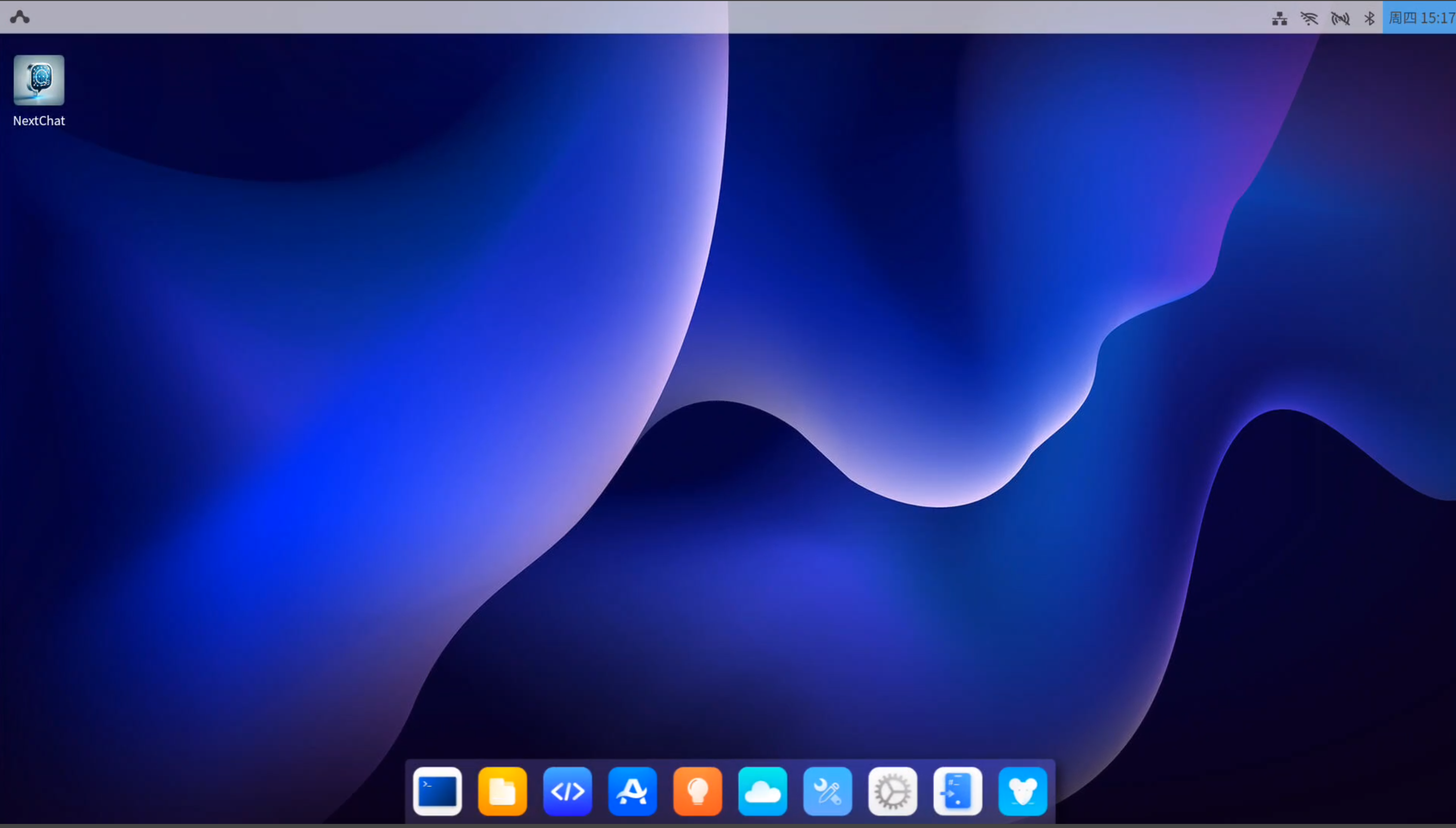
After entering the Android system, swipe up on the screen using the mouse to bring up the application menu. Click the AidLux application icon to enter the Ubuntu 22.04 system interface.
The Ubuntu 22.04 system interface of AidLux is as follows:
System Usage
After successfully booting the system, developers can officially start using the Android 13 and Ubuntu 22.04 systems on the Rhino Pi-X1. Please refer to System Usage
Tip
If developers need to reinstall the system or perform an OTA upgrade, please refer to: System Flashing