AidLux OS Usage
First Launch
After the application is installed and launched for the first time, the software will perform a Linux environment configuration. This process takes approximately 1–3 minutes, depending on the network environment and hardware performance. Once the configuration is complete, you can enter the AidLux System main interface.
As shown below, open the AidLux App on Android and click to launch it.

App Center
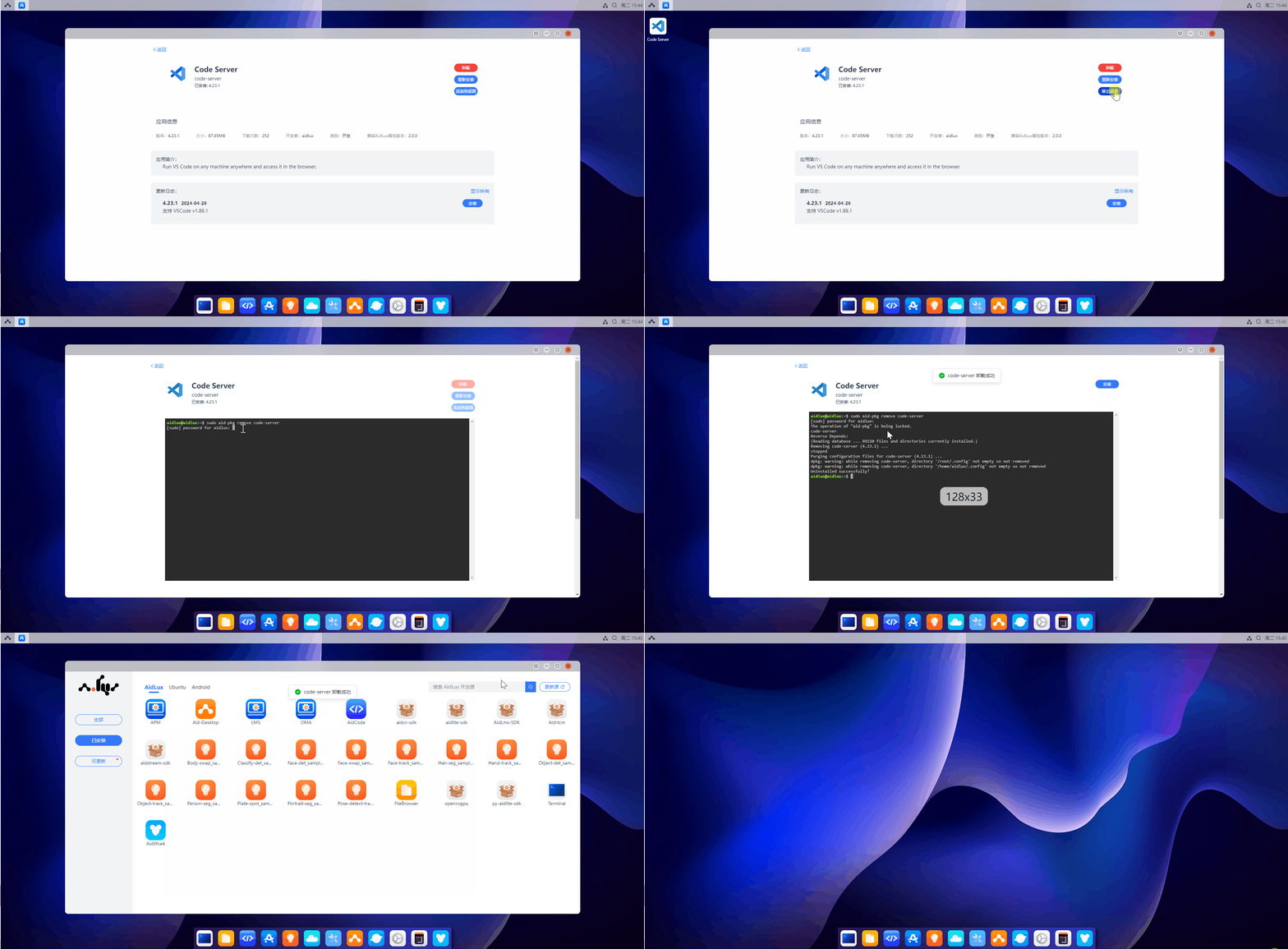
- AidLux Apps Open the App Center, select the icon of the app you want to install under the
AidLuxtab, and click to start the installation. The password for app installation isaidlux.

Installed apps can be viewed in the Installed tab. Select the icon of an installed app, click the button to add it to the desktop, and tap the icon to launch the app. (You can also click the icon in the Installed tab to uninstall the corresponding app.)
- Android Apps Open the App Center, select the icon of the app you want to add under the
Androidtab, and click to chooseAdd to Desktop. Note: Web remote desktop does not support viewing Android apps; please use this feature directly on the Android device. You can then see the installed apps on the AidLux desktop and tap their icons to use them. You can also click the icons in theAndroid Addedtab of the App Center to remove the corresponding apps from the desktop.

AidCode
- Open the AidCode app icon on the desktop. The top part is the operation area, and the bottom part is the code area.
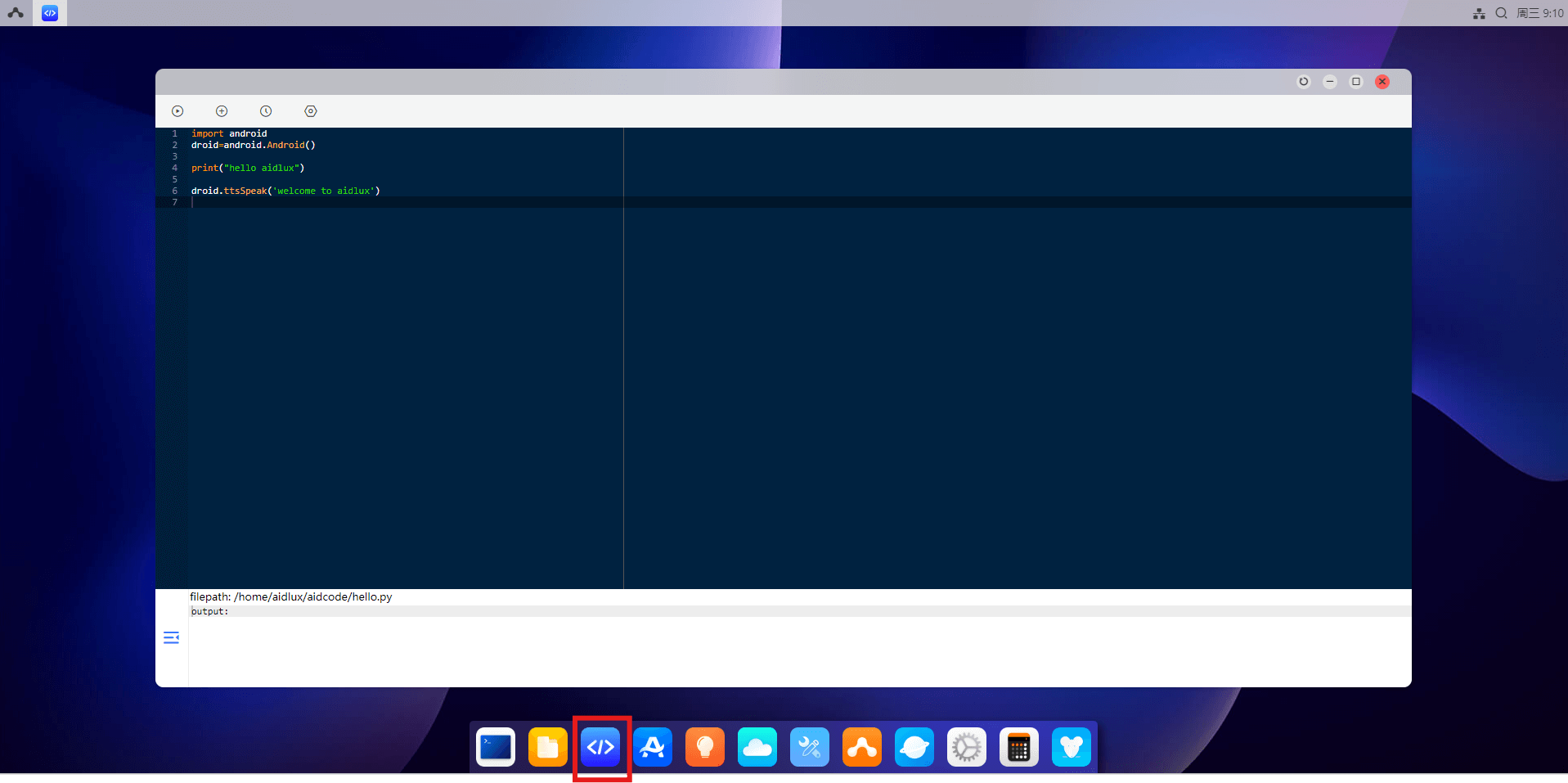
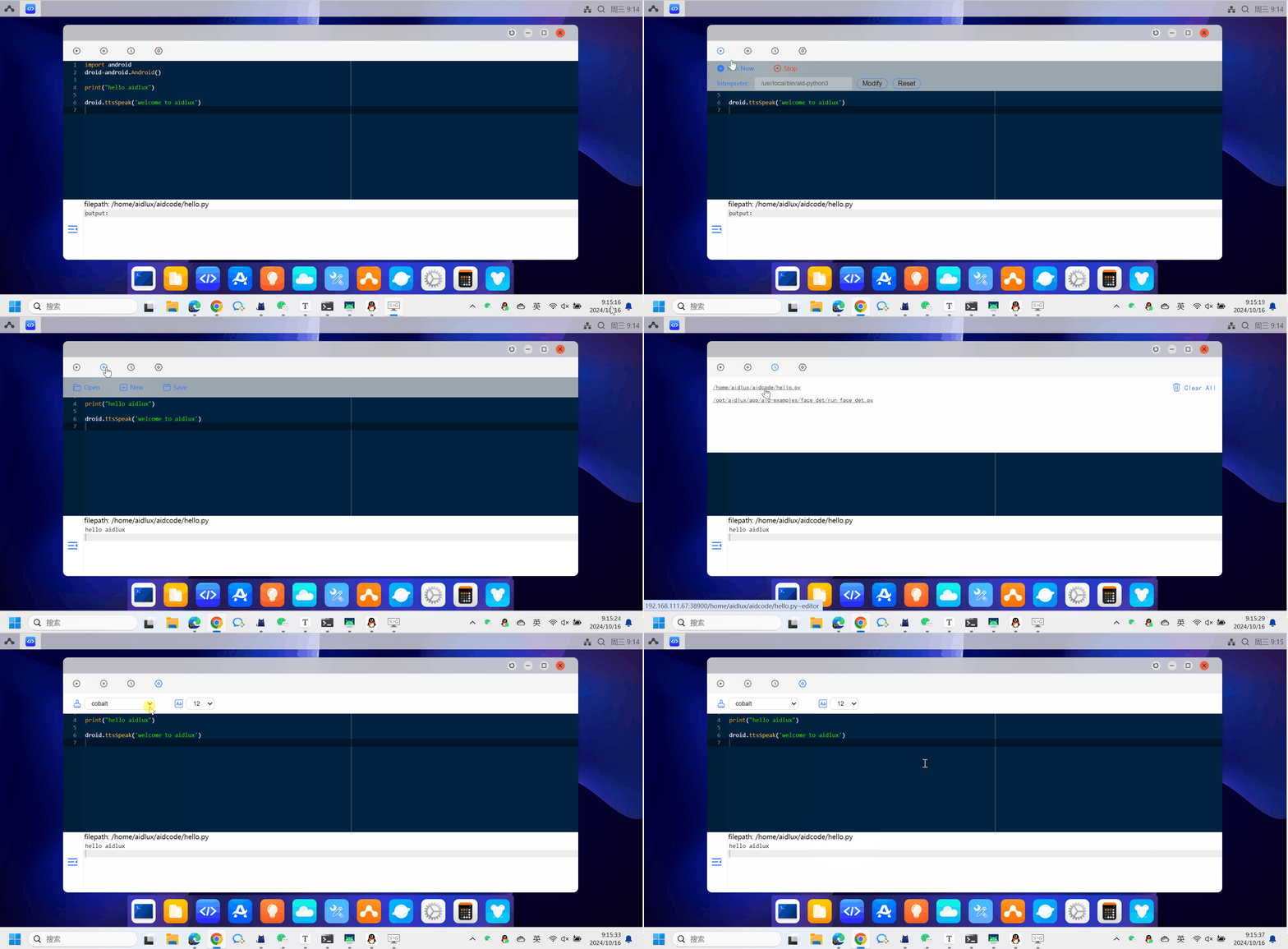
Click the first button at the top to expand a secondary button menu:
- Run Now: Execute the current code
- Stop: Terminate the running process
Click the second button at the top to expand a secondary button menu:
- Open: Open an existing Python code file
- New: Create a new Python code file
- Save: Save the current Python code file
Click the third button at the top to view recently opened files.
Click the fourth button at the top to configure code style and font size.
💡 Note
It is not recommended to use iFlytek Input Method.
Settings
- Open the Settings icon on the desktop to change the wallpaper, modify the desktop style, adjust display settings, configure network settings, and change the system language in Additional Settings.

💡 Note
Desktop resolution settings are not available in the Web desktop.
File Explorer
Click the File Manager icon on the AidLux System desktop to open the File Explorer. The directory structure of AidLux is displayed on the left sidebar:
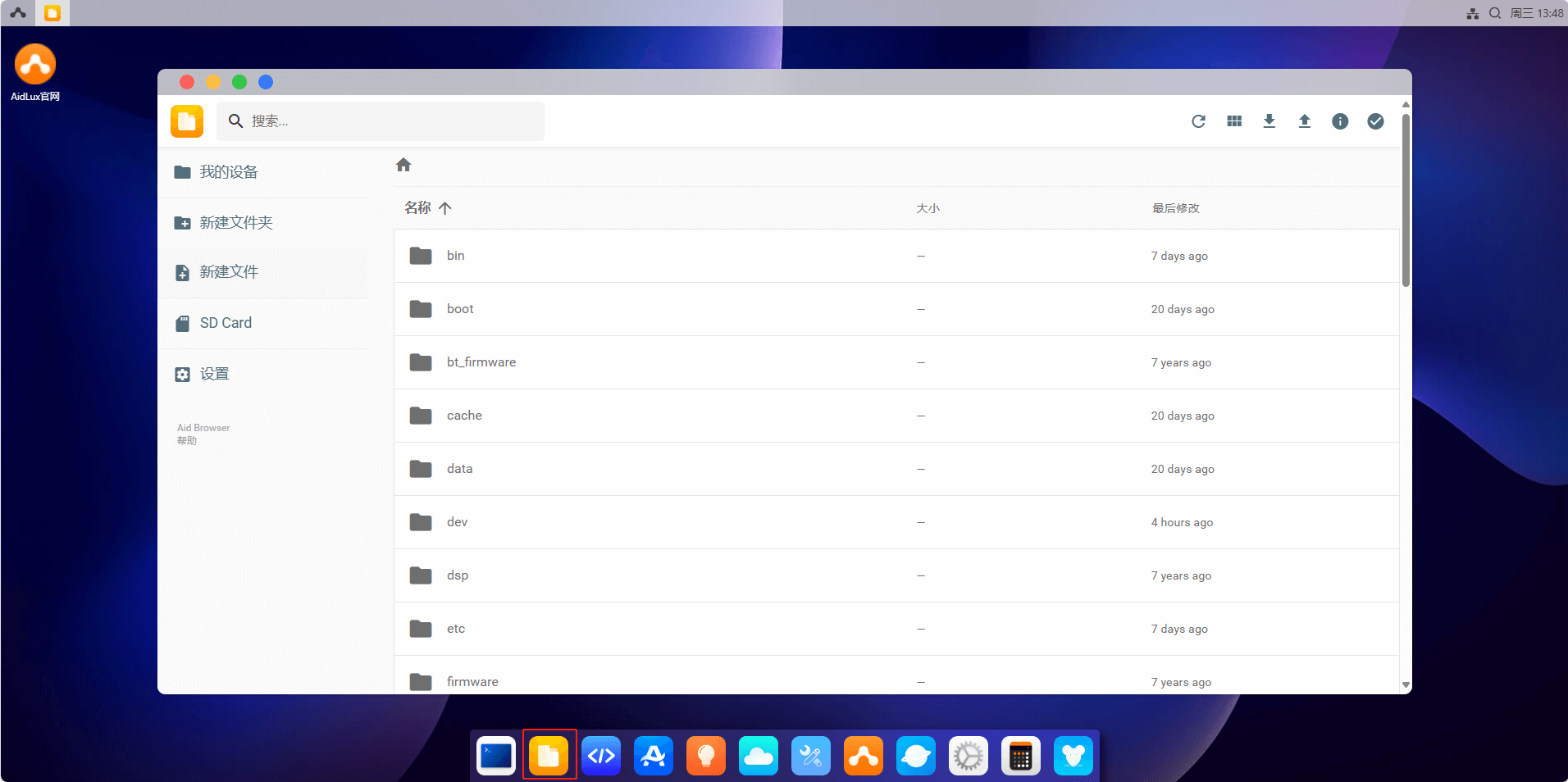
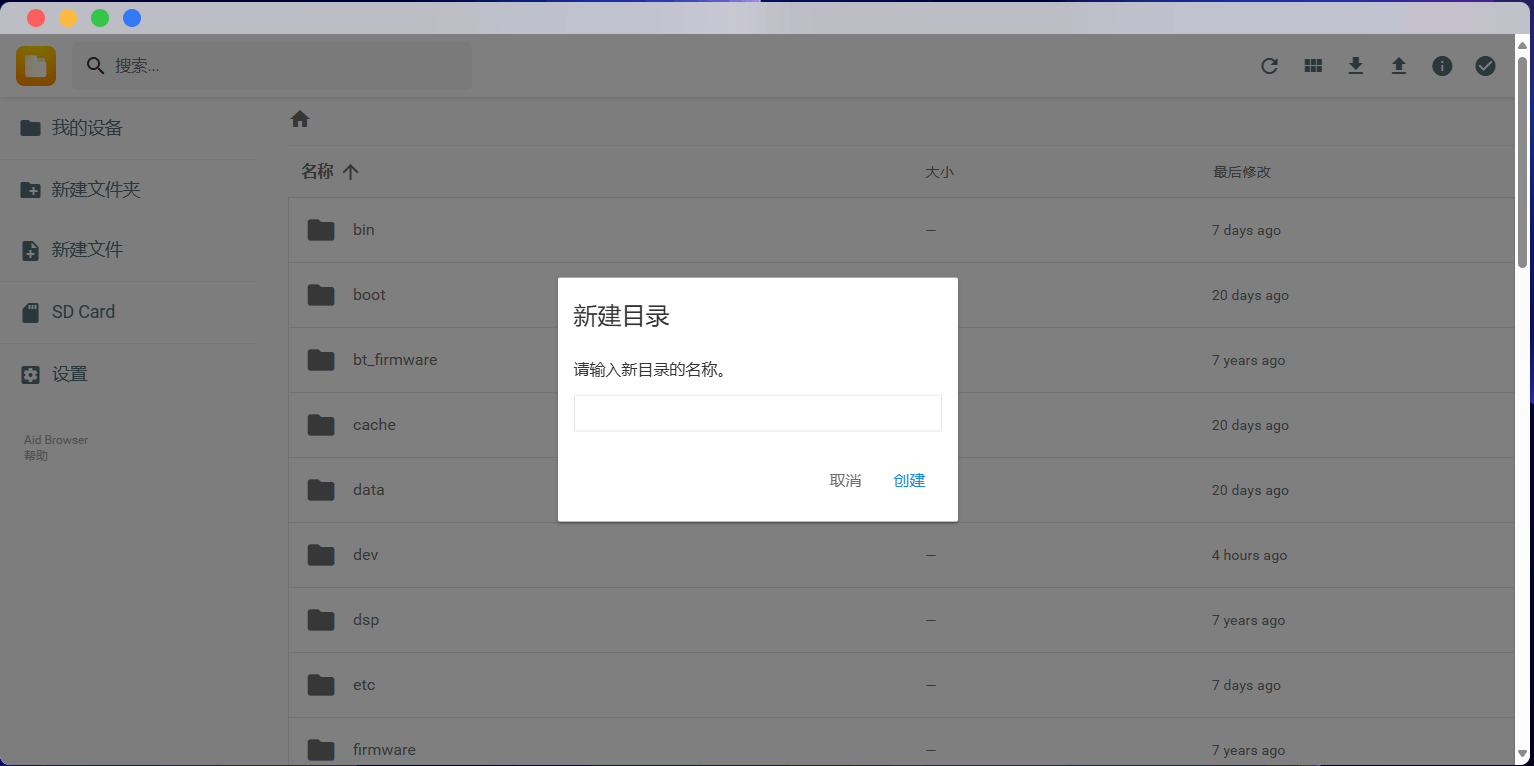
Select New Folder on the left, enter a name, and you can create a new folder:
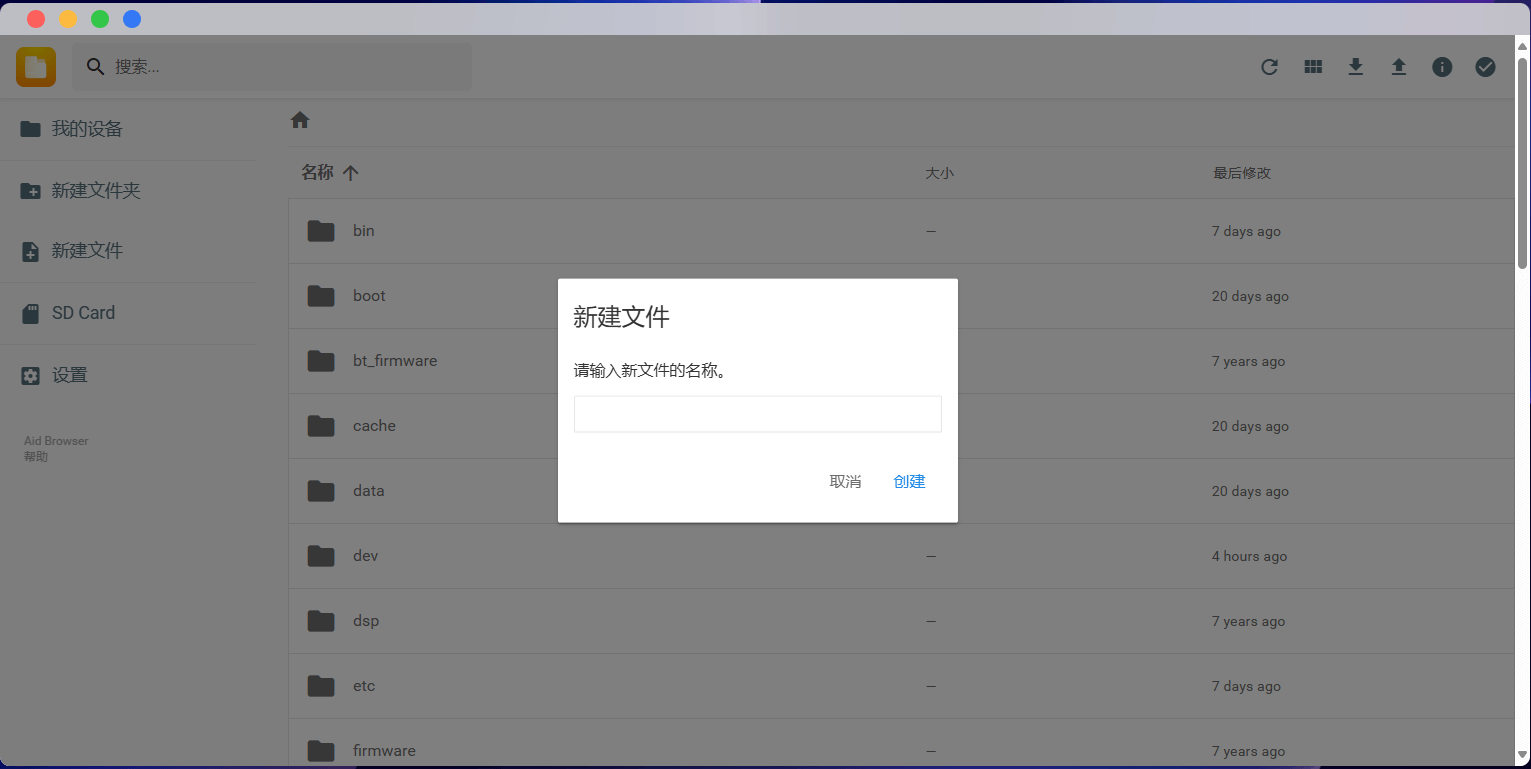
Select New File on the left, enter a filename, and you can create a new file:
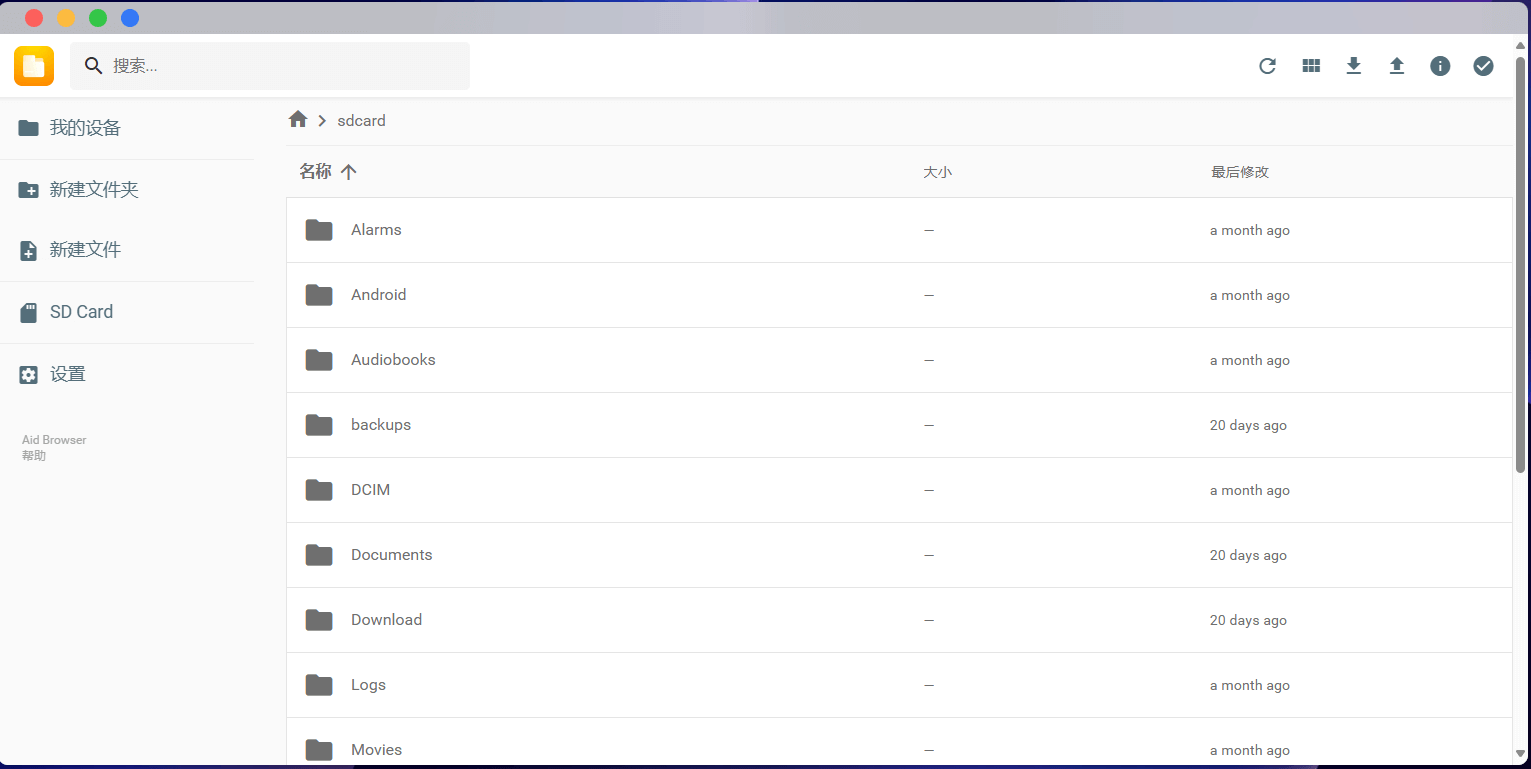
Select SD Card on the left to quickly navigate to the device storage directory:
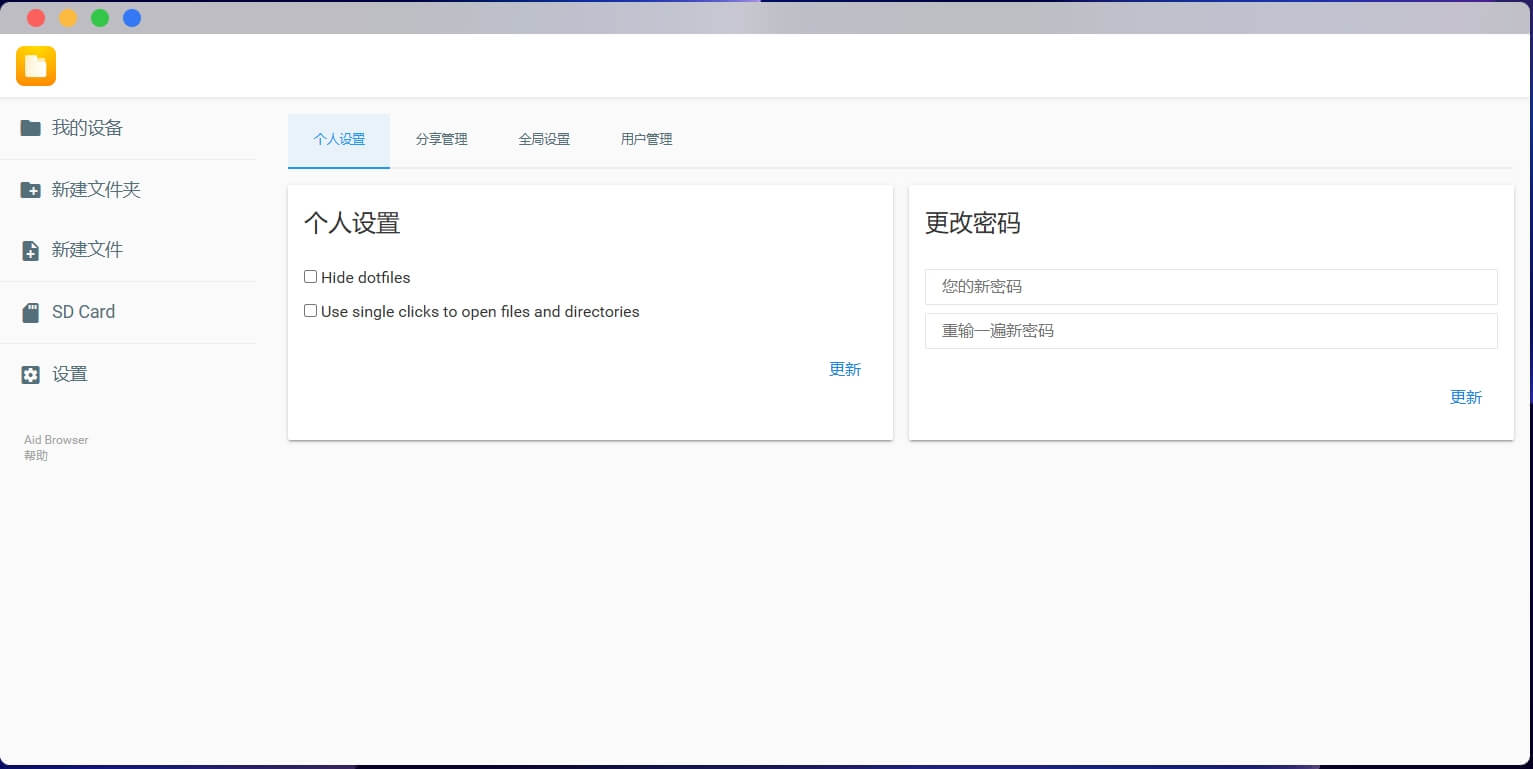
Select Settings on the left to configure relevant preferences:
Common Directory Introduction
The directory path for the SD card on mobile phones or ARM boards in AidLux System is
sdcard.The
Homedirectory contains sample projects.The directory path for external USB drives is
media/sdi1.The directory for storing images in
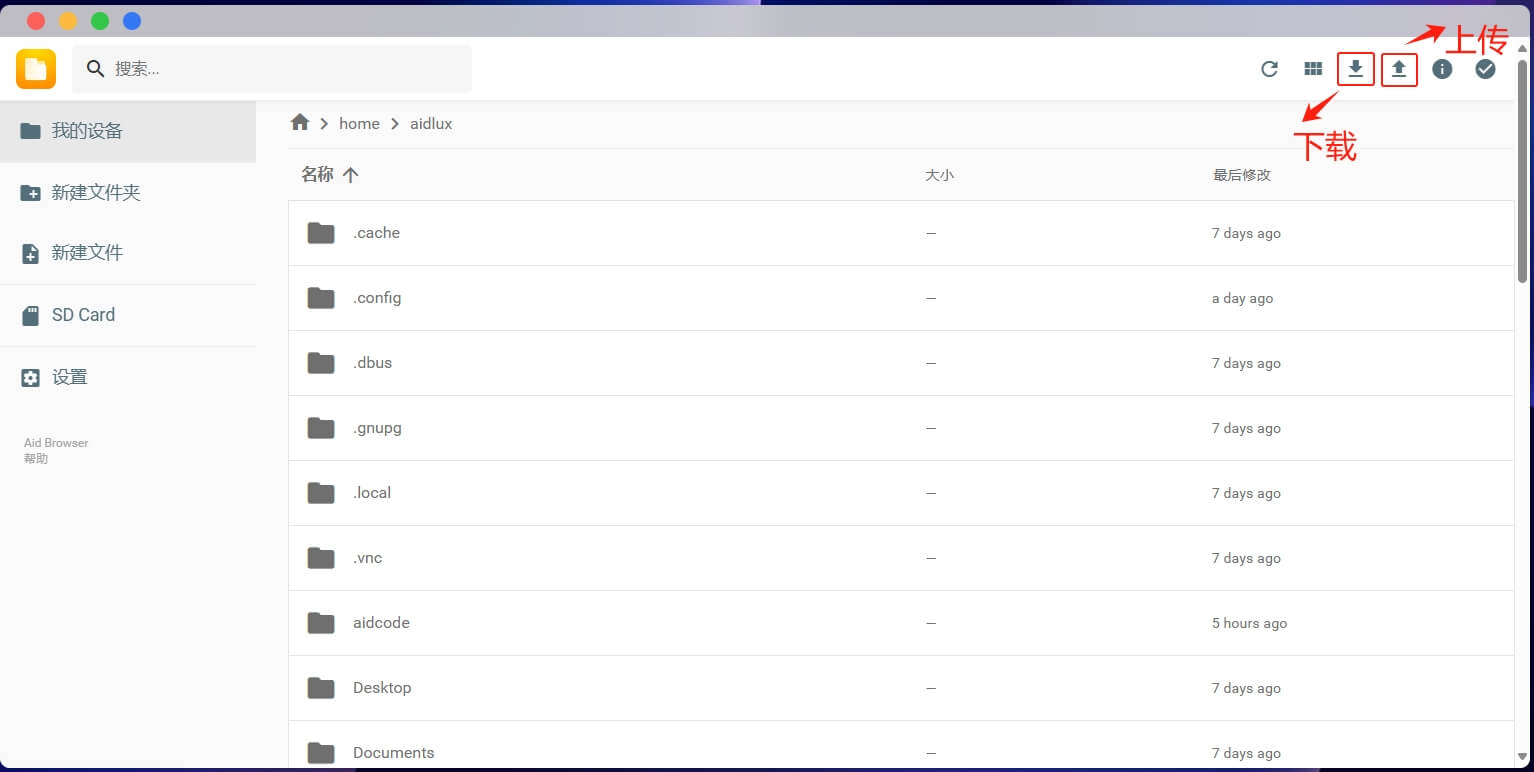
sdcardisDCIM.Upload and Download Files To upload files on a computer, select code files or images from a folder and click the upload button in the upper right corner of the File Explorer. You can also directly drag and drop files into the File Explorer. (If the file is large, an upload progress bar will appear at the top.) Click the download button in the upper right corner of the File Explorer to download files from the mobile device to the computer.
💡 Note
Only the /home/AidLux directory has permission to receive uploaded files.
AidLinux Environment
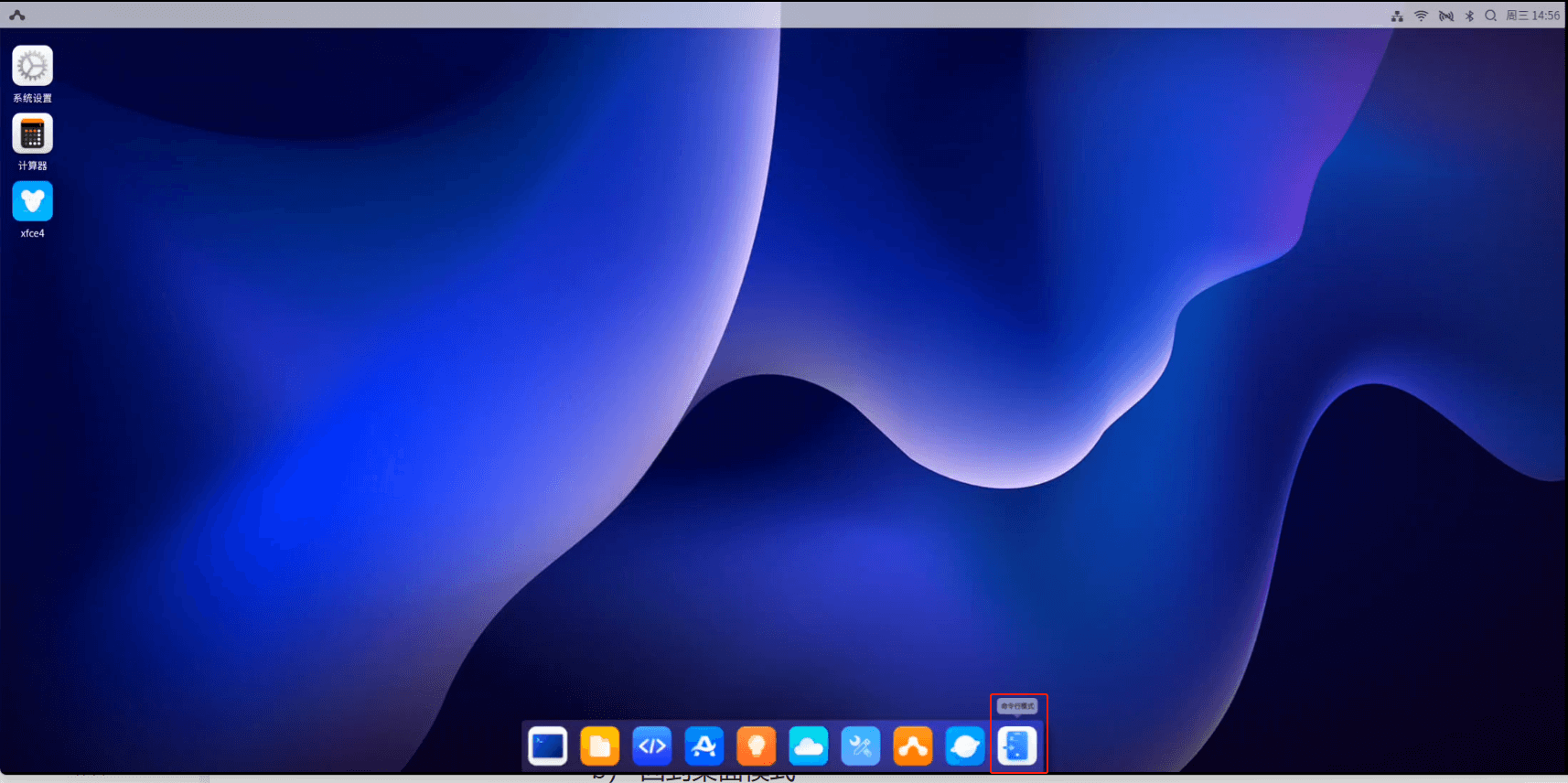
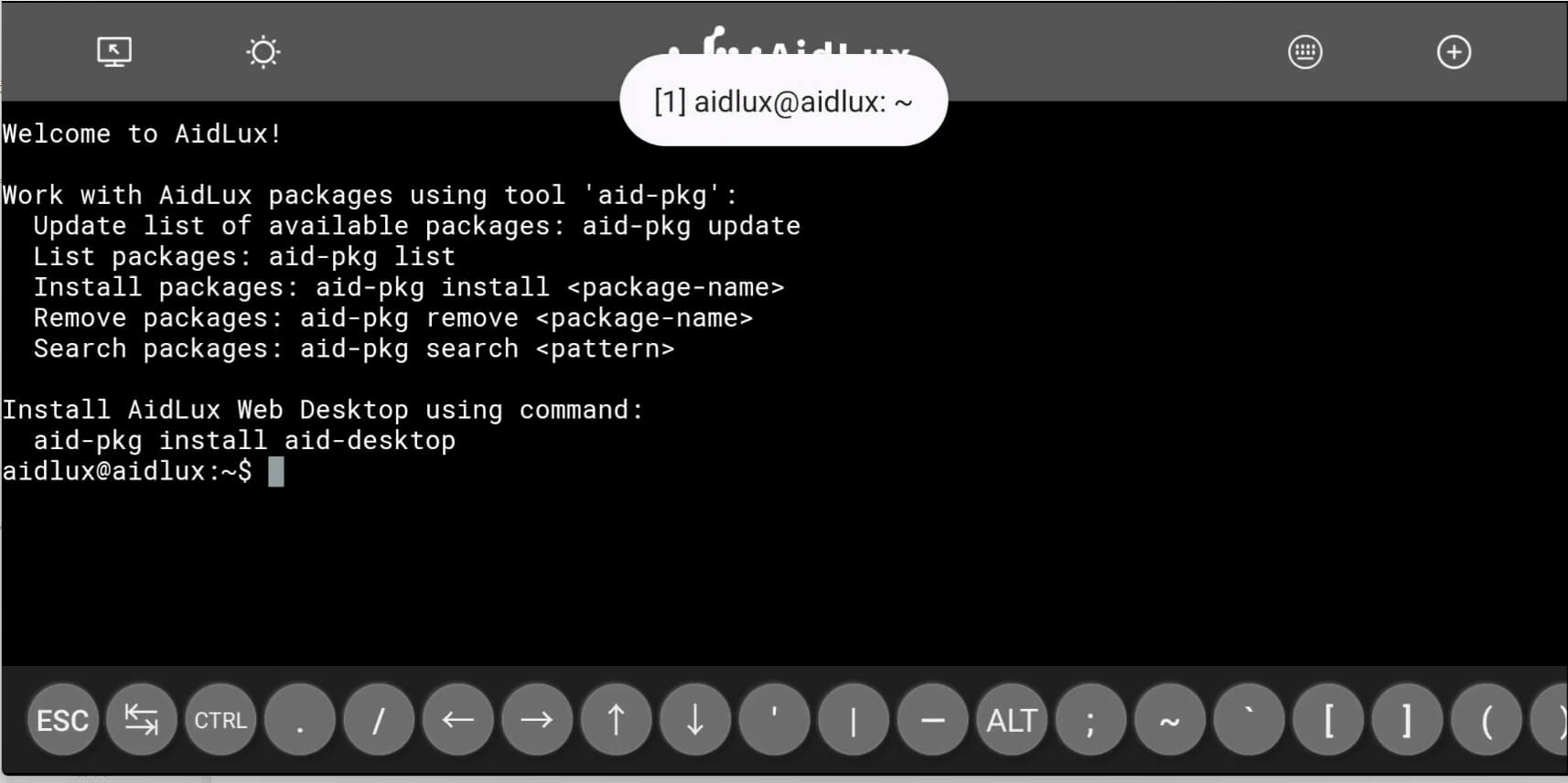
AidLux System provides users with an experience almost identical to a native Linux environment. For users who need to use the native Linux terminal, you can enter the terminal mode by clicking the Command Line Mode icon on the AidLux System desktop.
💡 Note
This feature is not available in the Web desktop.
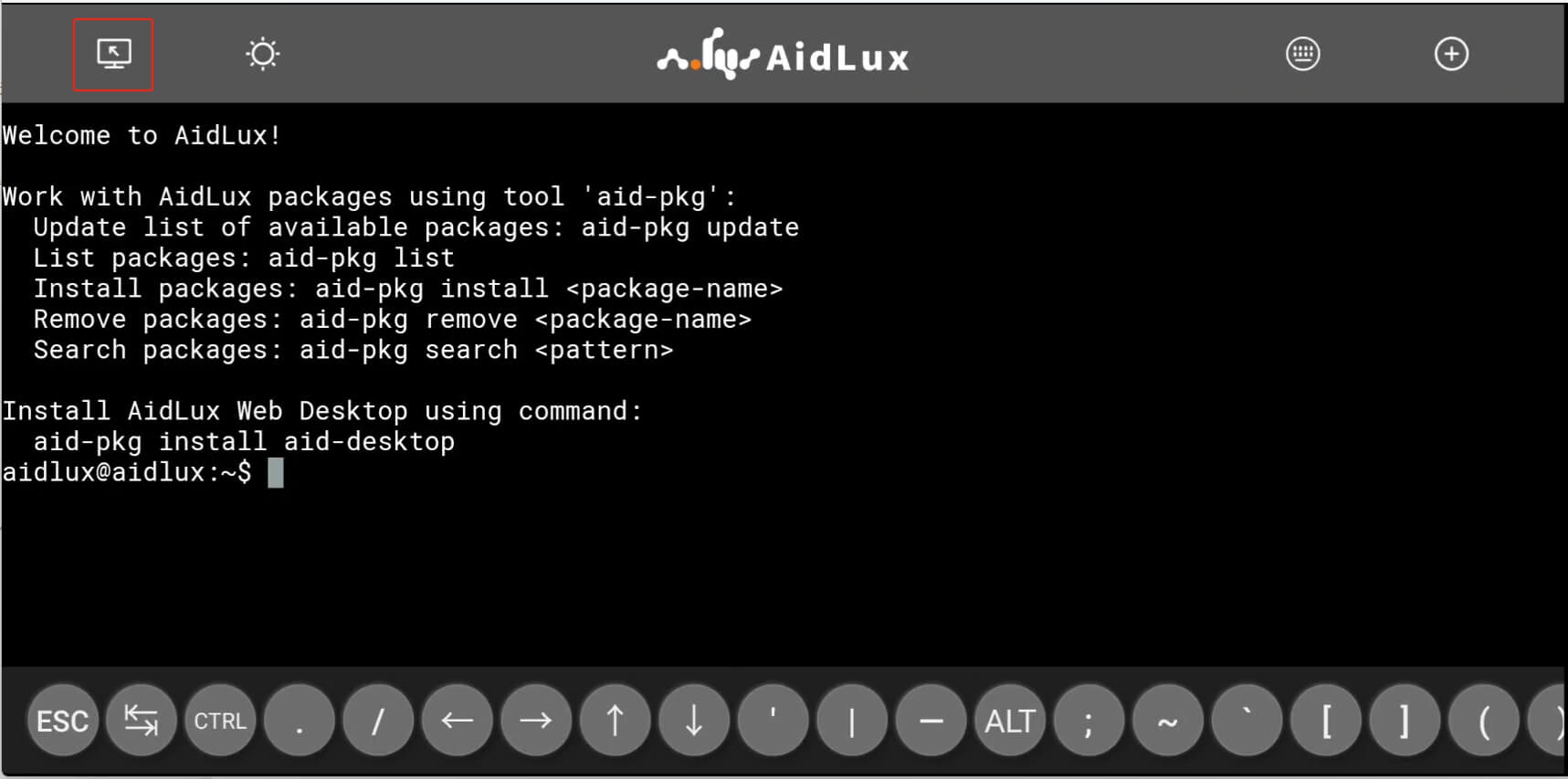
- Switch Back to Desktop Mode To switch back to desktop mode, click the button in the upper left corner of the Aid terminal.
- Touch Bar The Touch Bar at the bottom of the terminal provides all commonly used function keys. Due to limited screen width, you need to swipe horizontally to view the entire Touch Bar. Function keys on the Touch Bar—such as
CTRLandALT—will remain in a pressed state when tapped, which is used to input key combinations.

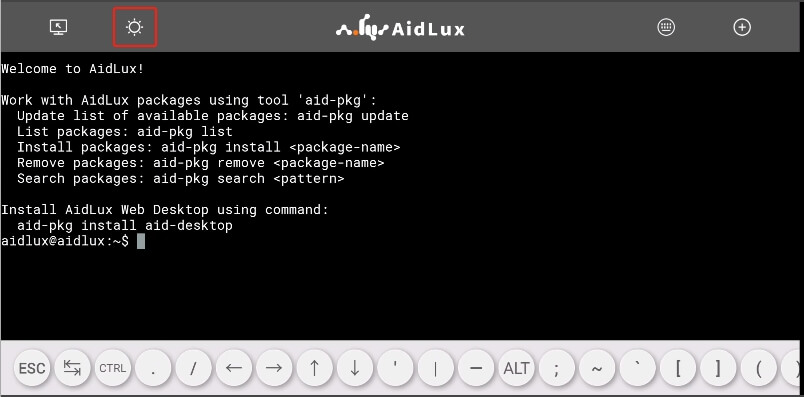
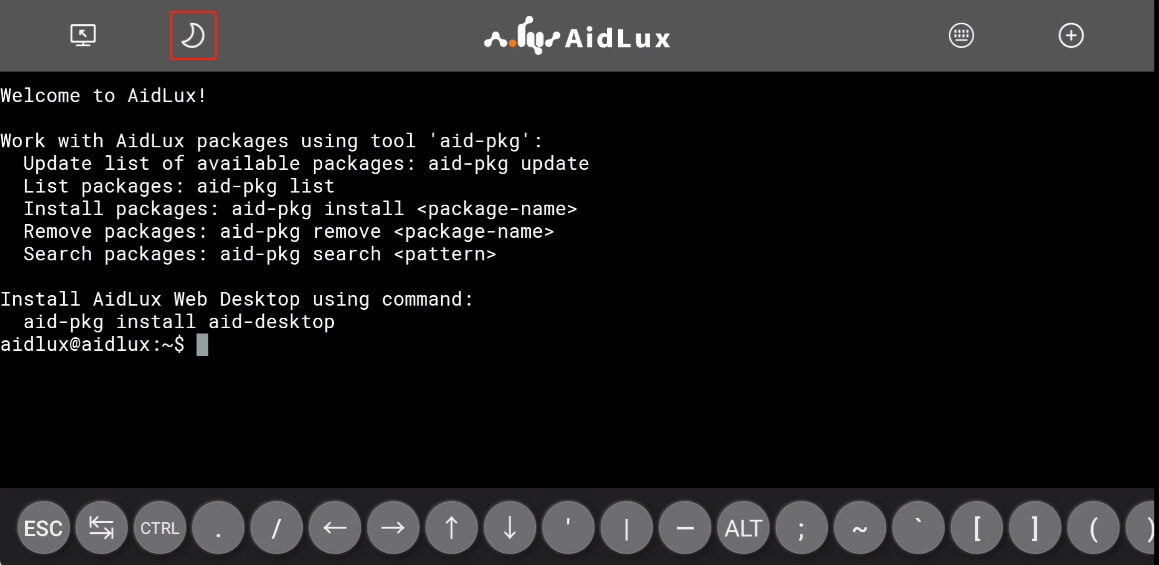
-# Switch Touch Bar Theme Click the sun-shaped button in the upper left corner of the terminal to switch the Touch Bar theme between light and dark modes.
Click it again, and the Touch Bar at the bottom will switch to the dark theme.
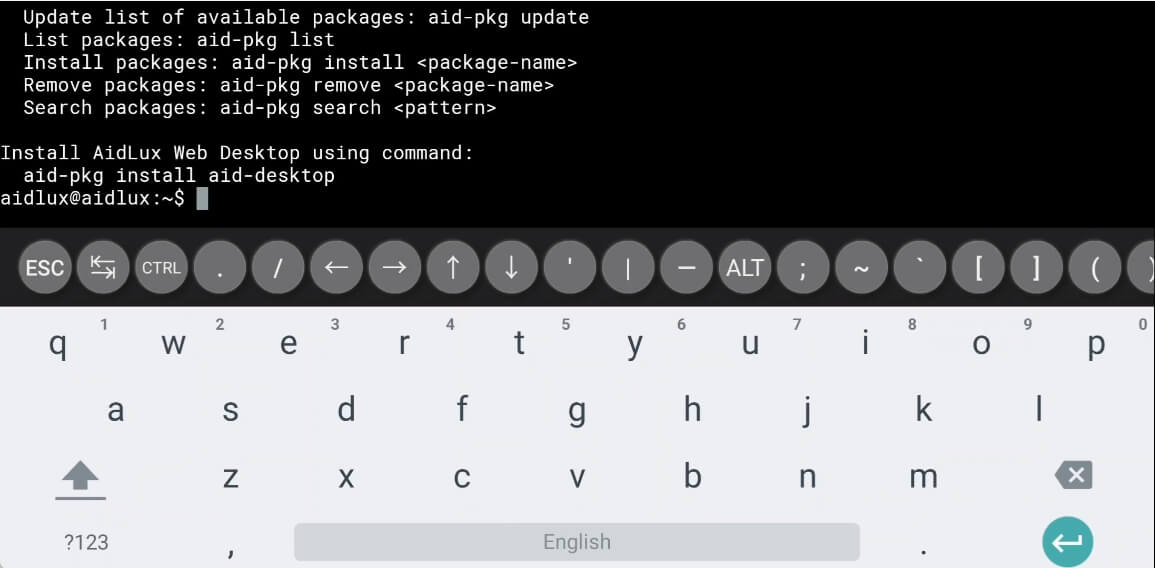
- Keyboard Tap the blank area of the terminal to bring up the system keyboard.
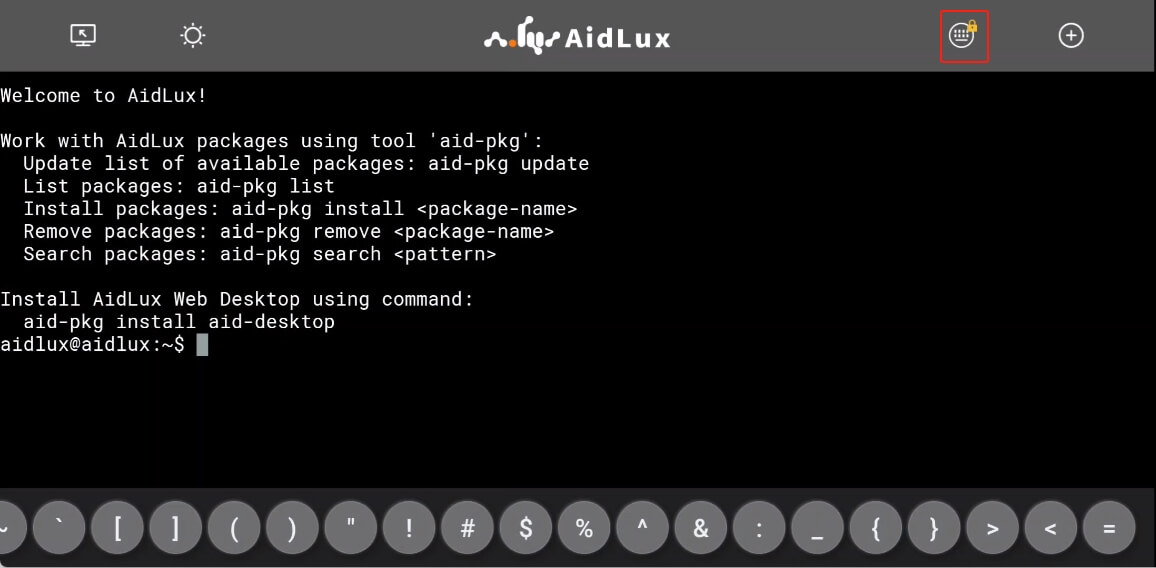
Click the keyboard-shaped button in the upper right corner of the terminal to toggle the lock status of the system keyboard. After switching, a lock icon will appear in the upper right corner of the button.
- Multiple Terminals When you need to run multiple foreground tasks, a single terminal may not meet your needs. You can click the plus button in the upper right corner of the terminal to create additional terminals, and switch between them here. To close a terminal after use, click the plus button in the upper right corner of the terminal, then click the close button next to the terminal number.

Switch Between Android and AidLux
Check in Settings whether AidLux System is set as the home screen app (enable this setting if you want AidLux to start automatically on boot; otherwise, disable it). After canceling the setting, you can flexibly switch between the Android and AidLux System desktop environments, as demonstrated below:
