Fusion System Split Installation
Reminder
Flashing will format the system, please backup data in advance.
Flashing Tool Installation
When developers use Rhino Pi, they need to pre-install necessary software on local Windows PC, Software as follows:
- USB Driver: USB_Driver_qud.win.1.1_installer_10061.1.zip
- System Flashing Tool: QPST_2.7.496.zip
- ADB Tool: platform-tools.zip
Software download link: Software Tool Installation Package Download Link
USB Driver Installation
Extract the
USB_Driver_qud.win.1.1_installer_10061.1.zipfile.After extraction, double-click the
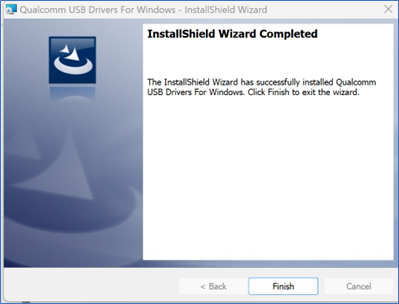
setup.exeprogram and wait for theQualcomm USB Driversinstallation interface to appear. Follow the prompts and clicknextto complete the installation.
System Flashing Tool Installation
Extract the
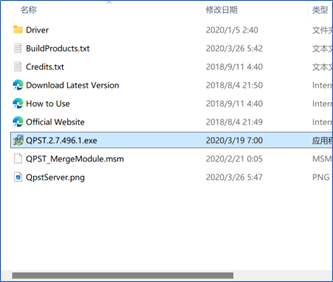
QPST_2.7.496.zipfile to the current folder.Navigate to the extracted
QPST_2.7.496directory and double-click theQPST.2.7.496.1.exeprogram to start the installation.
Follow the prompts and click
nextcontinuously to complete the installation.Default installation path after completion:
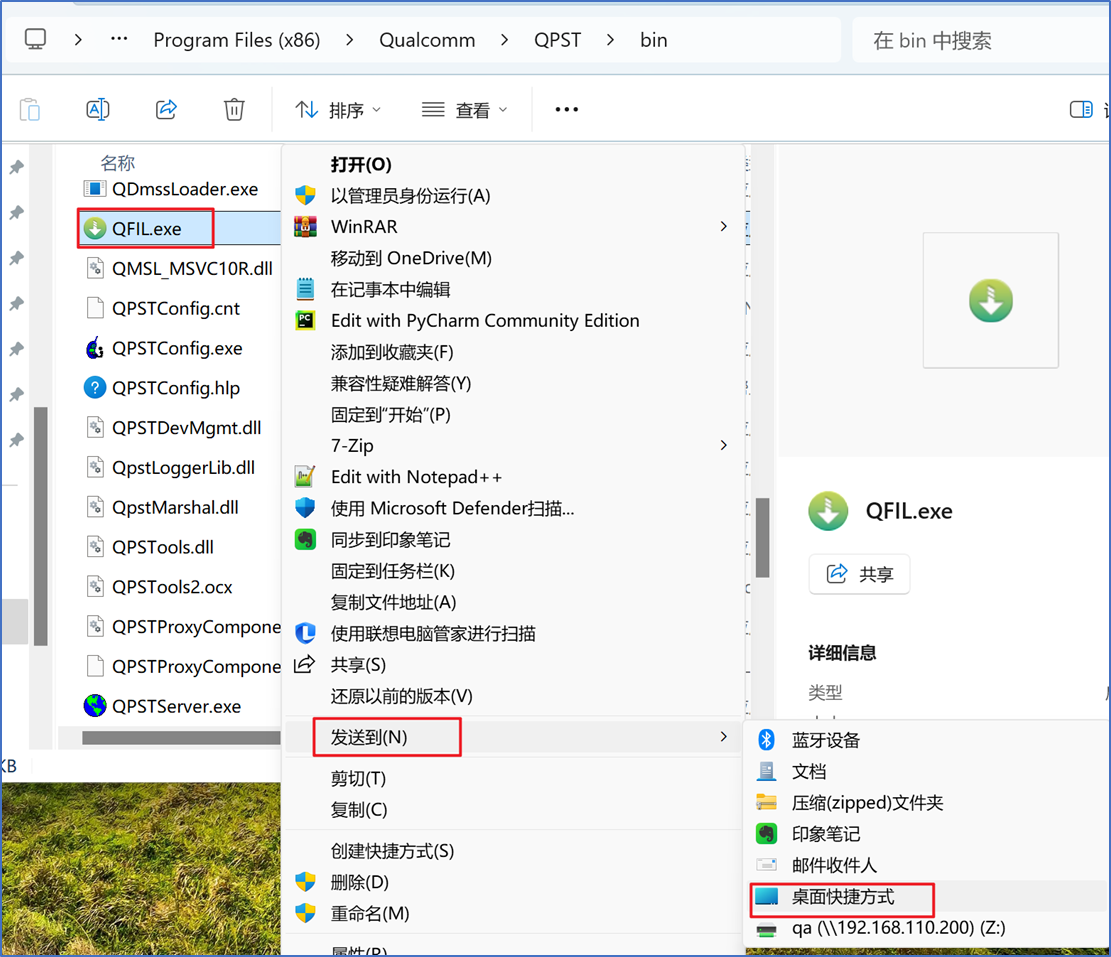
C:\Program Files (x86)\Qualcomm\QPST\bin.You can navigate to this directory and send the
QFIL.exeprogram to the desktop.
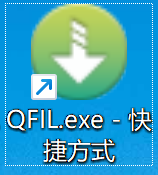
- The desktop icon is as follows.
ADB Tool Installation
- Unzip
- Extract the
platform-tools.zipfile to the D drive.
- Configure ADB Environment Variables
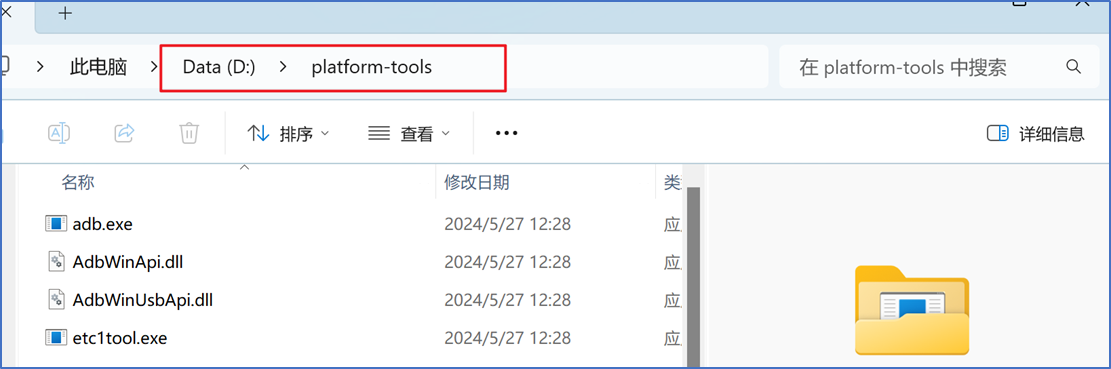
- Copy the path of the extracted
platform-toolsfolder.
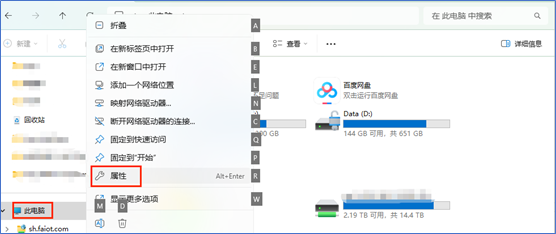
- Right-click "This PC" and select "Properties".
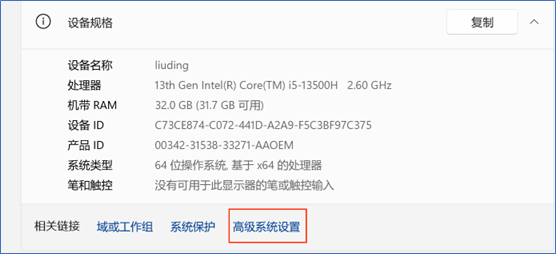
- In the pop-up settings window, click "Advanced system settings".
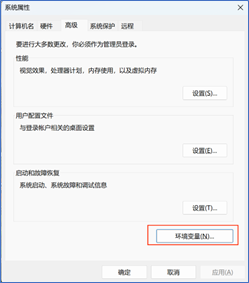
- In the Advanced tab of the pop-up System Properties window, click "Environment Variables".
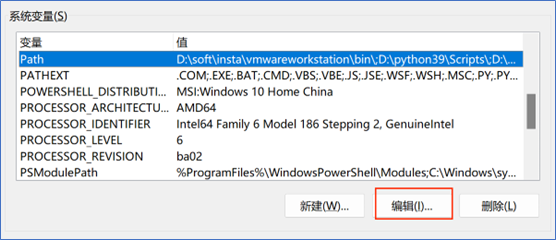
- In the pop-up Environment Variables window, select the Path variable in the "System variables" section and click "Edit" below.
- In the pop-up Edit Environment Variable window, click "New" and add the previously copied platform-tools path.
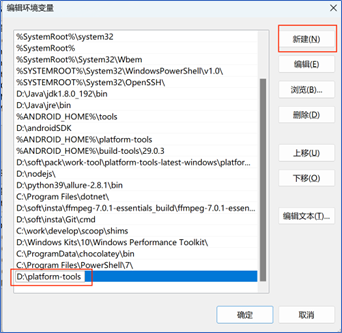
- Click "OK" in sequence to save the variable settings and exit.
- Verify if the ADB Environment Configuration is Available
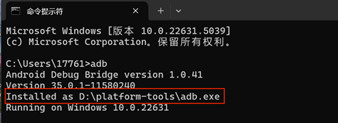
- Open the
cmdwindow and enteradb. No error is reported.
Android System Installation
Reminder
Flashing will format the system, please backup data in advance.
💡Note
If the Rhino Pi A1 you purchased is currently using Android ROM, then to re-flash you only need to do "System Download Step", no need to do "Full Erase" and "Factory Mode" two steps.
ROM Package Download
Please visit Android Image download link, download Android image for flashing.
Switch to Flashing Mode
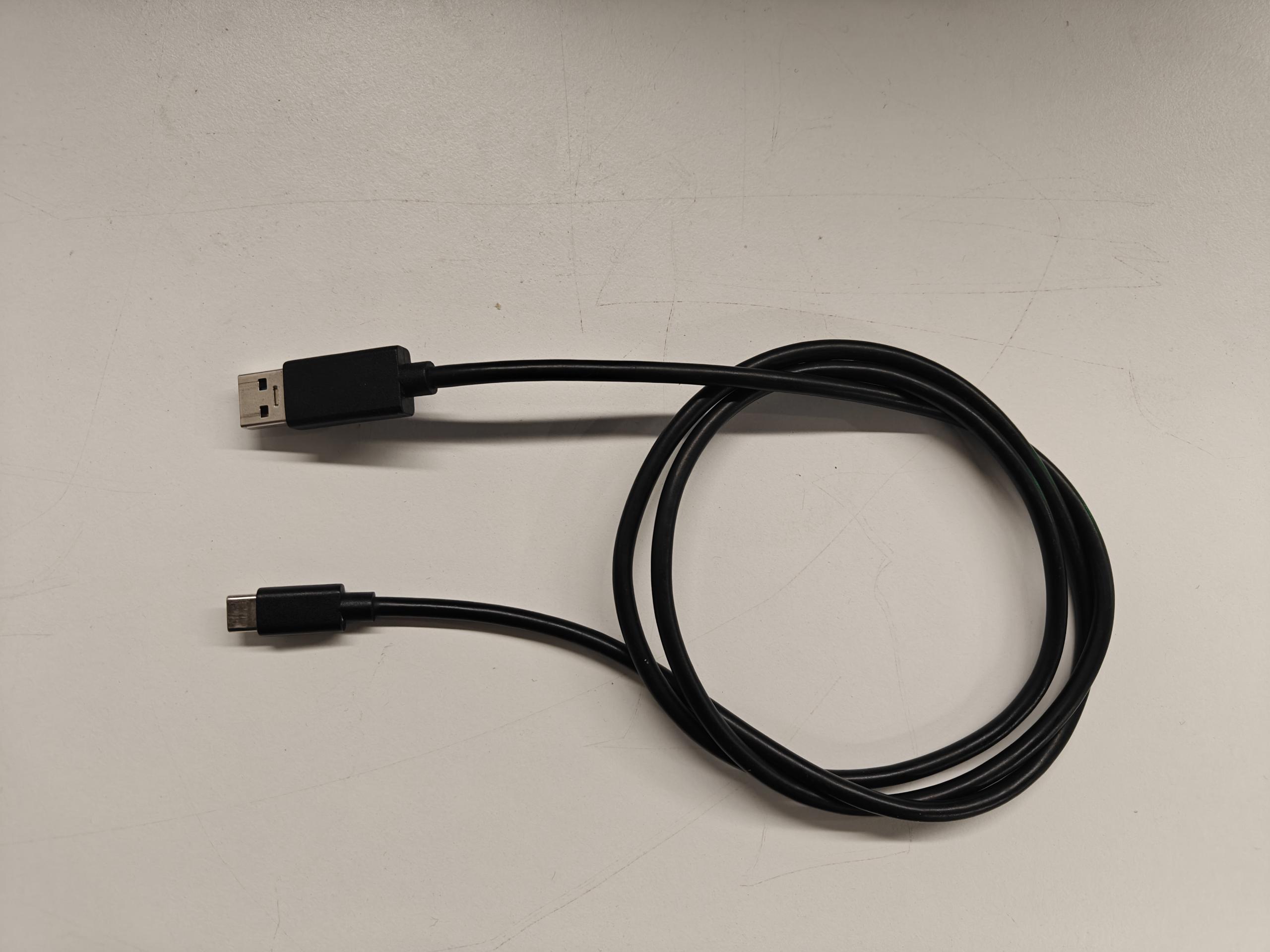
- After device boot, use USB Type A to C cable, connect PC and device. Type-A end to PC end, Type-C port to device end
- After connection, on Windows PC press win+R, in the popup window input
cmd, open terminal window, executeadb devices, will list connected devices. If not, wait a bit more, or unplug and replug the Type-C cable then execute the command

- Switch to flashing mode, execute
adb shell reboot edl
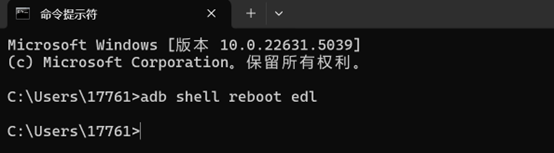
Configure QFIL Configuration Item
- Open QFIL, click upper Configuration - FireHose Configuration option

- In the popup Download Configuration window do the following settings:
Download Protocol select 0-Sahara
Device Type select ufs
Check Reset After Download option
Other options keep consistent with the screenshot below.
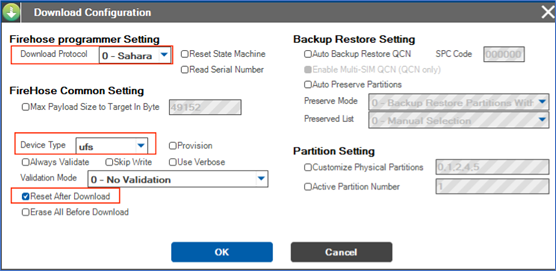
- After configuration, click
OKto save
Select Flashing Port
Click
Select Portoption, in the popup window, select the appearing 9008 port, clickOKAfter switching to flashing mode, this window should automatically show 9008 port option, if not appear please power off and restart then execute switch again and wait for it to appear
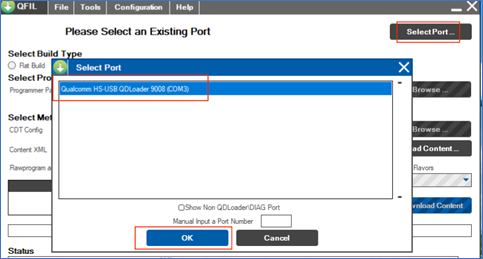
Select Build Type
- Find "Select Build Type" item, select
Flat Build

Select Flashing File
Unzip ROM file
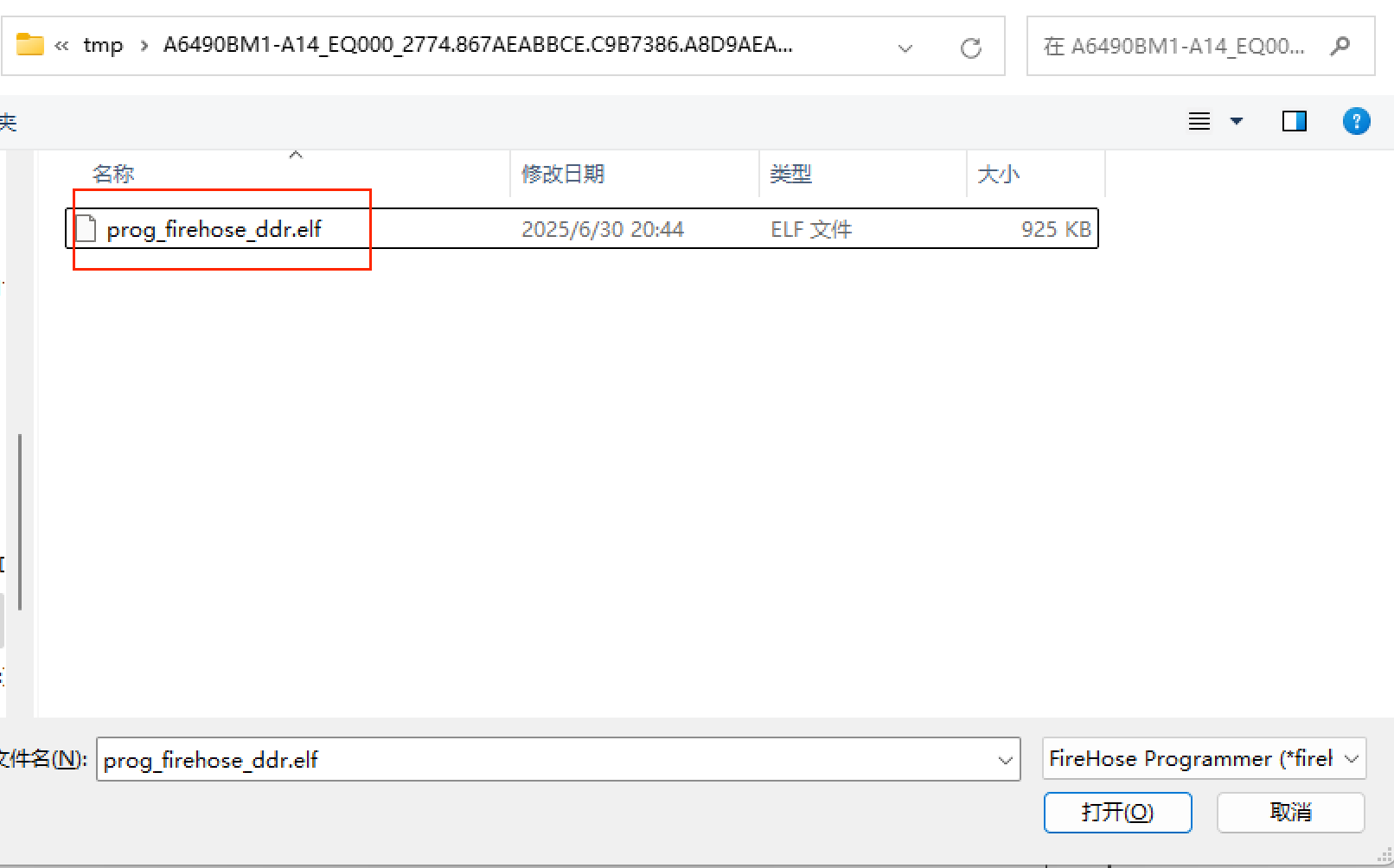
Find "Select Programmer" item, click
Browse...after "Programmer Path", find unzip path, select the unzipped ROM file
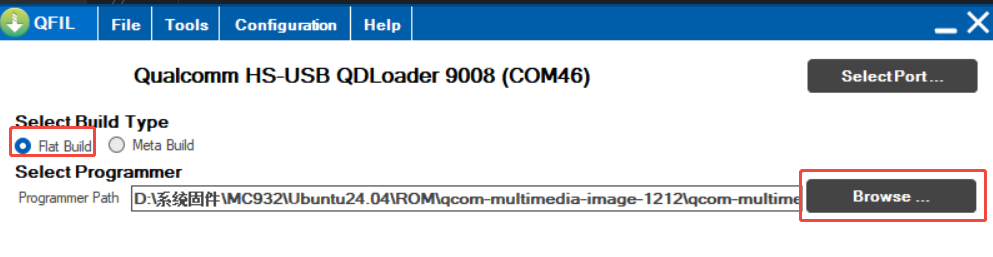
- Double-click select
prog_firehose_ddr.elf
Full Erase
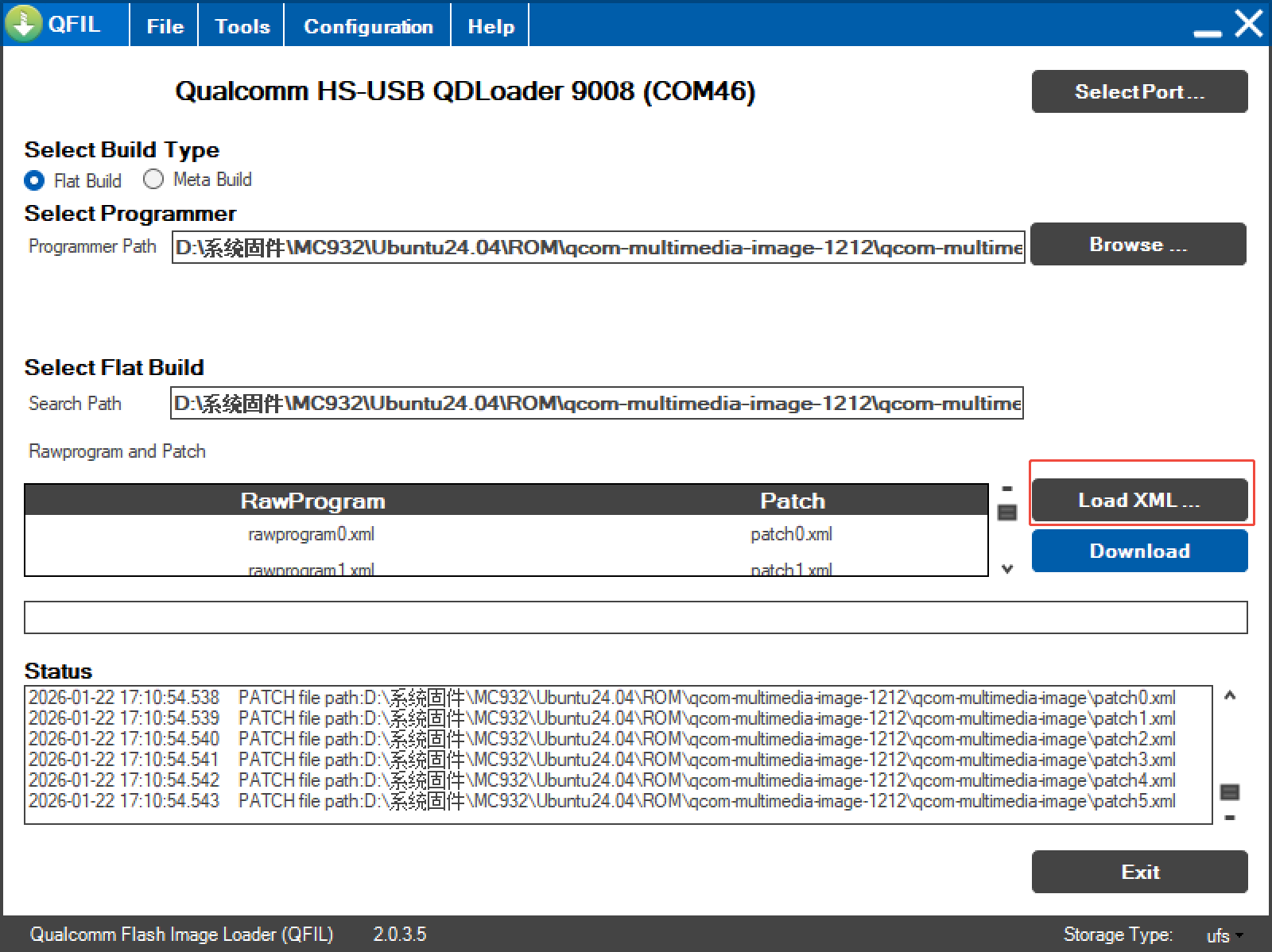
- Find "Select Flat Build" item, click
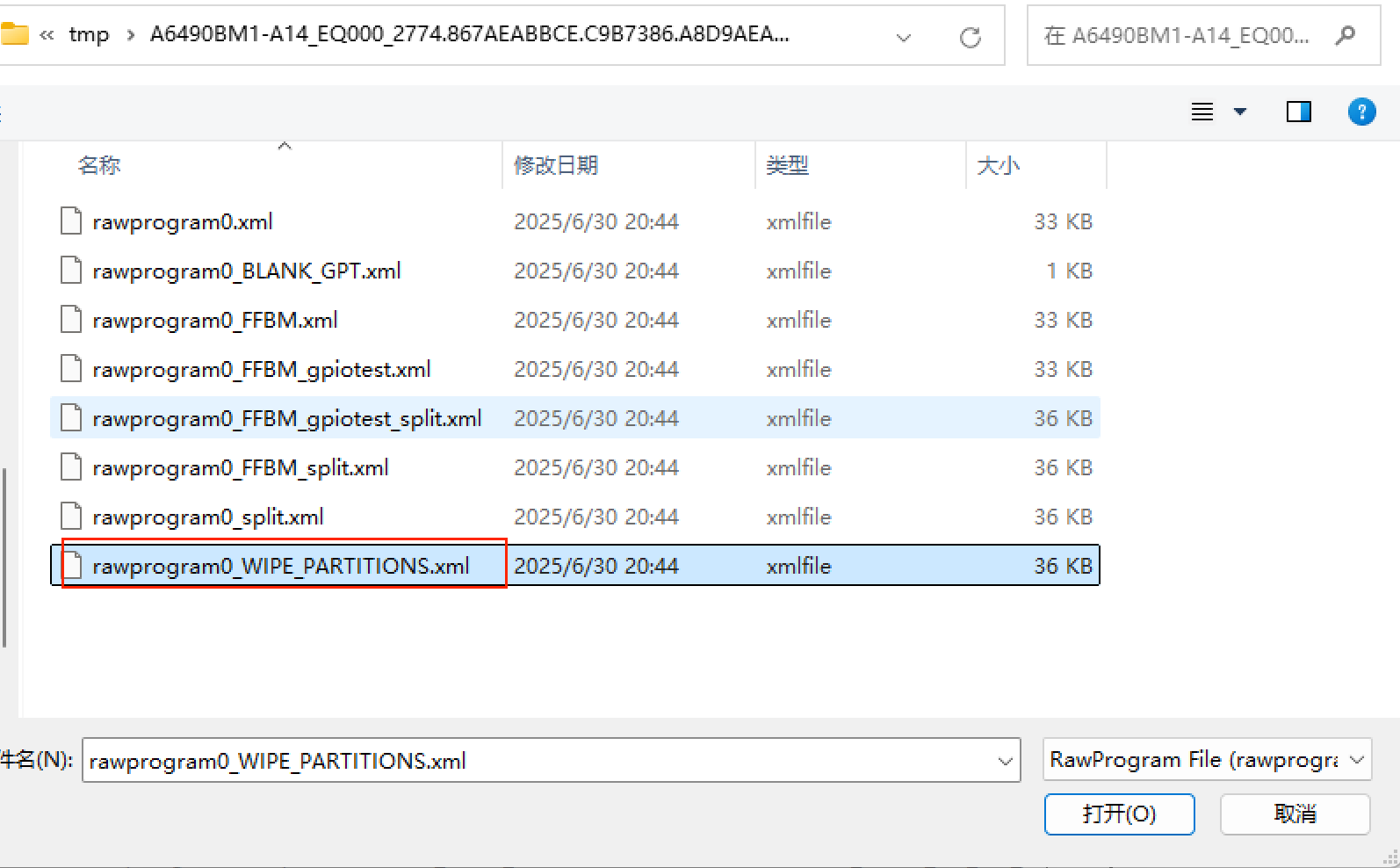
Load XML...below, select full erase xml file
- In the popup window, select
rawprogram0_WIPE_PARTITIONS.xmlfile
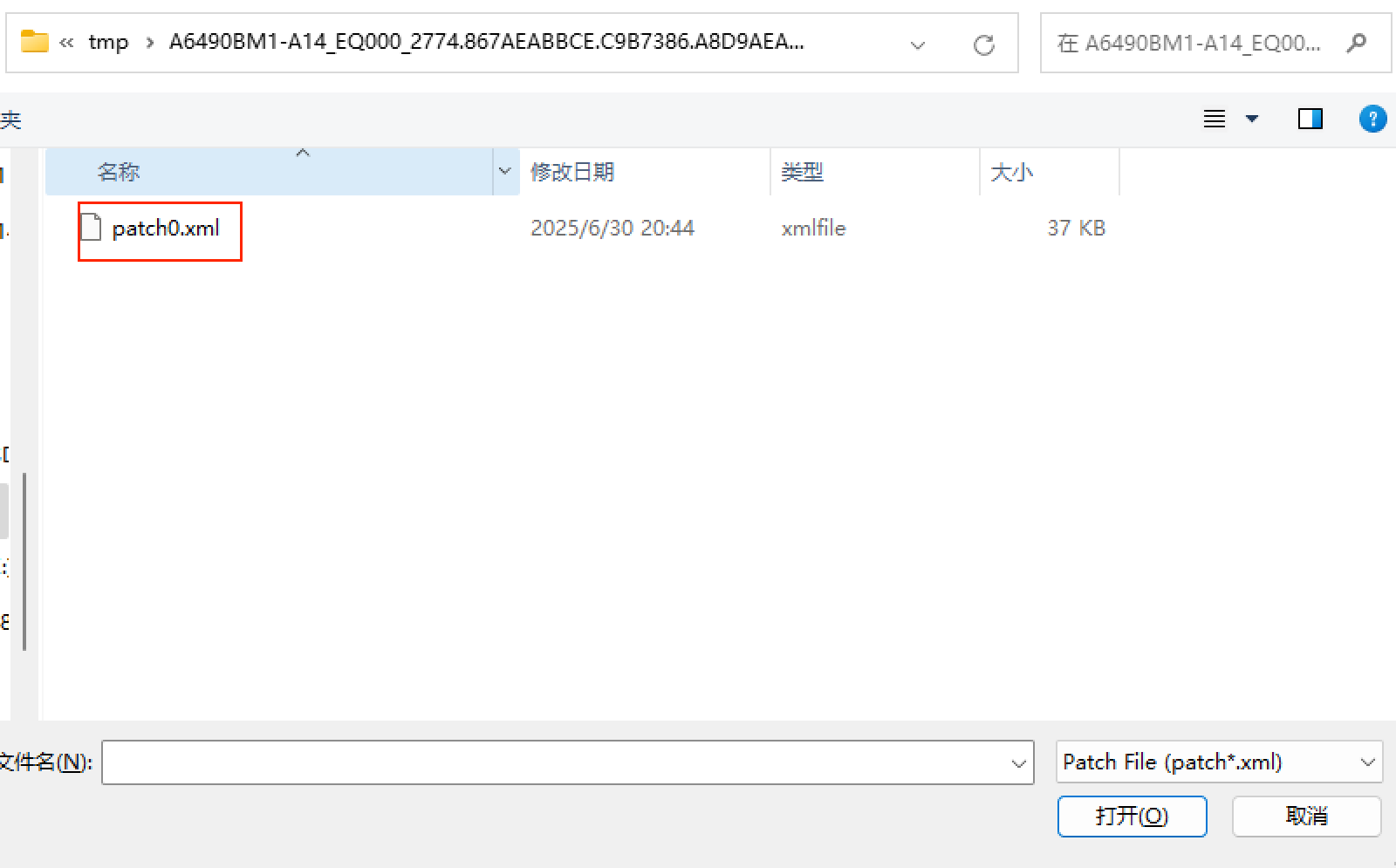
- After selecting xml file, will automatically popup another window. Still select all files.
- Click
Download, start erasing
Factory Mode
- Wait for erase to complete, click
Load XML...again, selectrawprogram0_FFBM_split.xmlfile
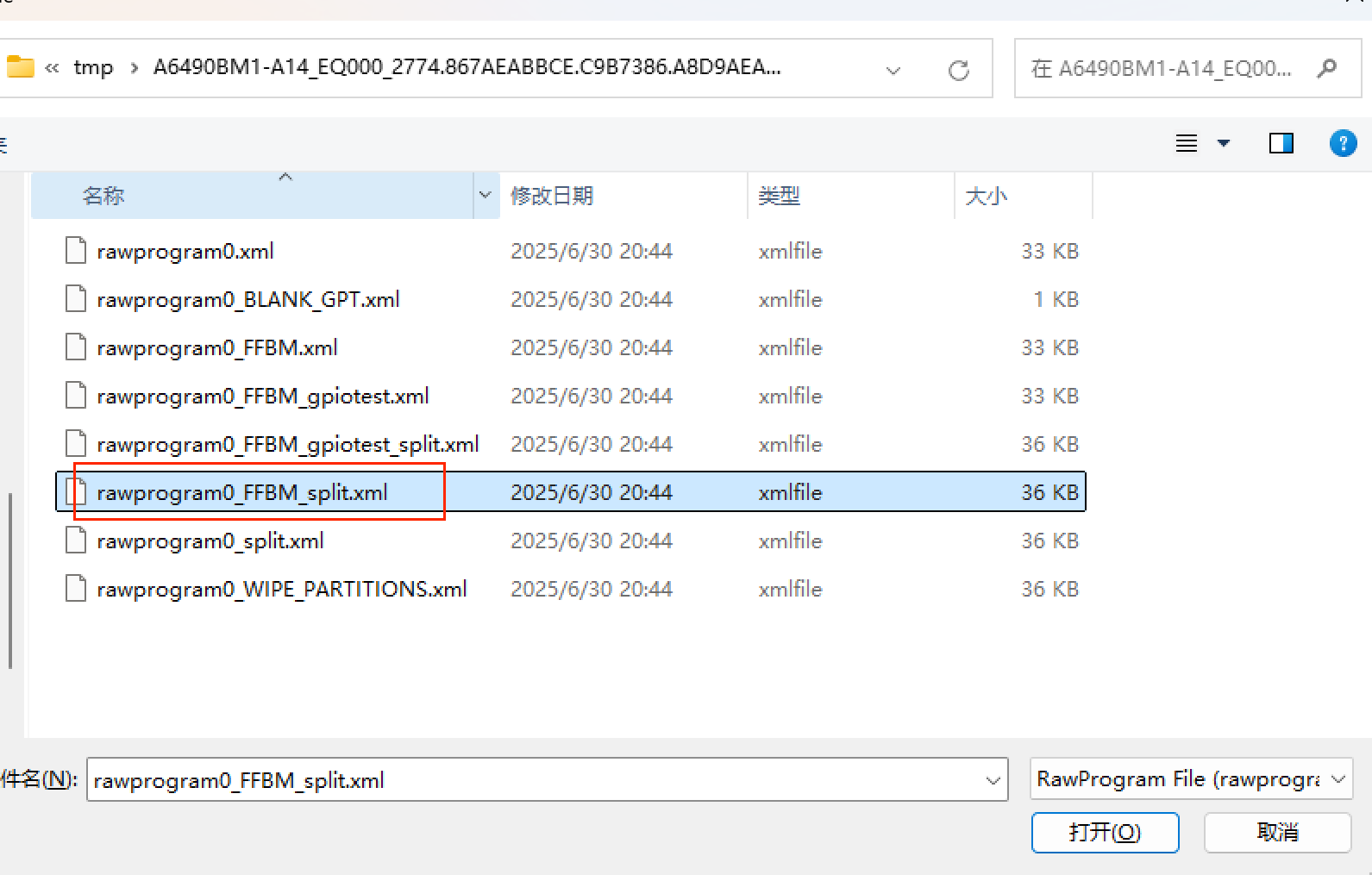
- After selecting xml file, will automatically popup another window. Still select all files
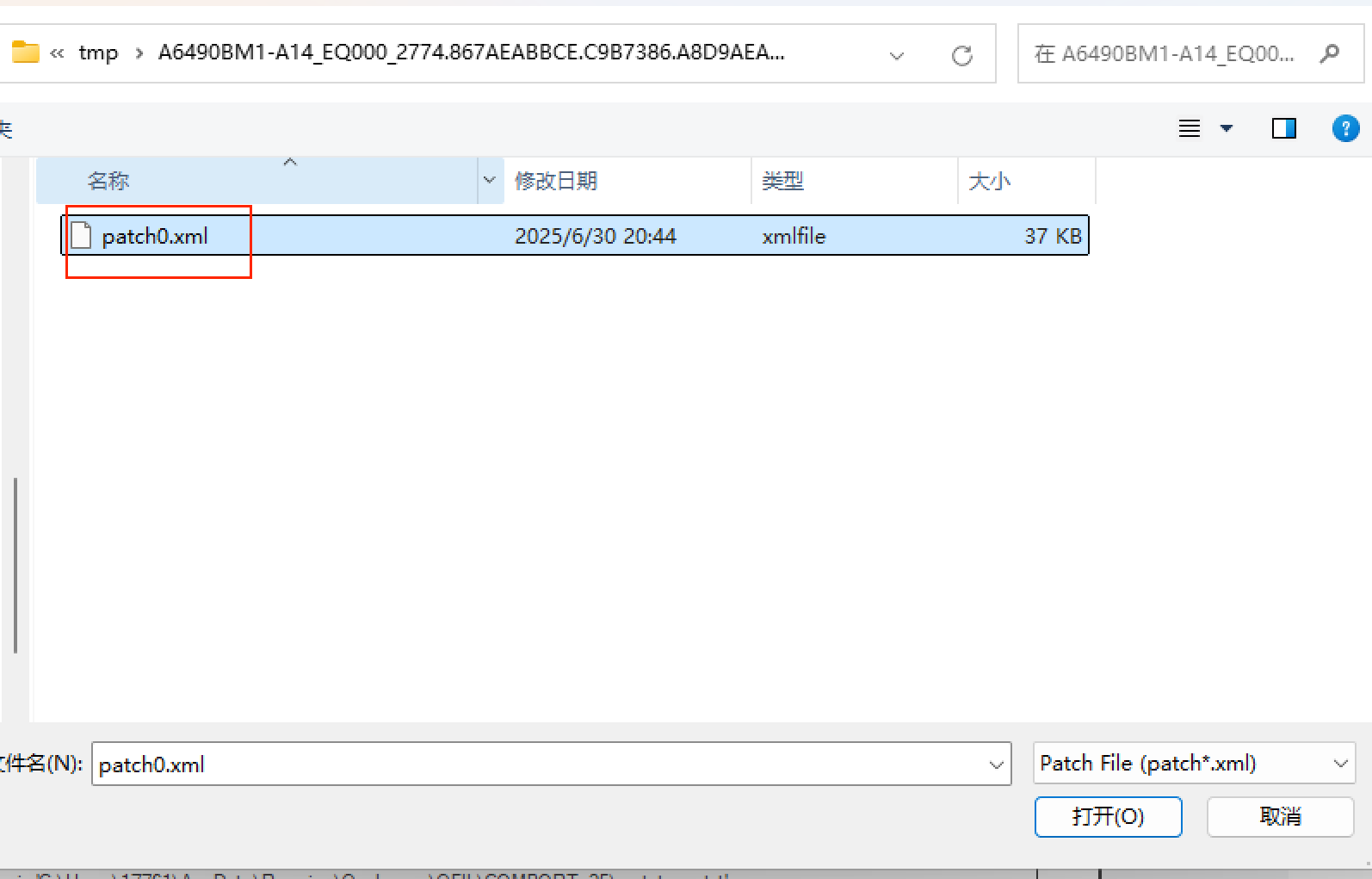
- Click
Download, start executing
System Firmware Download
After flashing FFBM device will restart, then wait a bit to see if can recognize adb, if recognize adb then execute
adb shell reboot edlenter 9008 port download mode againWait for execution to complete, click
Load XML...again, selectrawprogram0_split.xmlfile
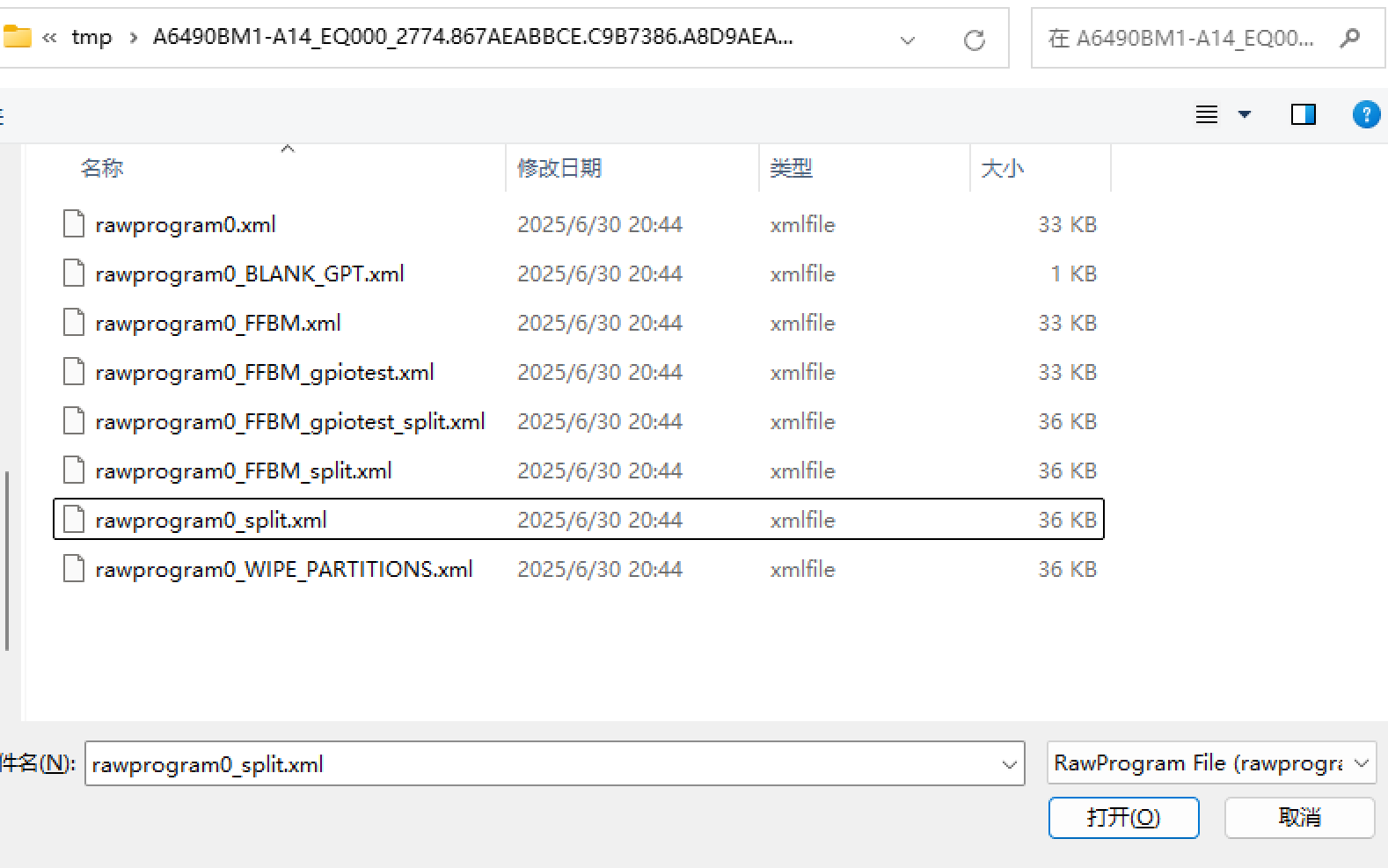
- After selecting xml file, will automatically popup another window, still select all files
- Click
Download, wait for flashing to complete
AidLux System Installation
Tip
Aidlux installation only supports on fusion system, i.e. need to install android operating system.
AidLux Installation Package Download
Please visit AidLux Image download link, download AidLux image for installation.
Device boot up, use usb-typec cable, connect PC and device. usb port to PC end, typec port to device end. After connection, execute: "adb devices".
adb devicesPreparation Before Installation
Device boot up, use USB-Type-C cable, connect PC and device. USB port to PC end, Type-C port to device end. After connection, execute: adb devices.
adb devicesWhen device is recognized then start AidLux system installation.
Take installing "aidlux_2.0.1.1854_enterprise_qc6490_lu2204_robot_20250701-145237.zip" version as example.
Fresh Installation Method One
This method is suitable for installing AidLux system in Windows system.
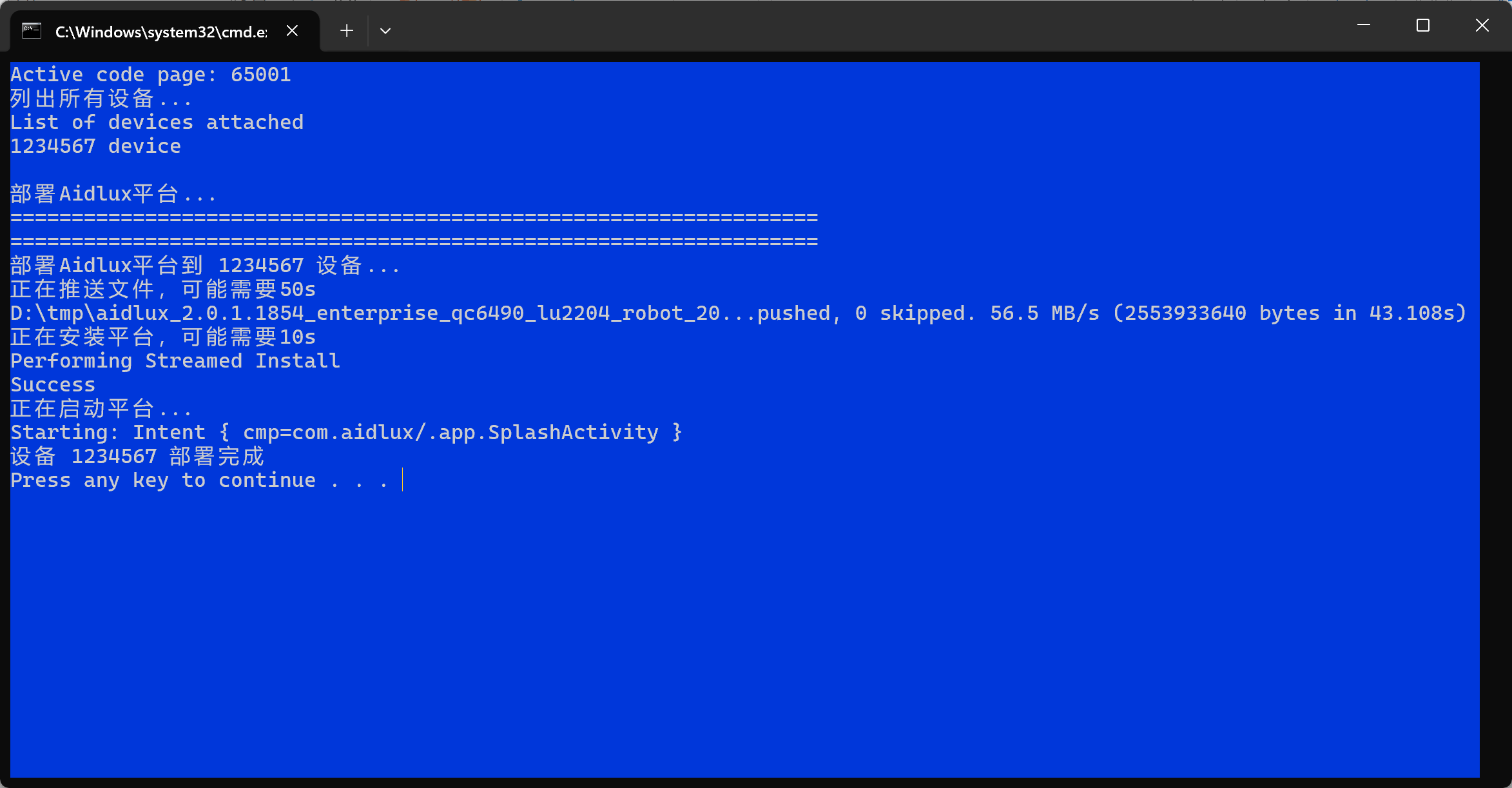
- Get the system file, unzip locally, after unzip folder has 4 files, click
install.bat, perform system installation
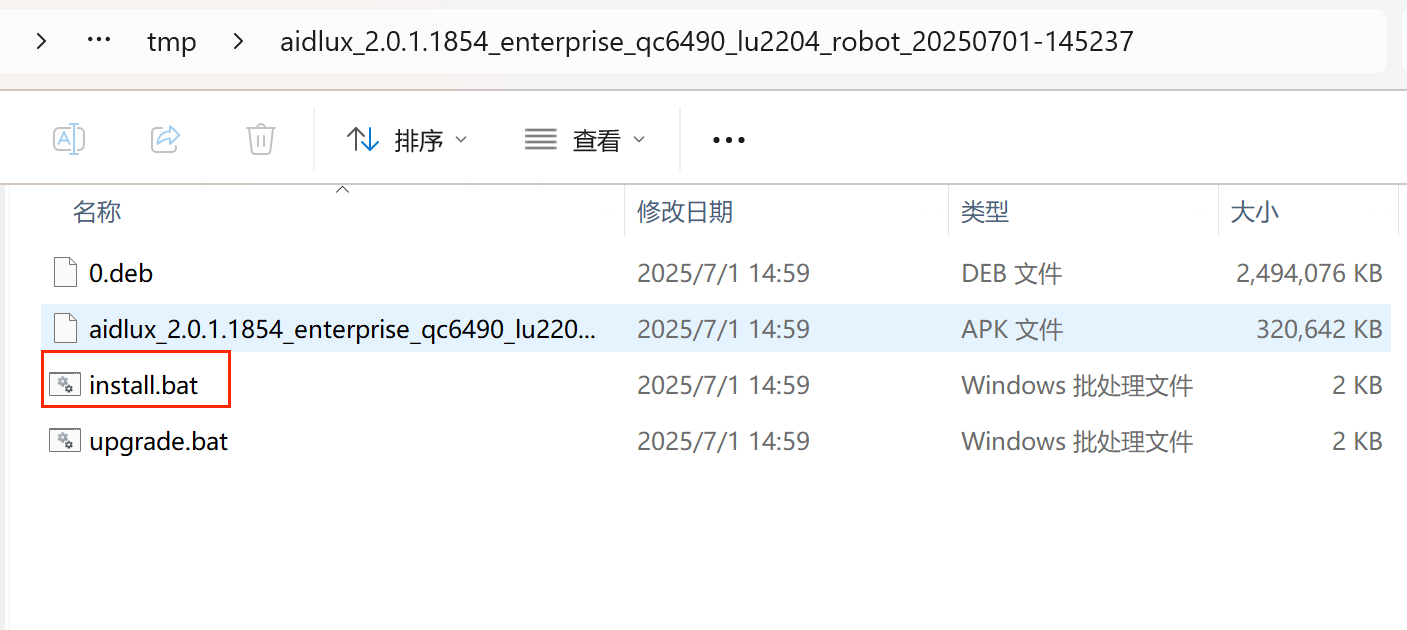
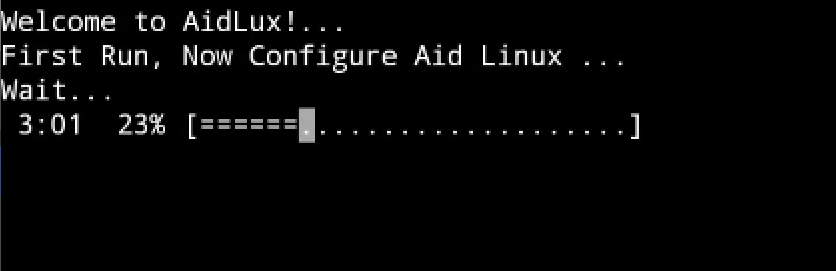
- When interface prompts Success then system installation successful, wait for system initialization
- When system initialization progress becomes 100%, then system installation complete
Fresh Installation Method Two
This method is suitable for installing AidLux system in non-Windows system (Linux or Mac).
- Get the system file, unzip locally, after unzip folder has 4 files, upload files to device's /sdcard/Download directory via adb command
Command:
adb push .\0.deb /sdcard/Download/
- After 0.deb file upload complete, execute adb install to install apk
Command:
adb install .\aidlux_2.0.1.1854_enterprise_qc6490_lu2204_robot_20250701-145237.apk
Prompt Success, then installation successful
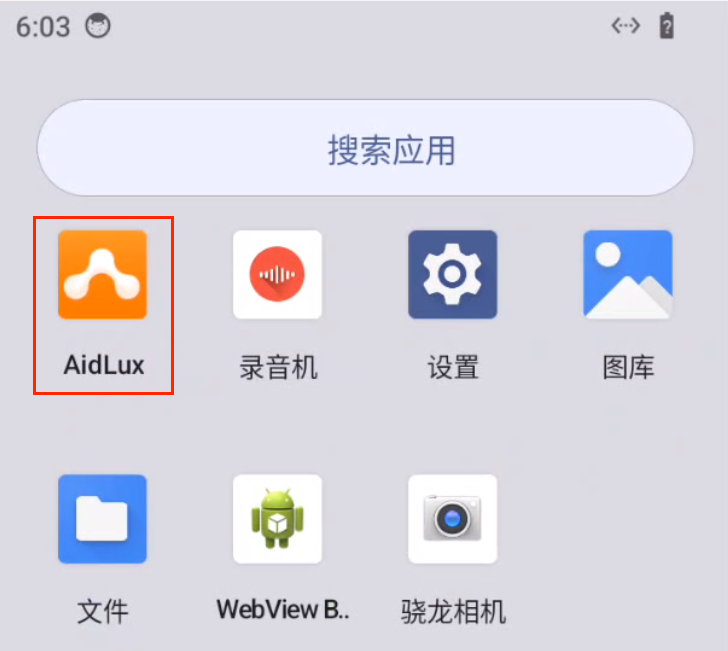
Enter Android system, click AidLux icon, perform system initialization
- When system initialization progress becomes 100%, then system installation complete
Tip
System default trial period is 30 days, if need system authorization please contact Aijia Rhino sales personnel.