Lidar
Note
The following devices were verified in a ROS2 environment. Please refer to the Tool Installation section documentation to install all ROS-related tools.
Laser LDS-50C-E
Preparation
- Rhino Pi A1
- Laser LDS-50C-E BlueSea lidar
- 12V power supply for the lidar
Hardware Connection and Network Setup
Connect the lidar to the 12V power supply and connect the Ethernet port to any Ethernet port on the Rhino Pi A1. Configure the default IP address as needed (you can use ifconfig to set a temporary IP).
Use a standard Ethernet cable between the LDS-50C-E and Rhino Pi A1. To ensure proper communication, both devices should be on the same subnet. The default lidar factory settings are:
- Lidar IP: 192.168.158.98
- Lidar subnet mask: 255.255.255.0
- Lidar gateway: 192.168.158.1
- Lidar upload address: 192.168.158.15
Set the Rhino Pi A1 network as:
- Ethernet IP: 192.168.158.15
- Ethernet subnet mask: 255.255.255.0
- Ethernet gateway: 192.168.158.1
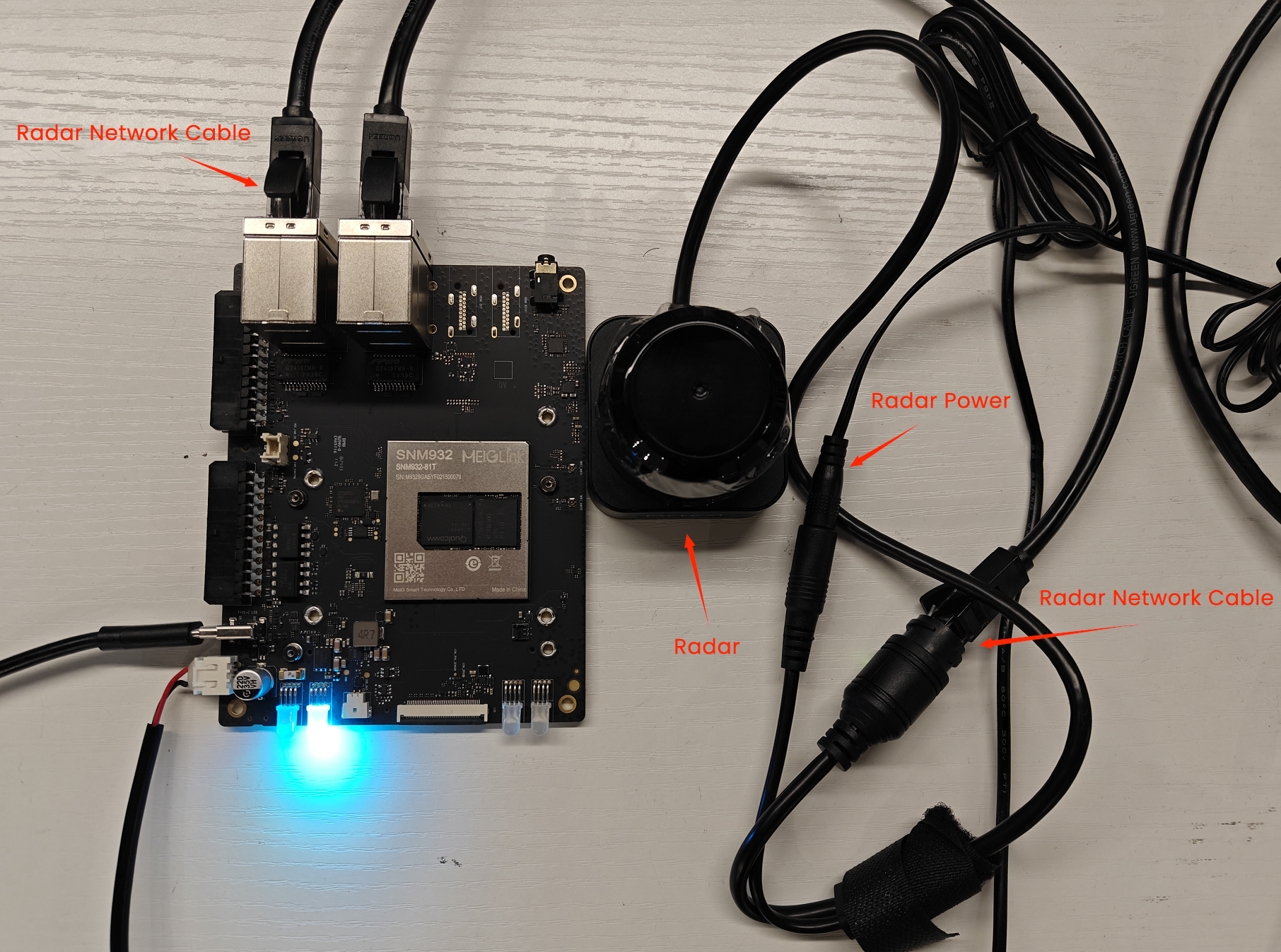
After connecting and configuring the network, use ping to verify connectivity.
11.6.3 Download and Build the BlueSea ROS2 Driver
Using VNC to access Ubuntu Desktop, run the following commands:
- Clone the BlueSea ROS2 driver repository:
sudo su  # password: aidlux

mkdir bluesea2
cd bluesea2
git clone https://github.com/BlueSeaLidar/bluesea-ros2.git src- Install dependencies:
sudo apt update
sudo apt install -y python3-colcon-common-extensions- Build the package:
colcon build- Update the current ROS2 environment:
source ./install/setup.sh- Launch the driver using ROS2:
ros2 launch bluesea2 udp_lidar.launch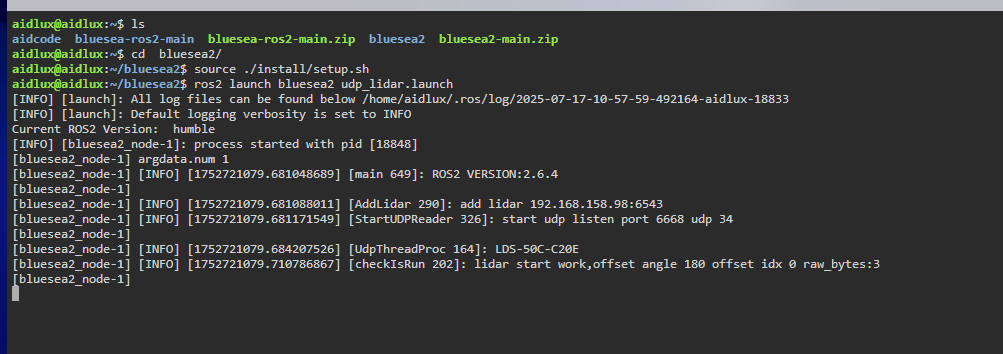
Test
Using VNC to access Ubuntu Desktop, run the following commands:
- Verify data output with:
ros2 topic echo /scan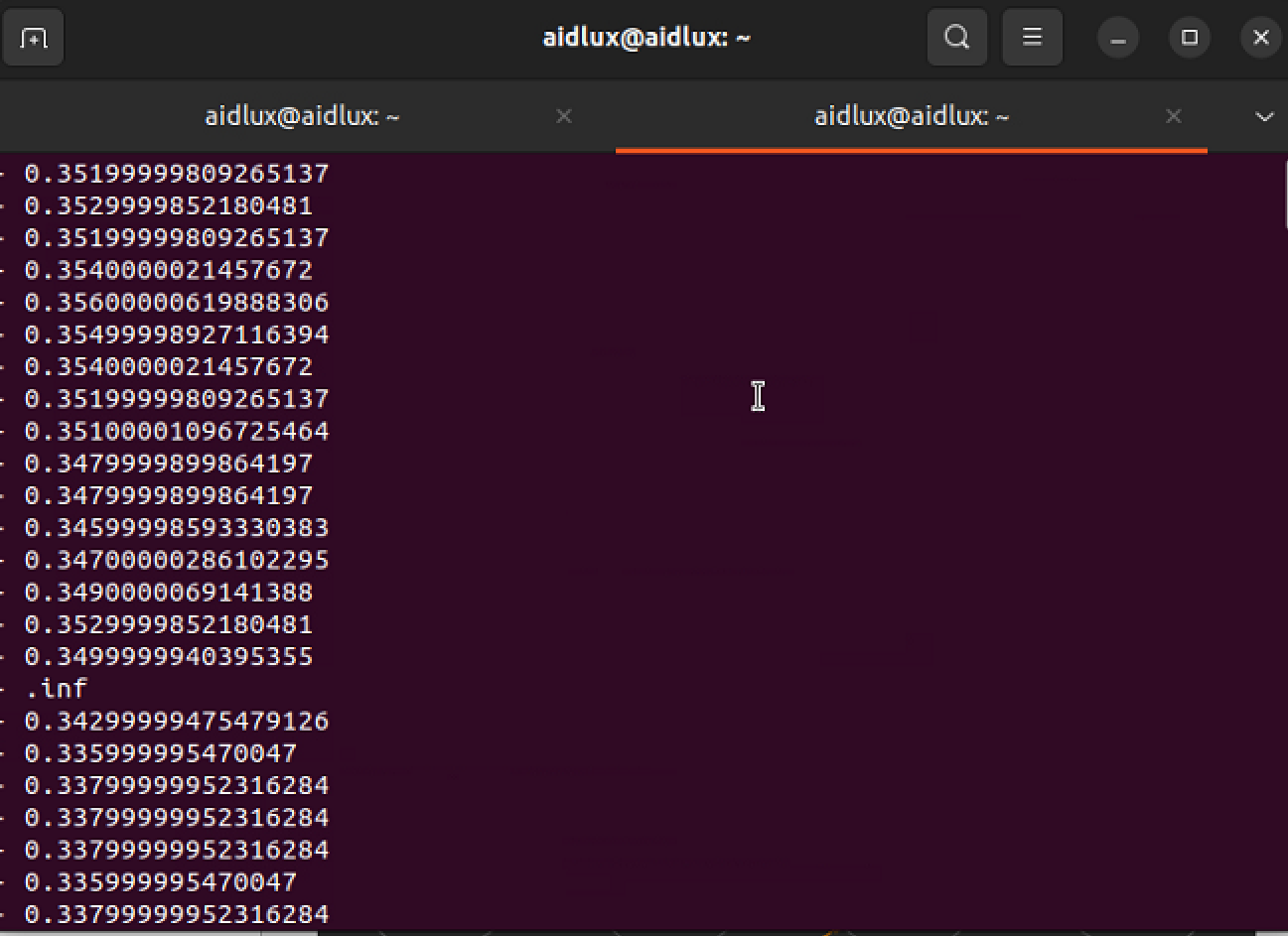
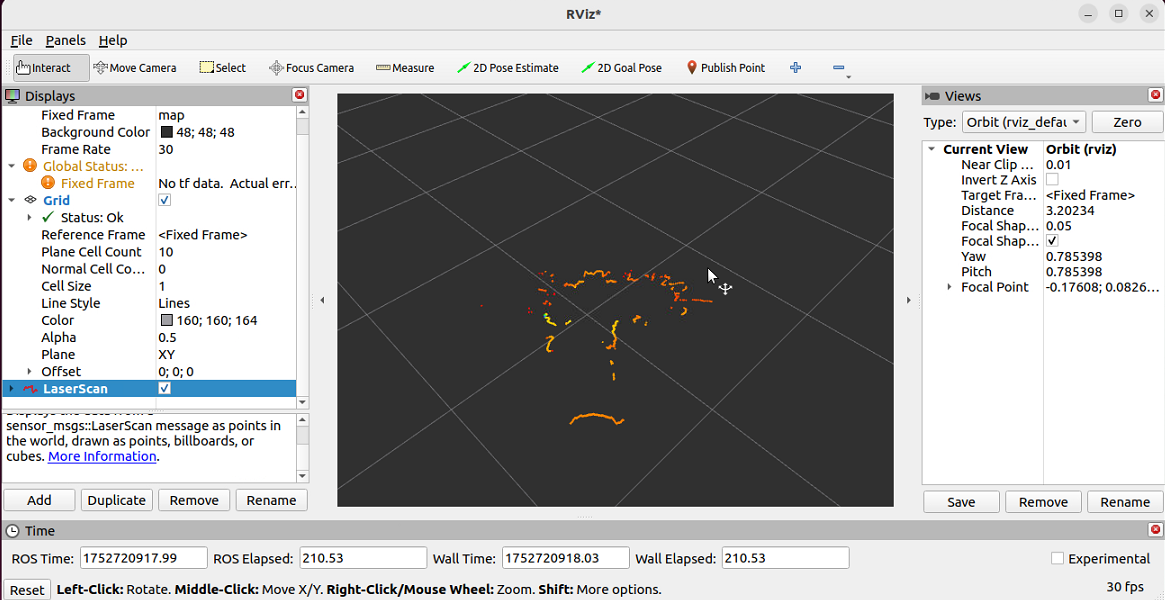
- Open the visualization tool:
rviz2- Then follow the UI to open the visualization view.