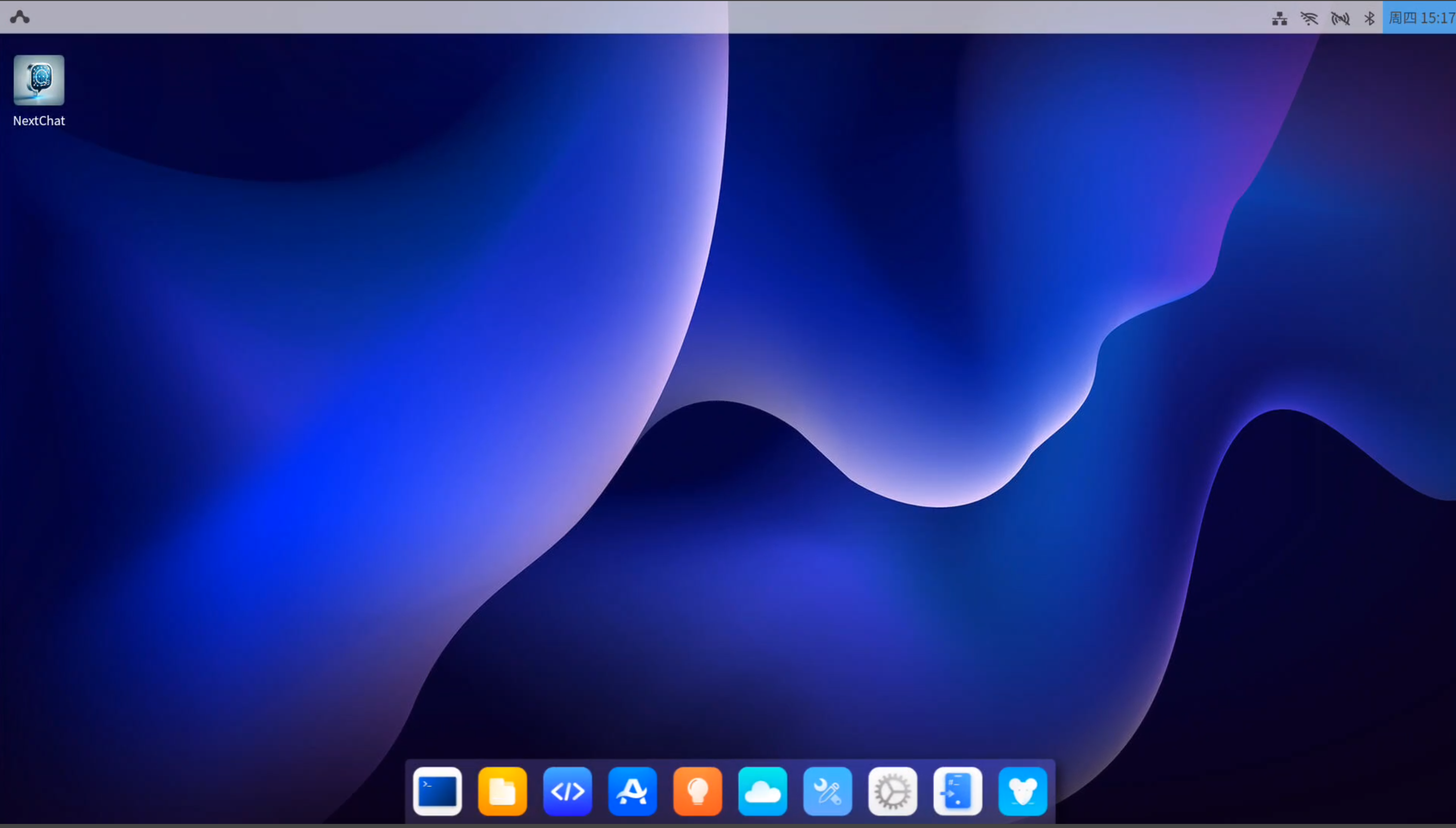
Screen Mirroring Software Login
Prerequisites
Developers need to prepare the following hardware devices in advance:
- Mainboard: Rhino Pi A1
- Power Supply: DC12V/24V 3A Power Adapter
- Input Device: USB TYPE-A to TYPE-C Cable
QtScrcpy Software Installation
Visit QtScrcpy download address, download the corresponding platform package and install:
Start the Board
The board is pre-installed with Android 14 system. After powering with DC12V/24V 3A power adapter, the board will automatically start the system.
- Boot Process: Power indicator blue light stays on
- Use USB TYPE-A to TYPE-C cable, TYPE-A port connects to Windows PC USB port, TYPE-C port connects to board C port.
- System Normal Startup: Power indicator blue light stays on, indicating boot completion
Connect Device
Connect the board and PC with Type-C cable
Use Screen Mirroring Software to Access System
Open QtScrcpy app can discover the board device, double-click to access device screen
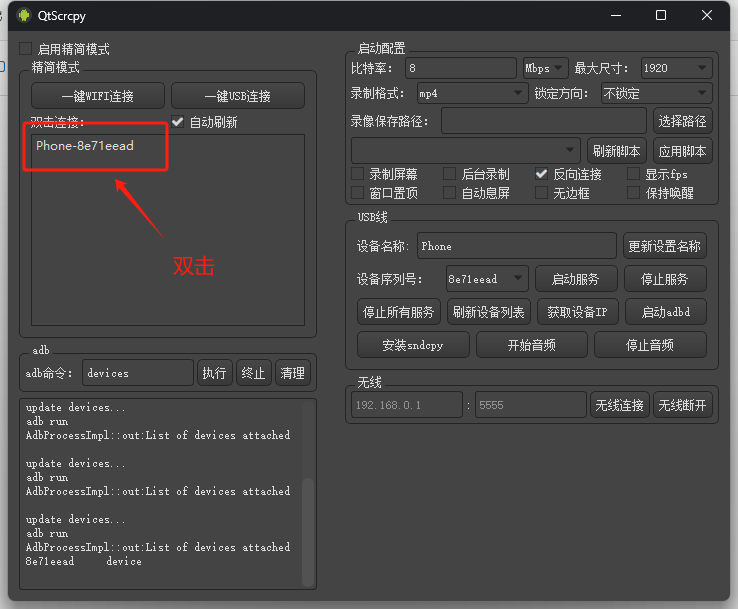
Enter AidLux Fusion System
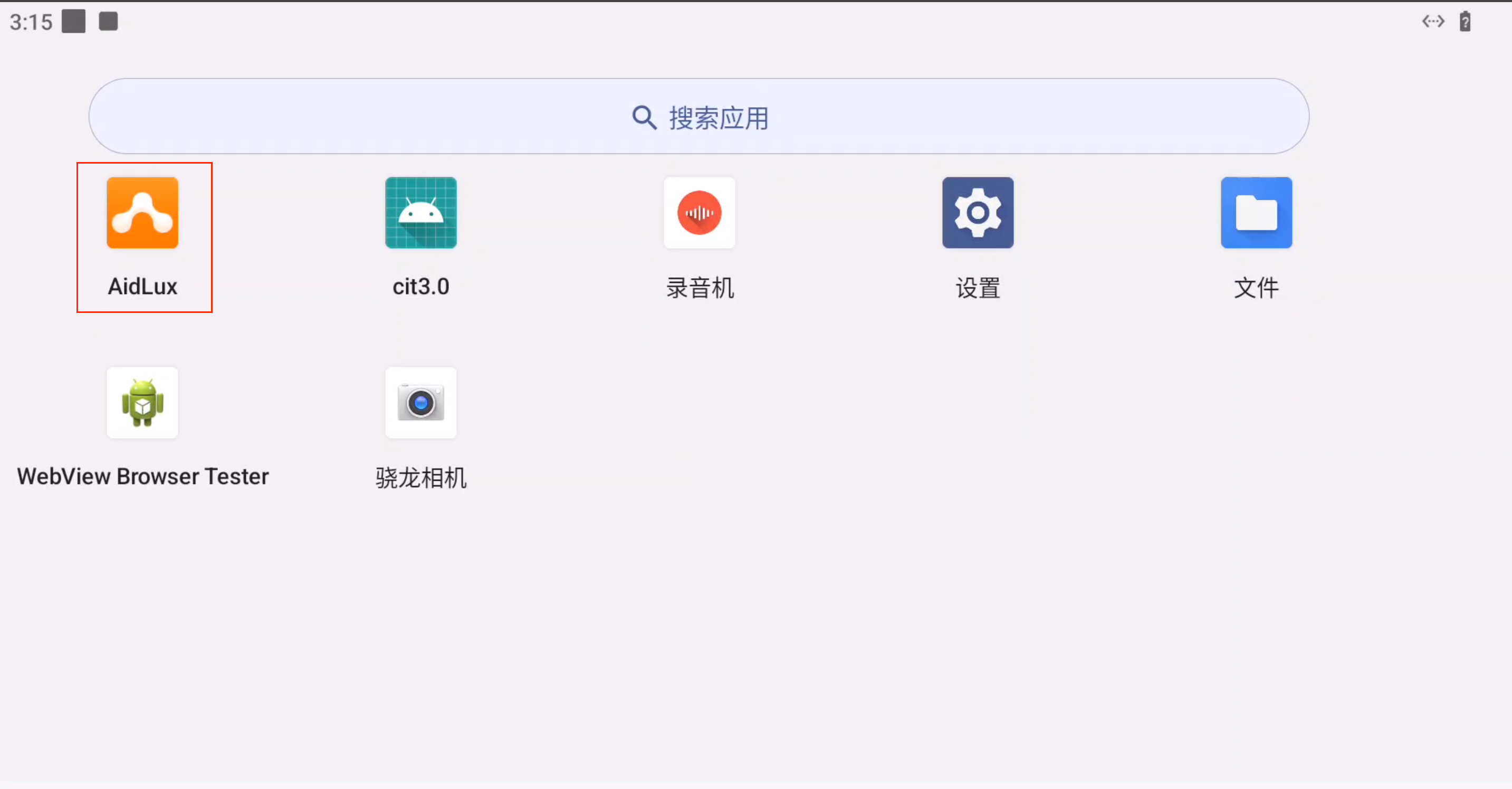
After displaying device screen, swipe up on the interface with mouse to bring up app menu, click AidLux app icon to enter Ubuntu 22.04 system interface
AidLux's Ubuntu 22.04 system interface is as follows: