Direct Display Login
Prerequisites
Developers need to prepare the following hardware devices in advance:
- Mainboard: Rhino Pi A1
- Power Supply: DC12V/24V 3A Power Adapter
- Display Device: Type-C to DP Data Cable and Monitor
- Input Device: Keyboard and Mouse (for graphical interface operation)
Start the Board
The board is pre-installed with Android 14 system. After powering with DC12V/24V 3A power adapter, the board will automatically start the system.
- System Startup: Power indicator blue light stays on
Login to Android System
After developers start the board for the first time, they can see the Android system main interface. Swipe up on the interface with the mouse to bring up the app menu
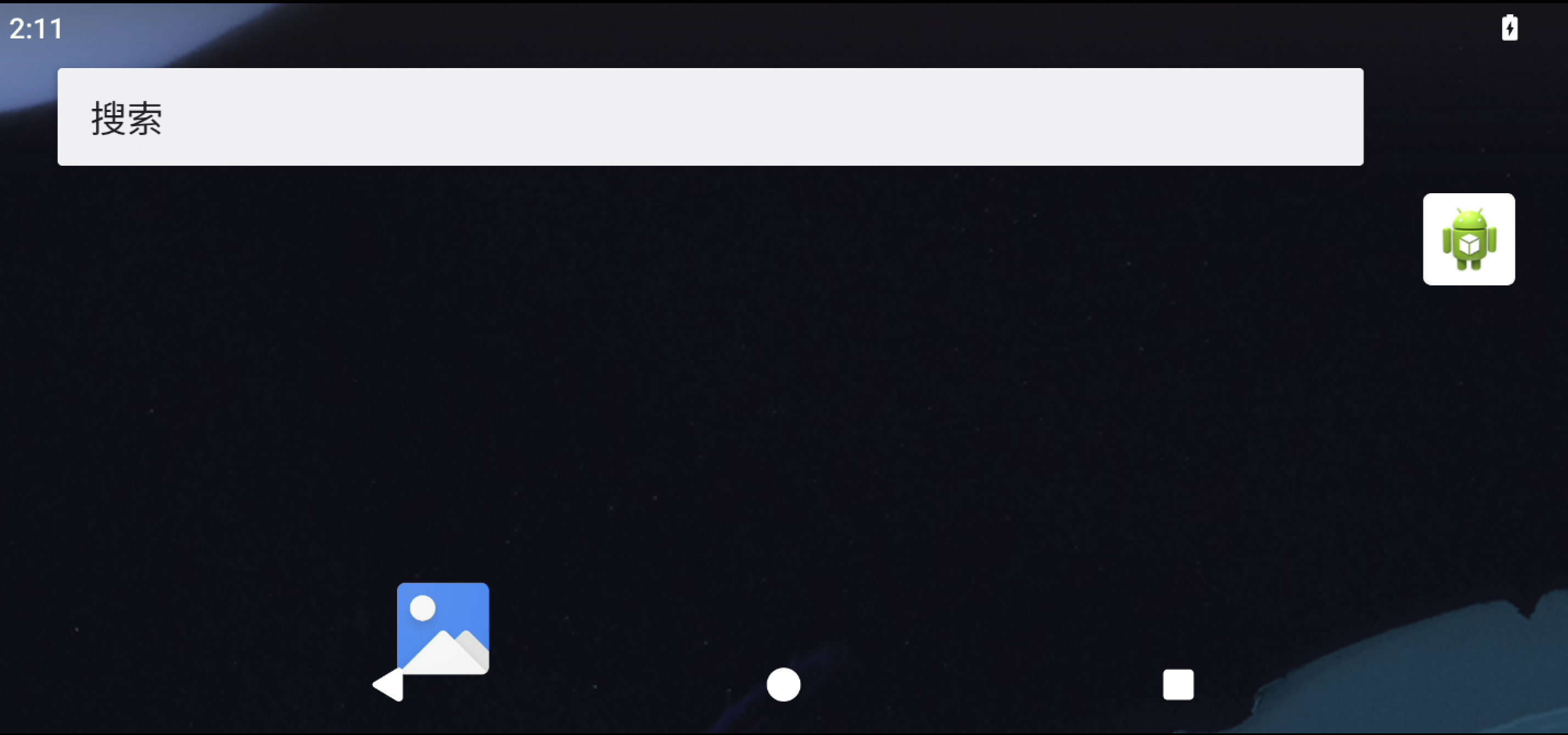
Check AidLux Fusion System
Developers can check if the board has AidLux fusion system installed.
After entering Android system, swipe up on the interface with the mouse to bring up the app menu. If there is AidLux app icon, then AidLux fusion system is pre-installed:
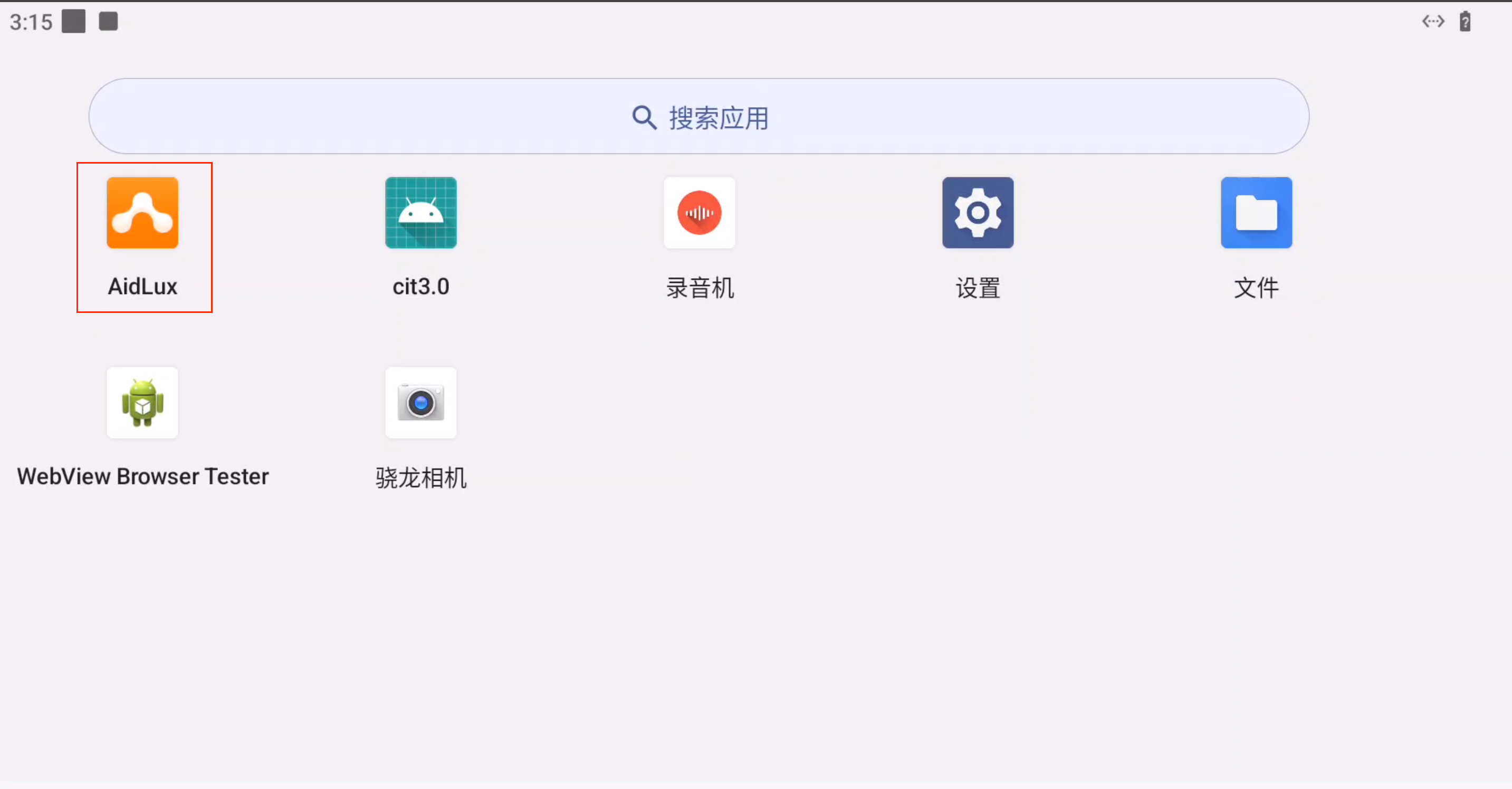
Click the AidLux app icon to enter the Aid-Desktop interface of AidLux fusion system.
Reminder
If there is no AidLux app icon in the app menu, developers need to install AidLux fusion system themselves, please refer to Install AidLux Fusion System
Login to AidLux Fusion System
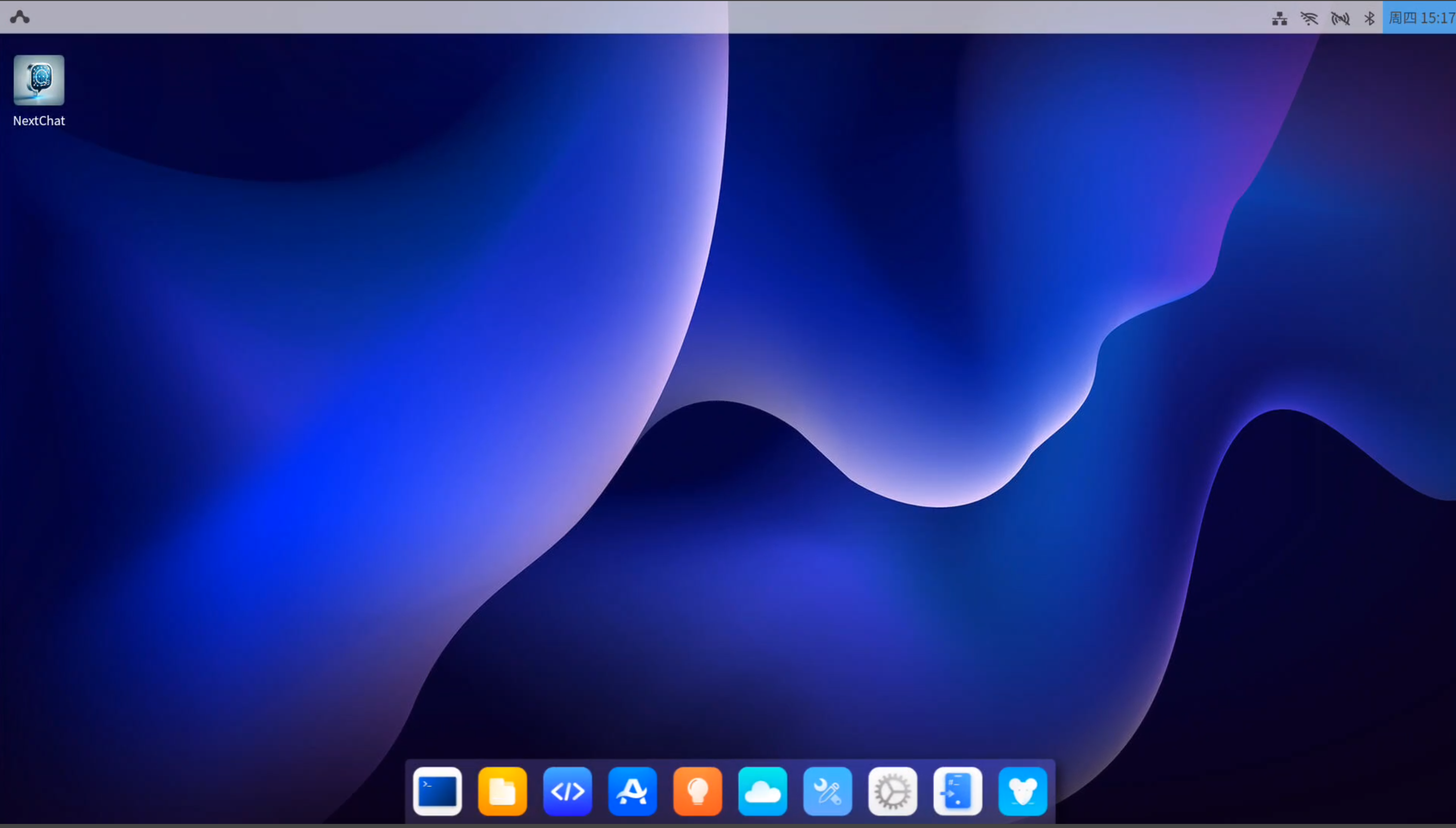
After entering Android system, swipe up on the interface with the mouse to bring up the app menu, click AidLux app icon to enter Ubuntu 22.04 system interface
AidLux's Ubuntu 22.04 system interface is as follows:
Use the System
After successfully starting the system, developers can officially use Android 14 and Ubuntu 22.04 systems on Rhino Pi-X1, can refer to System Usage
Tip
If developers need to reinstall the system or OTA upgrade, please refer to: System Flashing