Converged System AidLux
Remote Debugging
VSCode Remote Debugging
- Install VSCode
Download VSCode from the official website and install it on your PC.
- Install Remote-SSH
Open VSCode, click the Extensions menu on the left, search for Remote-SSH, and install it.
After installation, a new Remote Explorer icon appears on the left.
- Configure SSH Connection
Click the add button under
SSH TARGETSinRemote Explorer, or clickOpen a Remote Windowin the lower-left corner of VSCode.Enter the IP address of the AidLux device you want to connect to.
Find the device IP address, then choose Connect to Host or Connect Current Window to Host.
ssh aidlux@ip# Open SSH Configuration File
# Add the following content:
Host AidLux # server alias
HostName 192.168.1.100 # remote server IP or host
Port 22 # remote server port
User aidlux # remote login usernameEnter the password when prompted. The default AidLux password is
aidlux.Wait for VSCode to automatically install VS Code Server on AidLux.
💡 Note
Under normal network conditions, installation usually takes a few minutes. If it fails for a long time, close VSCode and try reconnecting over SSH.
- Debug Code
After installation succeeds, VSCode is connected to AidLux by default. Use Open File or Open Folder on the left, then choose the file/folder you want to debug. For example, select the home/aidlux directory.

SSH Remote Debugging
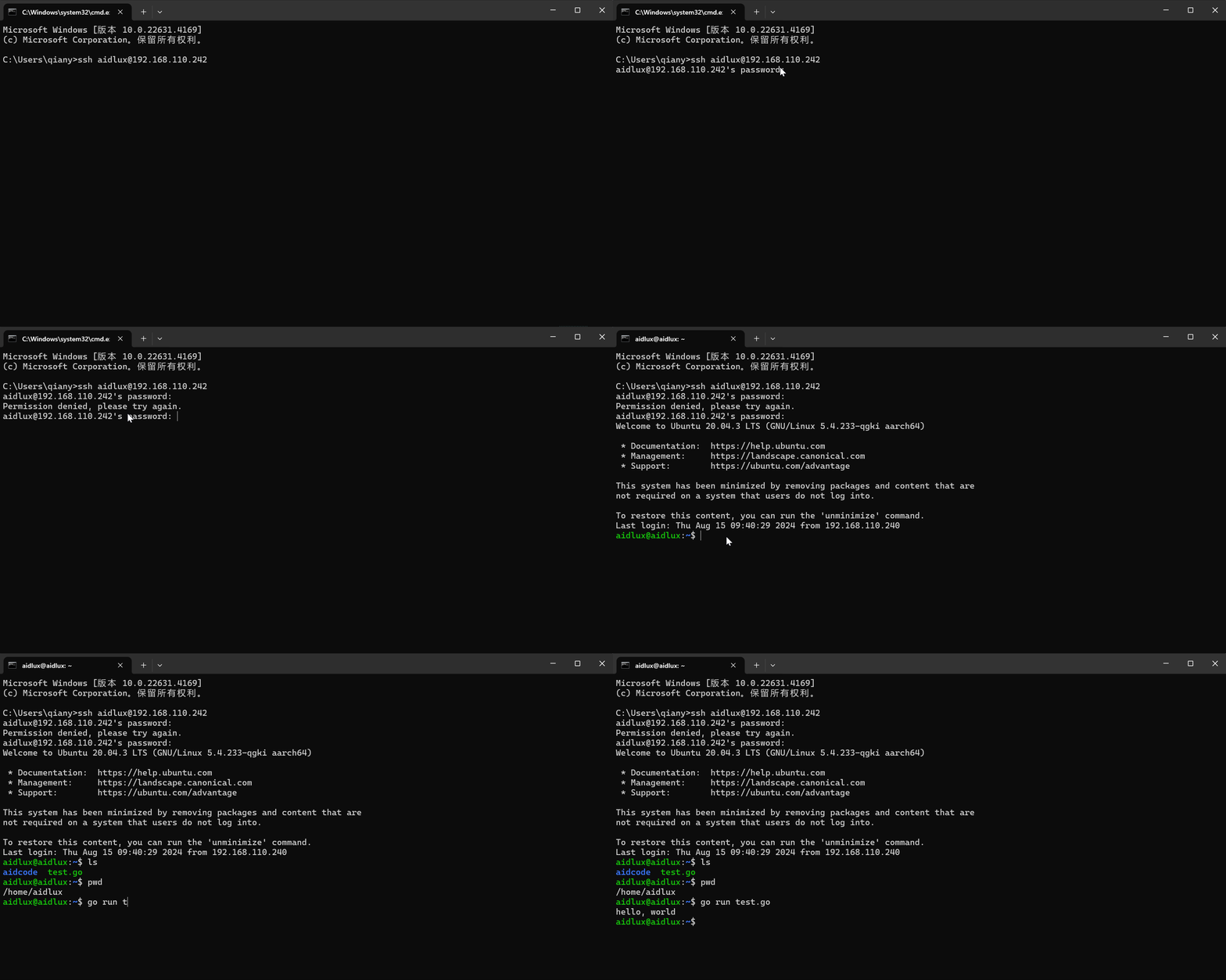
Open the command line on your computer and run:
ssh aidlux@ipUse password aidlux. After a successful connection, you can debug remotely over SSH.