Getting Started
This tutorial is designed to help developers quickly get started with the A8550MA1 AI Compute Platform.
Physical Product
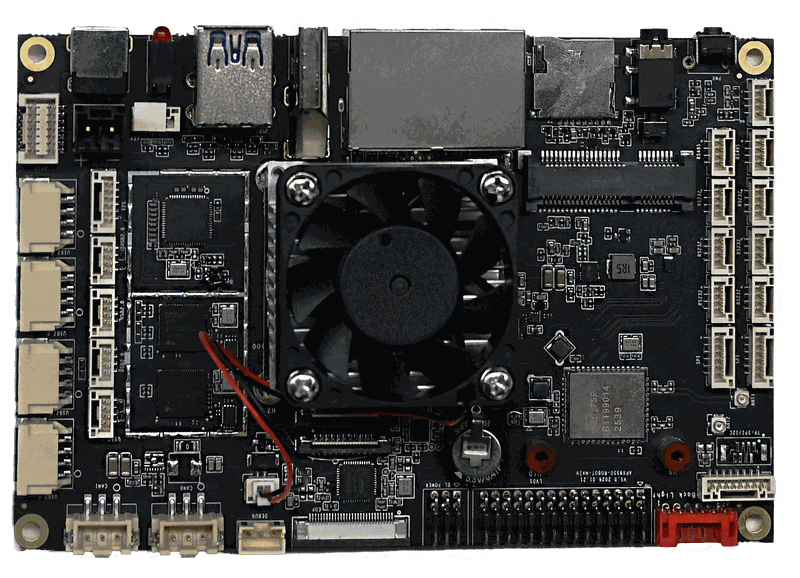
System Check
APLUX Full Image (factory default system)
The board comes pre-installed with APLUX Full Image (Ubuntu 22.04). After powering with a 12 V power adapter, the board will automatically start the system.
- Power-on process: POWER LED solid red, fan begins spinning
- System ready: STATUS LED solid green
Login Methods
 ADB Login (Recommended)
Quick login via ADB tool
Direct Display LoginLogin via HDMI display
Browser Remote LoginAccess via browser on a specific port (Full Image only)
 SSH Remote Login
Secure remote login via SSH
Network Configuration
Tip
Before configuring wired network, ensure the Ethernet cable is connected.
Before using Wi-Fi, ensure the device antennas are properly attached.
After the device starts for the first time, we recommend configuring the network connection first:
On a Windows PC, press Win+R, type cmd in the popup window to open a terminal, then enter the following commands to access the system:
# Obtain device root privileges
adb root

# Enter the device terminal shell
adb shell
Wired Network (Default DHCP)
- Connect the Ethernet cable to the WAN port; the system defaults to DHCP automatic IP acquisition:
ifconfig eth0Wired Network (Static IP)
- To configure a static IP, first obtain the connection name:
nmcli -g GENERAL.CONNECTION device show eth0- Configure static IP (replace IP/Gateway/DNS with actual values):
nmcli connection modify 'connection_name_from_previous_step' ipv4.method manual ipv4.addresses 192.168.1.231/24 ipv4.gateway 192.168.1.1 ipv4.dns '114.114.114.114'- Apply network configuration:
nmcli device reapply eth0Tip
The IP address and subnet mask shown here are for reference only. Configure them according to your actual network environment.
Revert to Dynamic IP
- Revert from static IP to DHCP:
nmcli connection modify 'connection_name' ipv4.method auto ipv4.addresses '' ipv4.gateway '' ipv4.dns ''nmcli device reapply eth0Wi-Fi Network
Full Image can be configured via the desktop environment. Base Image can be configured via the command line:
- View IP address
ip addr show- Wi-Fi command-line configuration
nmcli dev wifi connect "SSID" password "PASSWORD"