Network Configuration
Configure Ethernet Dynamic IP Address
When there is a local network in the developer's development environment, and there is a DHCP server in the local network that assigns DHCP IP to downstream devices, you can obtain a dynamic IP address by following these steps.
Rhino Pi A1 device is set to DHCP IP by default, so after powering on and connecting the network cable, you can obtain the IP. On the Windows PC, press win+R, enter cmd in the pop-up window, open the terminal window, and enter the following commands:
- Enter adb shell to enter the host system,
adb shell //Enter the system- Execute command: ifconfig eth0 to view the echoed IP address.
ifconfig eth0 //View IP address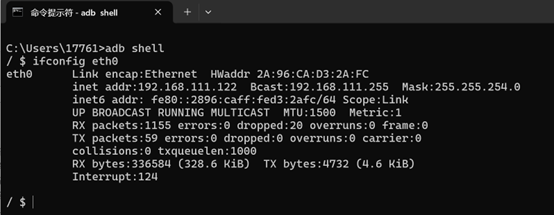
Configure Ethernet Static IP Address
Rhino Pi A1 supports configuring static IP address, developers can refer to the following steps to configure:
- If the network cable is connected to the WAN port, set the static IP for eth0 accordingly. On the Windows PC, press win + R, enter
cmdin the pop-up window, open the terminal window, and execute the following commands:
adb shell- Get connection name: connection_name
nmcli -g GENERAL.CONNECTION device show eth0- Configure static IP settings
nmcli connection modify 'connection_name obtained in the previous step' ipv4.method manual ipv4.addresses 192.168.1.231/24 ipv4.gateway 192.168.1.1 ipv4.dns '114.114.114.114'- Apply network configuration
nmcli device reapply eth0Tip
The IP address and subnet mask set here are for reference only, please set according to actual situation
Restore to Dynamic IP Settings
When the user needs to restore from the configured static IP to dynamic IP mode, refer to the following steps:
- On the Windows PC, press win+R, enter
cmdin the pop-up window, open the terminal window, and enter the following commands:
adb shell //Log in to the system- Get connection name: connection_name
nmcli -g GENERAL.CONNECTION device show eth0- Restore to dynamic IP configuration
nmcli connection modify 'connection_name obtained in the first step' ipv4.method auto ipv4.addresses '' ipv4.gateway '' ipv4.dns ''- Apply network configuration
nmcli device reapply eth0Configure Wireless WIFI
Tip
When connecting to WIFI, you need to connect an antenna to the device.
Rhino Pi A1 supports using WIFI to connect to the network. When developers want to connect to the development board through local WIFI, follow these steps:
- On the Windows PC, press win+R, enter
cmdin the pop-up window, open the terminal window, and enter the following commands to enter the system:
adb shell- Execute command to scan WIFI
nmcli dev wifi list 2>&1 | lessTip
Press the Enter key on the keyboard to view scanned APs line by line. To exit the scan interface, press q to exit
- Connect to WIFI
nmcli dev wifi connect "WiFi-SSID" password "WiFi-password"- Disconnect WIFI connection
nmcli connection down id <WIFI-SSID>- Delete WIFI connection
nmcli connection delete <WIFI-SSID>