Tool Resource Summary
When developing with AgaRhy hardware products, developers need to pre-install some software on a local Windows PC in advance, such as the ADB debugging tool and the QPST flashing tool.
Software download link: Software Tool Package Download Link
USB Driver Installation
Extract the
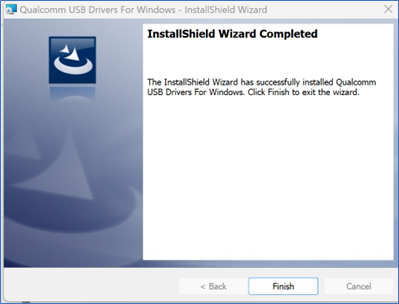
USB_Driver_qud.win.1.1_installer_10061.1.zipfile.After extraction, double-click the
setup.exeprogram and wait for theQualcomm USB Driversinstallation interface to appear. Follow the prompts and clicknextto complete the installation.
ADB Tool Installation
- Unzip
- Extract the
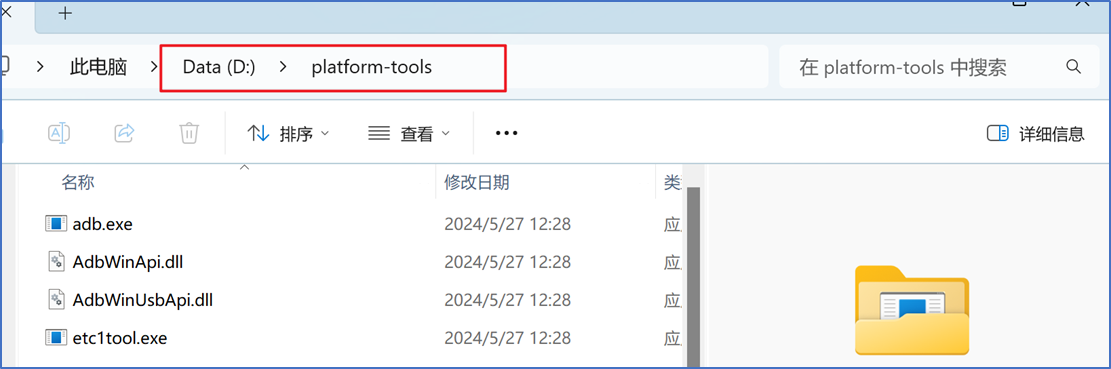
platform-tools.zipfile to the D drive.
- Configure ADB Environment Variables
- Copy the path of the extracted
platform-toolsfolder.
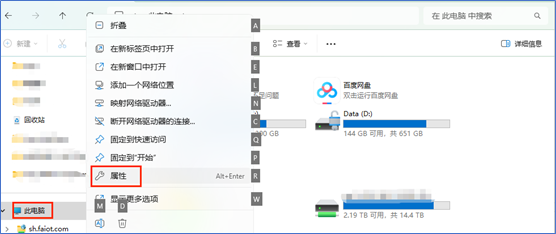
- Right-click "This PC" and select "Properties".
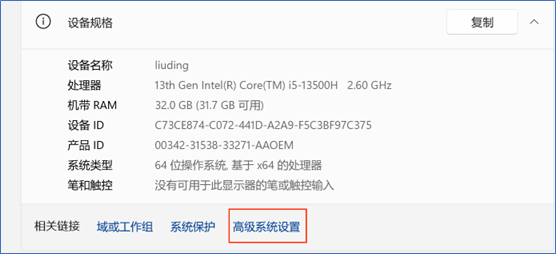
- In the pop-up settings window, click "Advanced system settings".
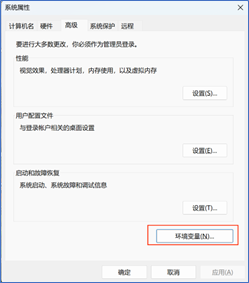
- In the Advanced tab of the pop-up System Properties window, click "Environment Variables".
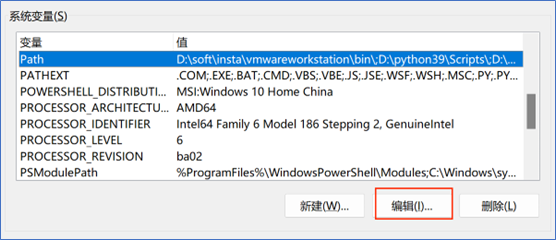
- In the pop-up Environment Variables window, select the Path variable in the "System variables" section and click "Edit" below.
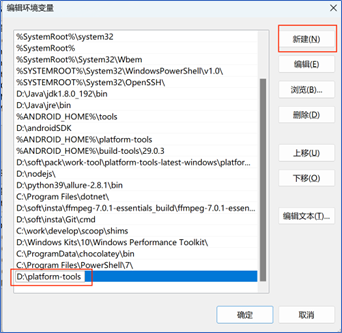
- In the pop-up Edit Environment Variable window, click "New" and add the previously copied platform-tools path.
- Click "OK" in sequence to save the variable settings and exit.
- Verify if the ADB Environment Configuration is Available
- Open the
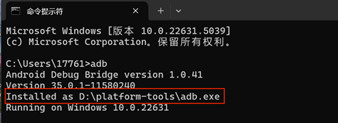
cmdwindow and enteradb. No error is reported.
Flashing Tool Installation
Extract the
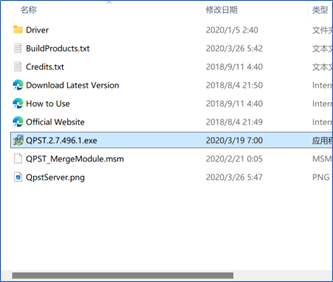
QPST_2.7.496.zipfile to the current folder.Navigate to the extracted
QPST_2.7.496directory and double-click theQPST.2.7.496.1.exeprogram to start the installation.
Follow the prompts and click
nextcontinuously to complete the installation.Default installation path after completion:
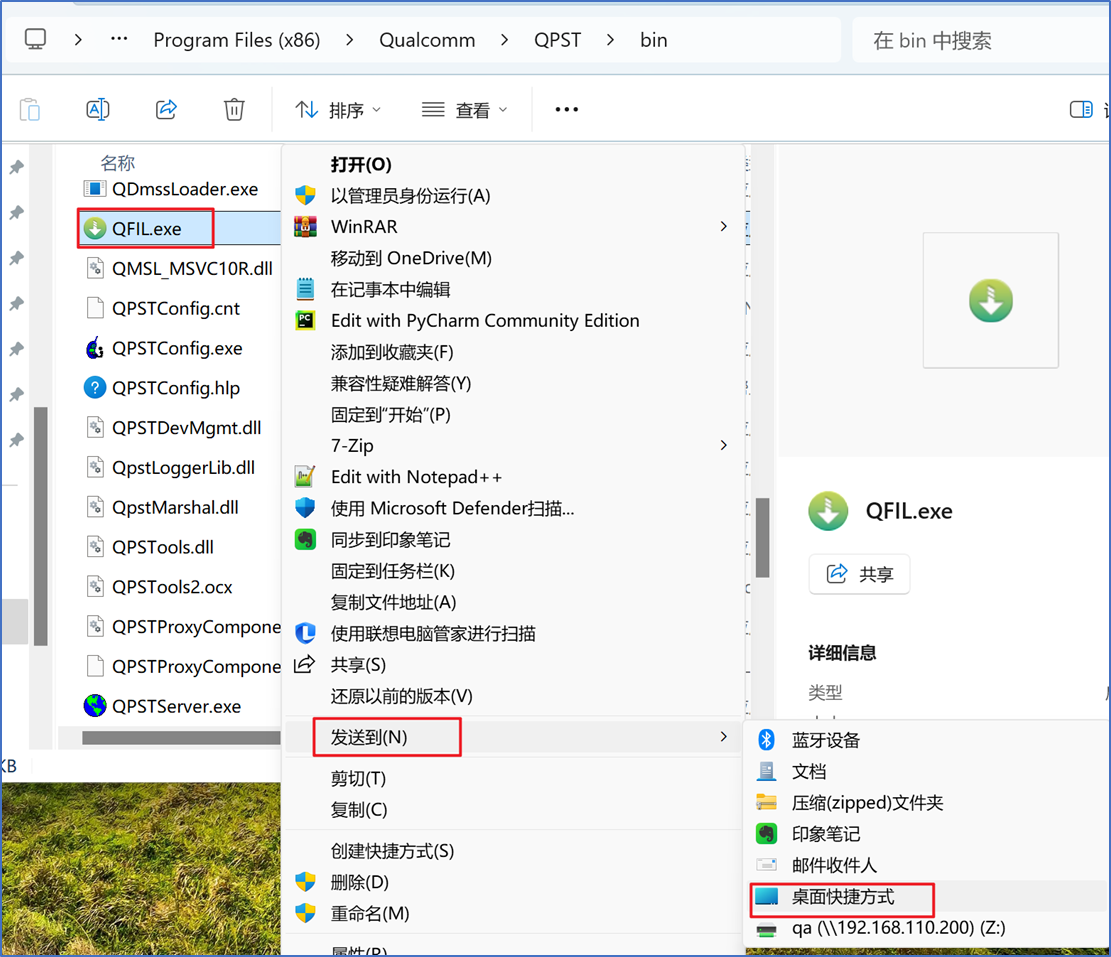
C:\Program Files (x86)\Qualcomm\QPST\bin.You can navigate to this directory and send the
QFIL.exeprogram to the desktop.
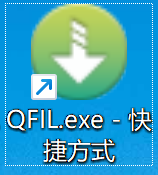
- The desktop icon is as follows.
aid-deploy-tool Installation
Note
The version of the aid-deploy-tool is updated irregularly. Please refer to the aid-deploy-tool_0.11.0_x64-setup version for installation.
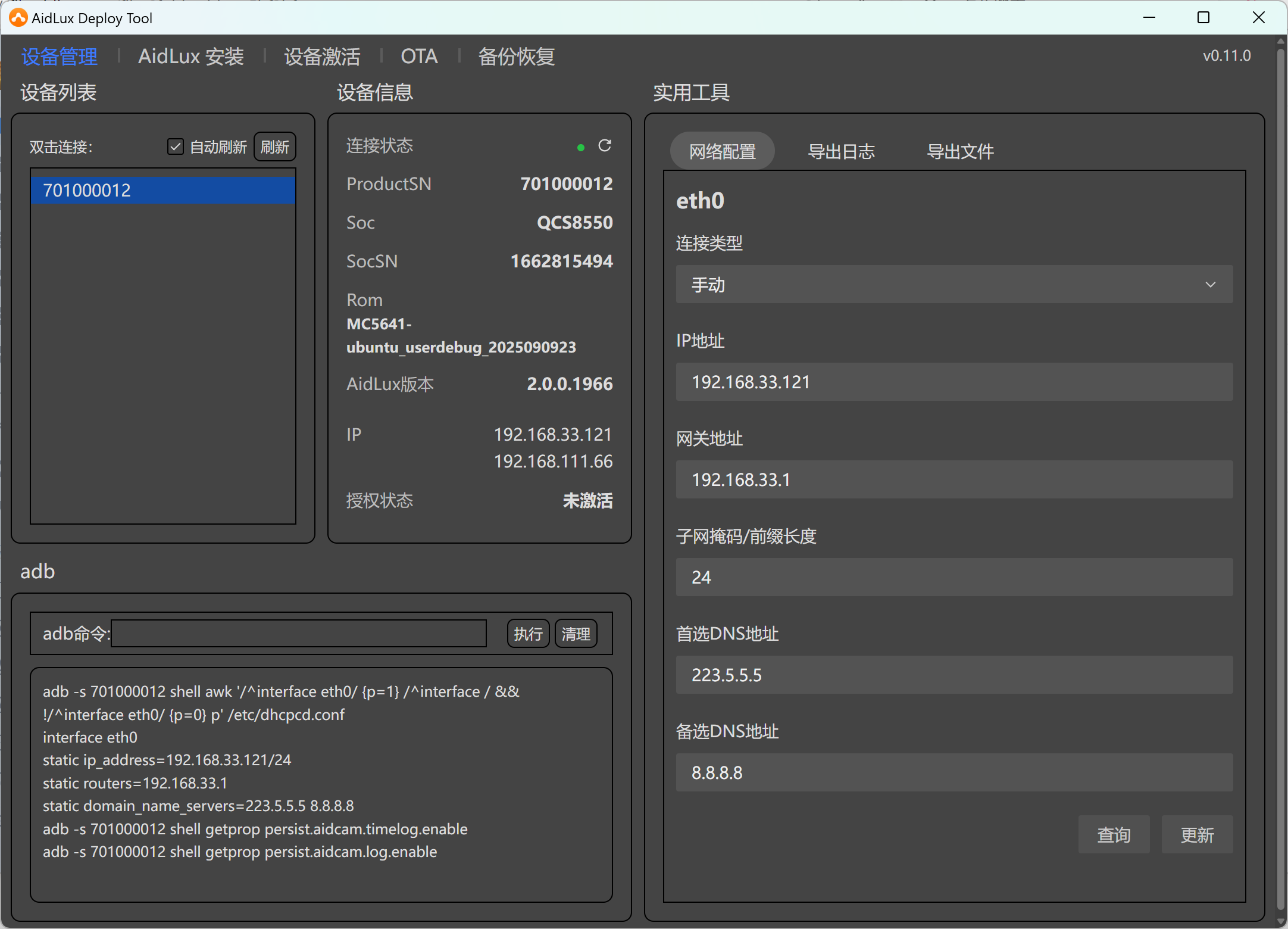
The aid-deploy-tool is a desktop tool installed on Windows computers. After installing the USB driver and ADB tool, and connecting the Windows computer to the AgiX device via a USB Type-A to Type-C cable, you can use this tool to quickly perform convenient operations such as device information reading, IP configuration, AidLux installation, device activation, OTA upgrade, backup and restoration, and log collection.
The installation method is as follows:
- Download the tool via the software download link, then double-click the exe file with the left mouse button to start the installation.
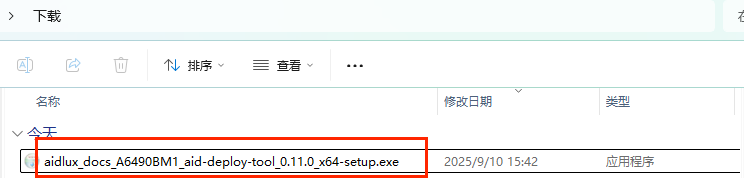
- In the pop-up installation window, follow the prompts to install. You can click "next" continuously with the default settings.
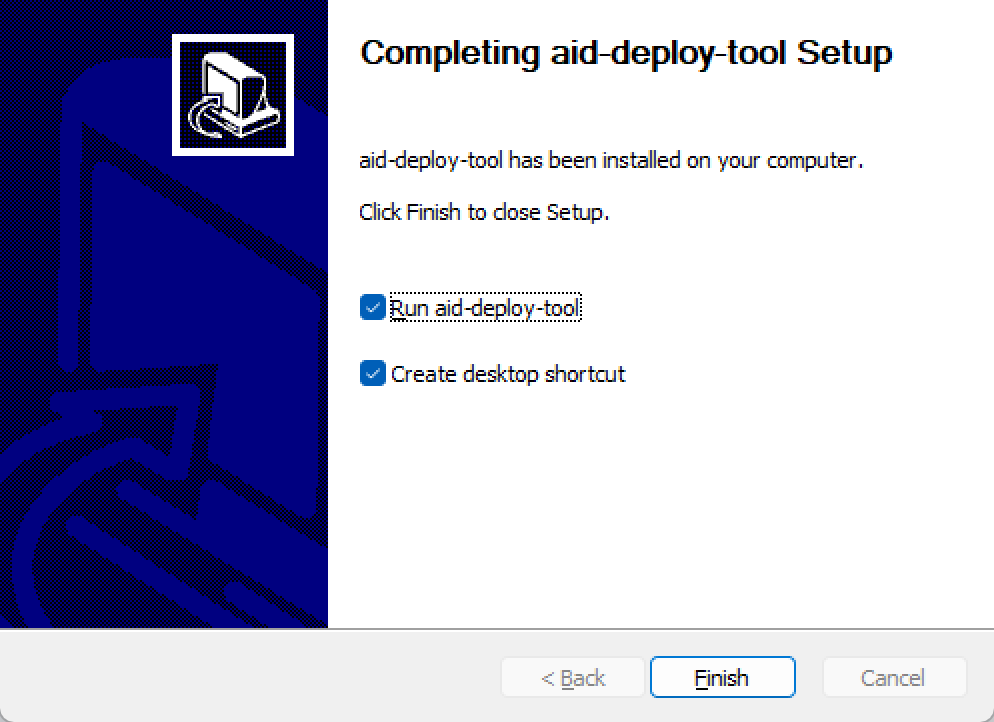
- After installation, the tool will open by default.