USB to Serial Port Devices
USB TO 4CH TTL
- Official documentation: USB TO 4CH TTL
Preparation
- Rhino Pi A1
- USB TO 4CH TTL serial device
- CH340 USB TO TTL test board
- Dupont wires
- Windows PC
Hardware Connection
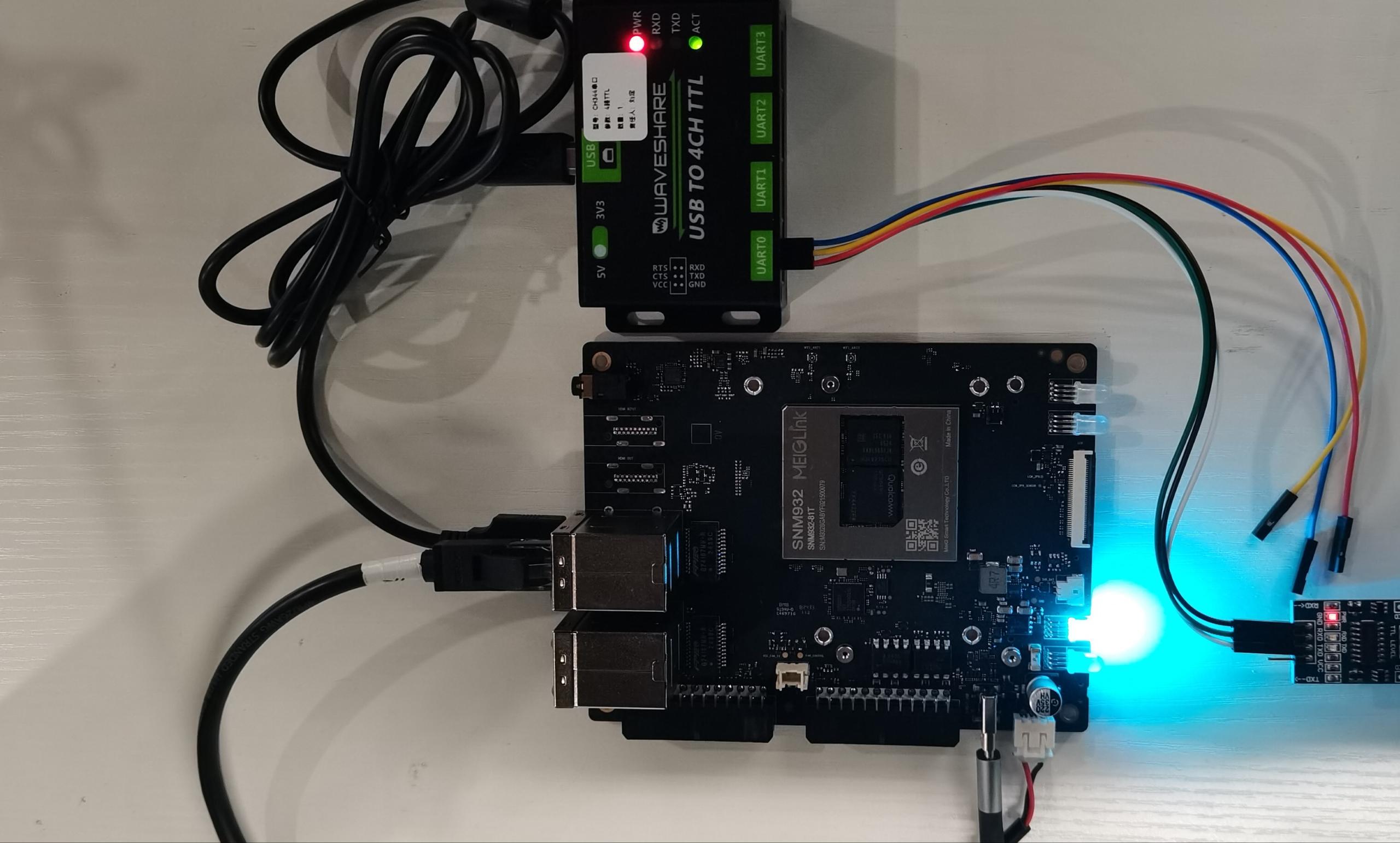
- Connect the development board via USB to the CH344 device.
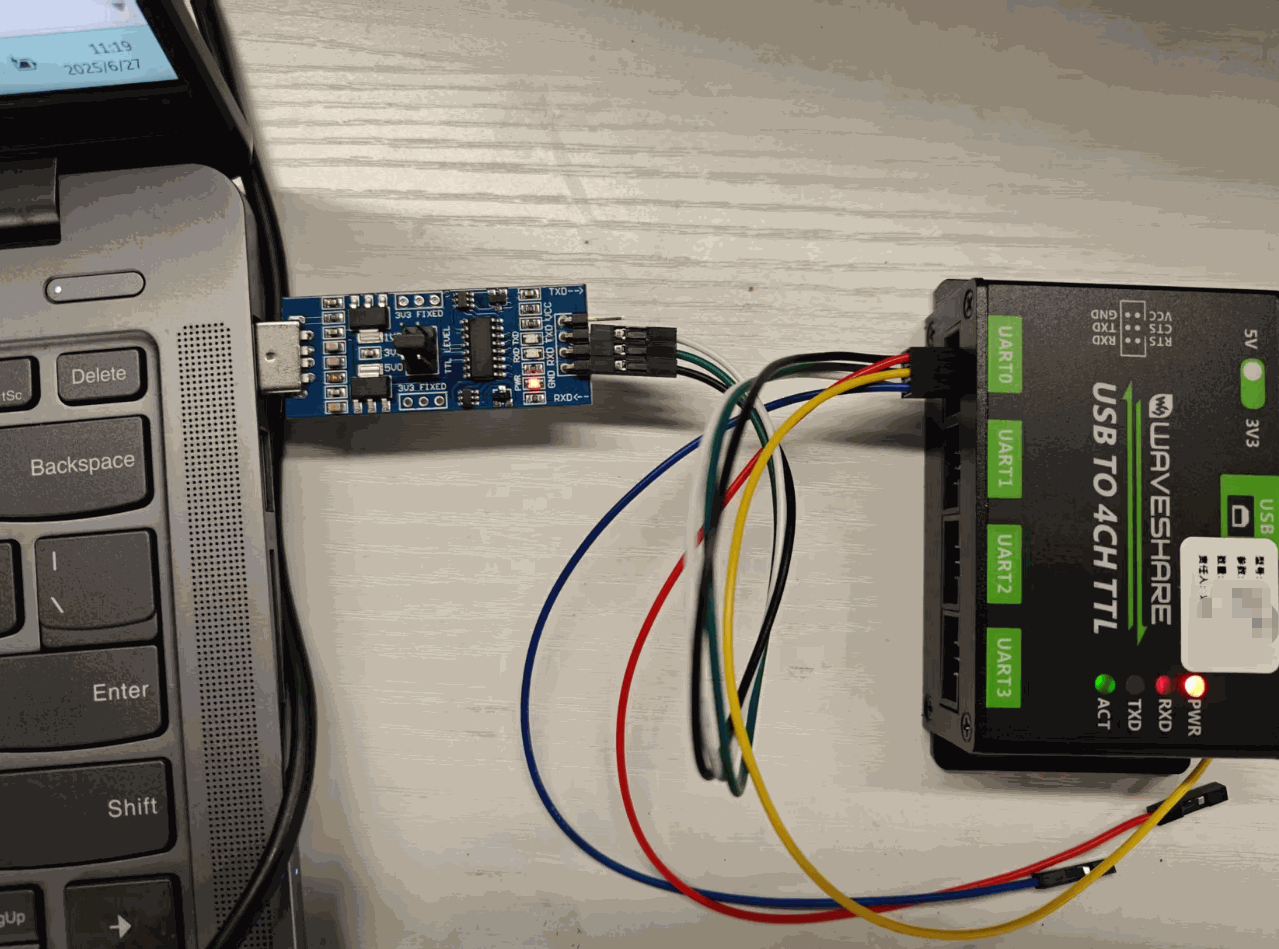
- Connect the CH340 test board to the Windows PC USB port and the CH344 device.
Connect CH344 RXD/TXD/GND to CH340 TXD/RXD/GND.
Test
💡 Note
When running commands in the AidLux desktop terminal, if prompted for the password, enter aidlux.
After obtaining the IP address of the AGA Rhino development board, log in to the AidLux web desktop in your browser. For detailed login steps, refer to Web Login in the hardware guide.
In the AidLux terminal, run the following command to verify the CH344 serial device is recognized:
ls -l /dev/ttyC*
💡 Note
CH344 multi-channel serial device names correspond directly to physical UART interfaces: /dev/ttyCH343USB0 maps to UART0, /dev/ttyCH343USB1 maps to UART1, and so on.
- Use
sttyin the AidLux terminal to configure the UART device:
stty -F /dev/ttyCH343USB0 115200   # Set ttyCH343USB0 baud rate to 115200
stty -F /dev/ttyCH343USB0 -isig -icanon iexten -echo
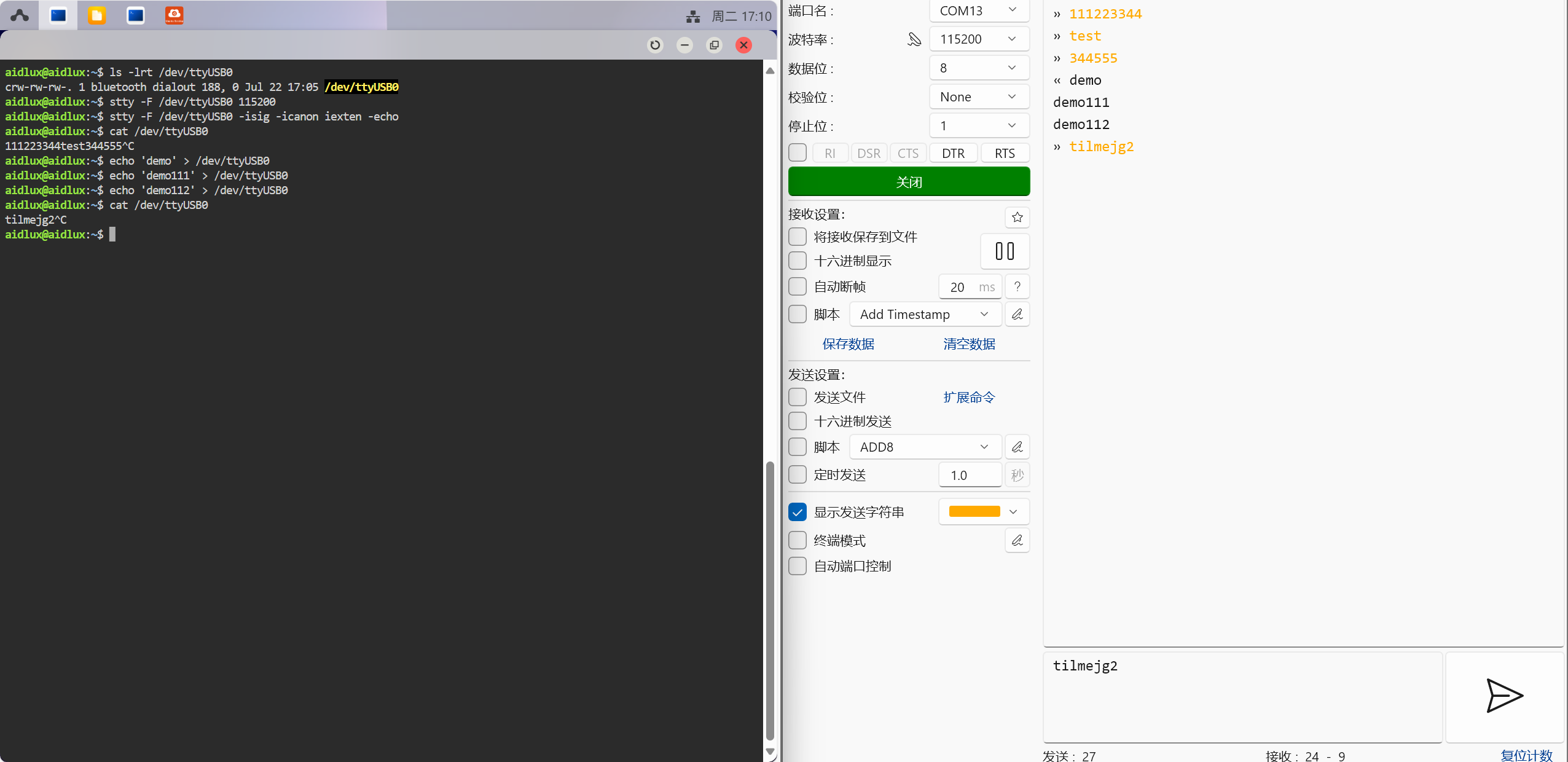
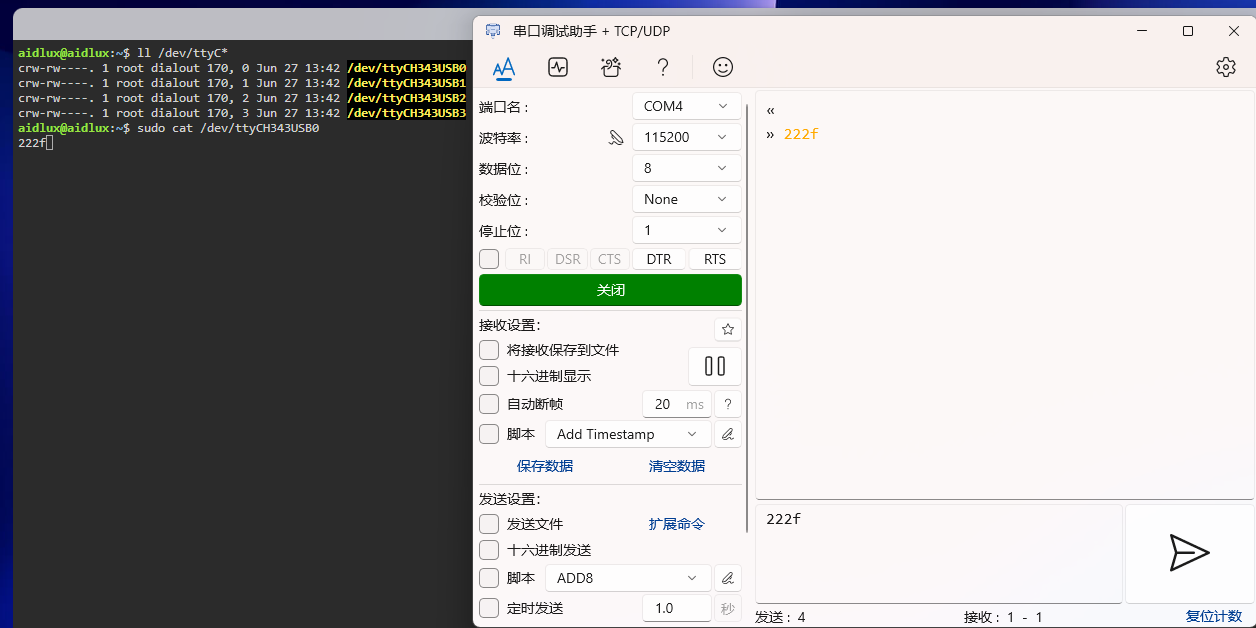
- On Windows, open a serial terminal tool and open the corresponding port with the same baud rate.
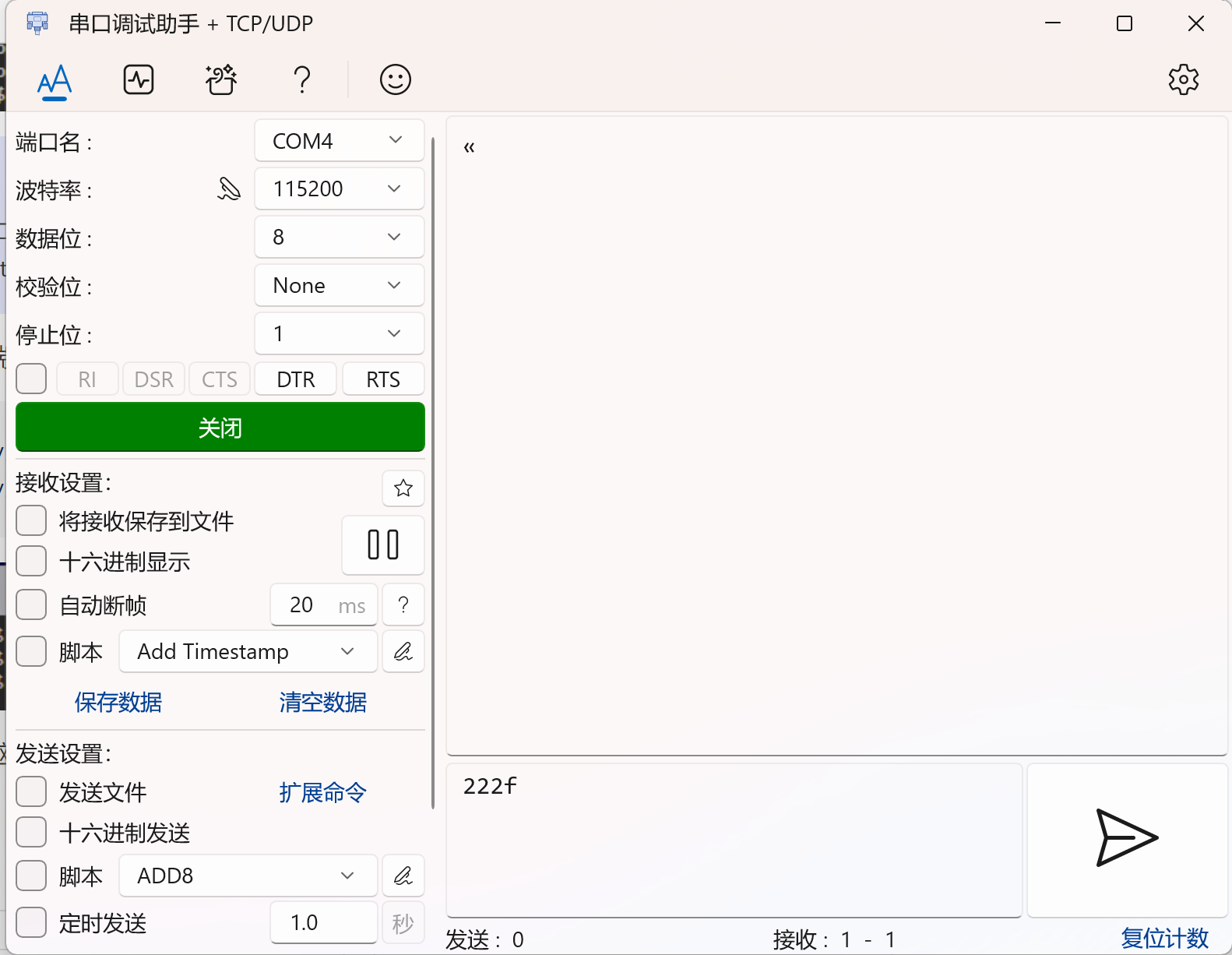
Send and receive messages between the Windows terminal and the AidLux terminal.
AidLux receive test:
Run the following command in the AidLux terminal and observe incoming messages:
sudo cat /dev/ttyCH343USB0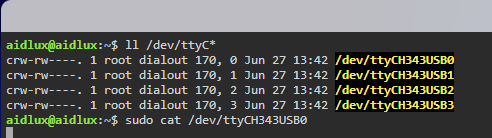
- Send messages from the Windows serial terminal and verify that messages can be received on AidLux.
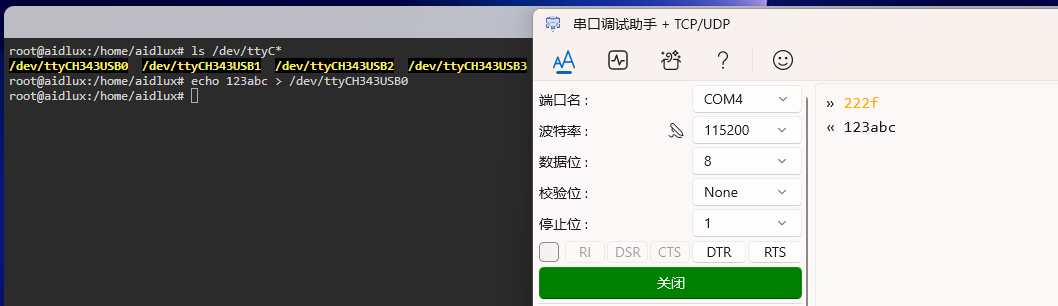
- AidLux send test:
Send a message from the AidLux terminal and verify it appears in the Windows terminal:
echo 123abc > /dev/ttyCH343USB0💡 Note
If permission is denied, run sudo su to switch to root, then retry. The password is aidlux.
USB TO 8CH TTL
- Official documentation: USB TO 8CH TTL
Preparation
- Rhino Pi A1
- USB TO 8CH TTL serial device
- CH340 USB TO TTL test board
- Dupont wires
- Windows PC
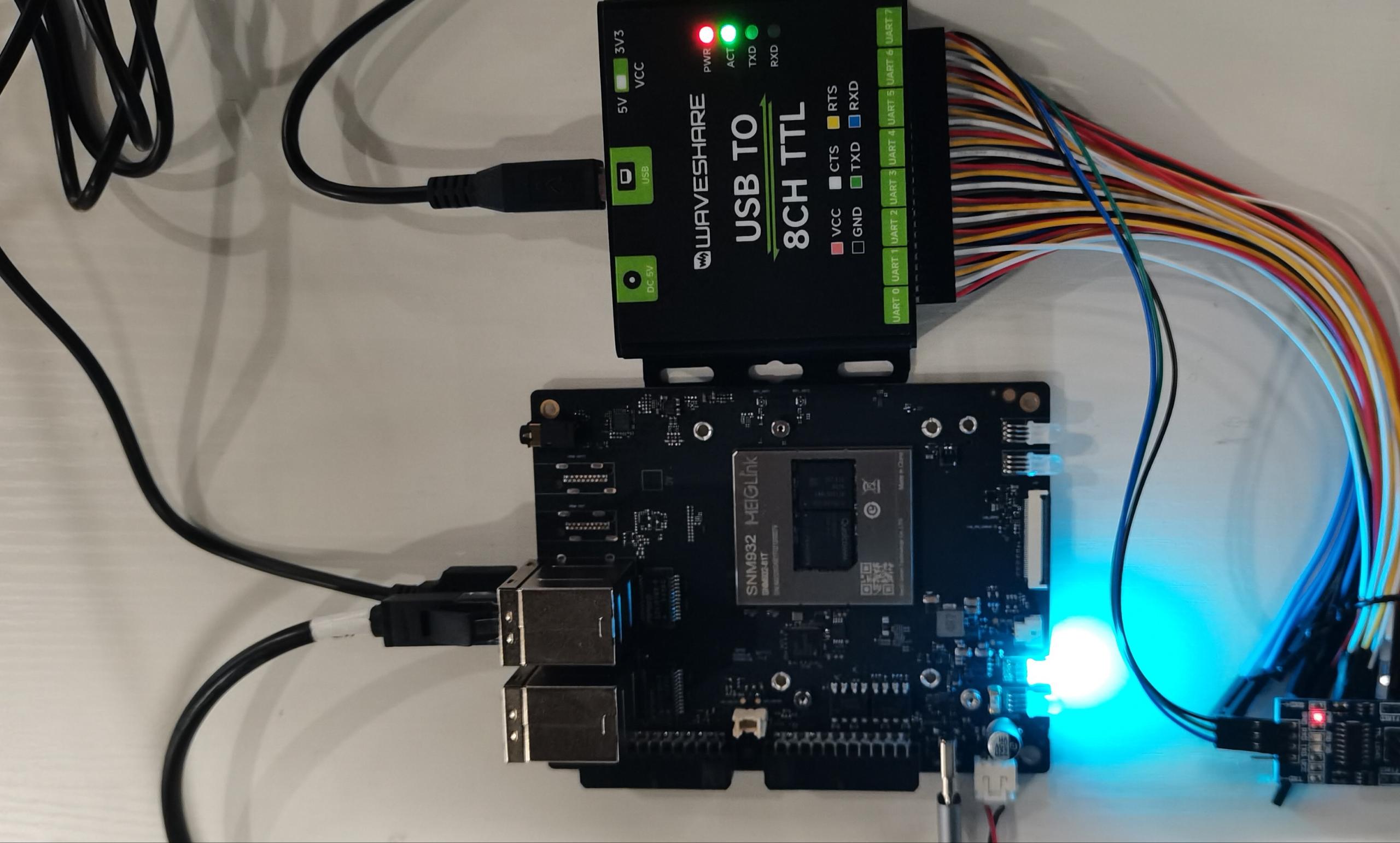
Hardware Connection
- Connect the development board via USB to the CH348 device. Connect the CH340 test board to the Windows PC USB port and the CH348 device.
Connect CH348 RXD/TXD/GND to CH340 TXD/RXD/GND.
Test
💡 Note
When running commands in the AidLux desktop terminal, if prompted for the password, enter aidlux.
After obtaining the device IP, log in to the AidLux web desktop.
In the AidLux terminal, run the following command to verify the CH348 serial device is recognized:
ls -l /dev/ttyC*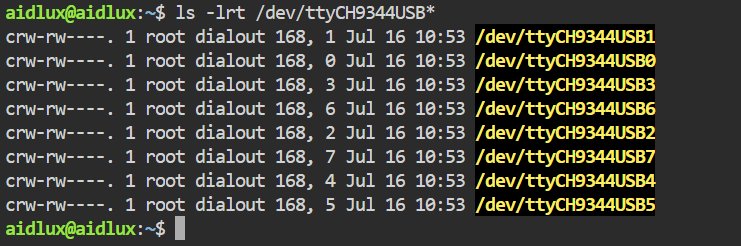
💡 Note
CH348 multi-channel serial device names correspond directly to physical UART interfaces: /dev/ttyCH9344USB0 maps to UART0, /dev/ttyCH9344USB1 maps to UART1, and so on.
- Install
minicom:
sudo apt update
sudo apt install minicom- On Rhino Pi A1, open the serial port with
minicom.
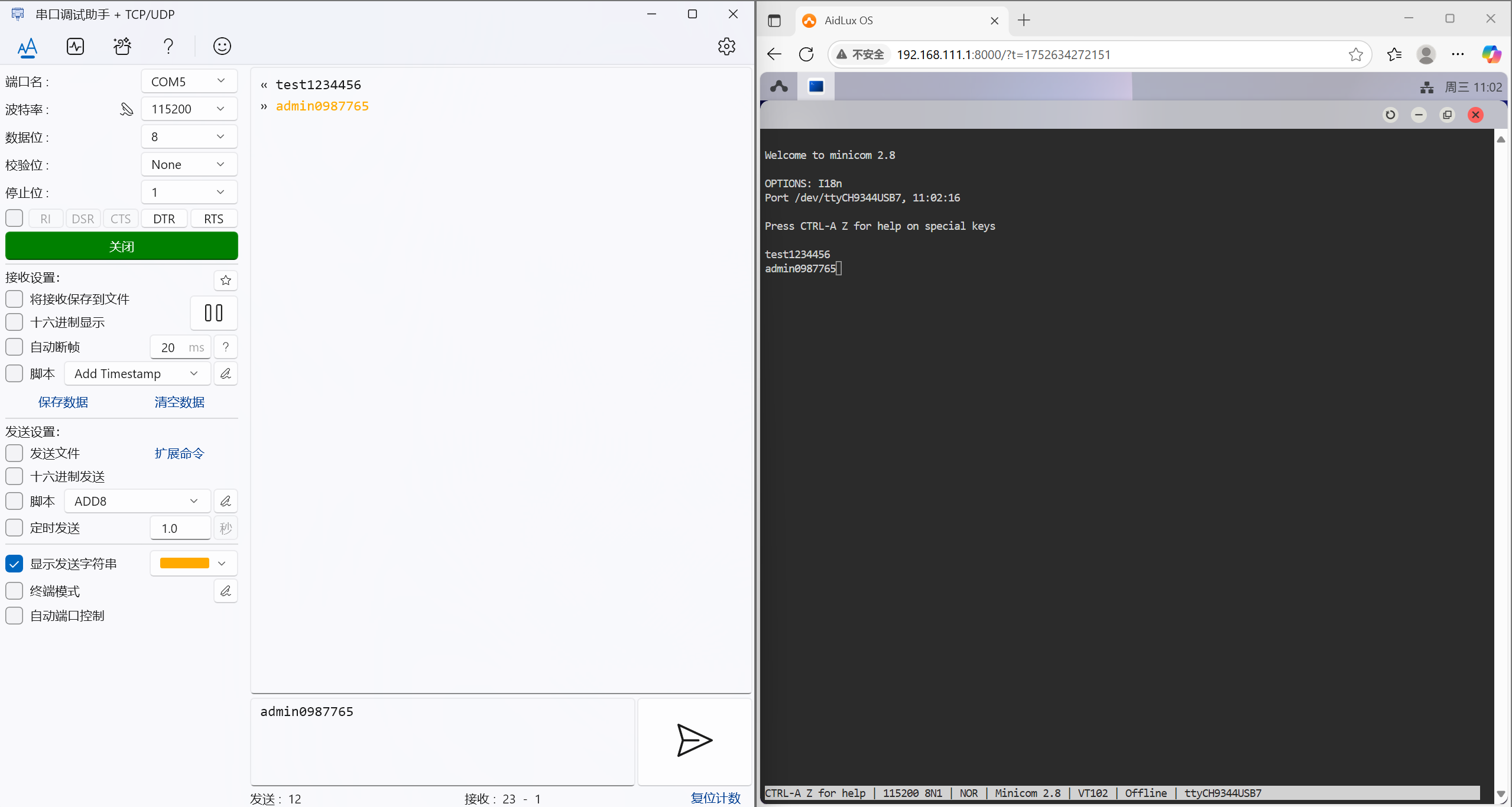
If the connected port is UART7, run:
sudo minicom -D /dev/ttyCH9344USB7 -b 115200On Windows, open the serial terminal tool and open the same port with the same baud rate, e.g. 115200.
Test sending and receiving messages between both ends.
Note
minicom does not display typed input by default. Press Ctrl-A Z E to enable input echo.
CH9102
Preparation
- Rhino Pi A1
- CH9102 serial device
- CH340 USB TO TTL test board
- Dupont wires
- Windows PC
Hardware Connection
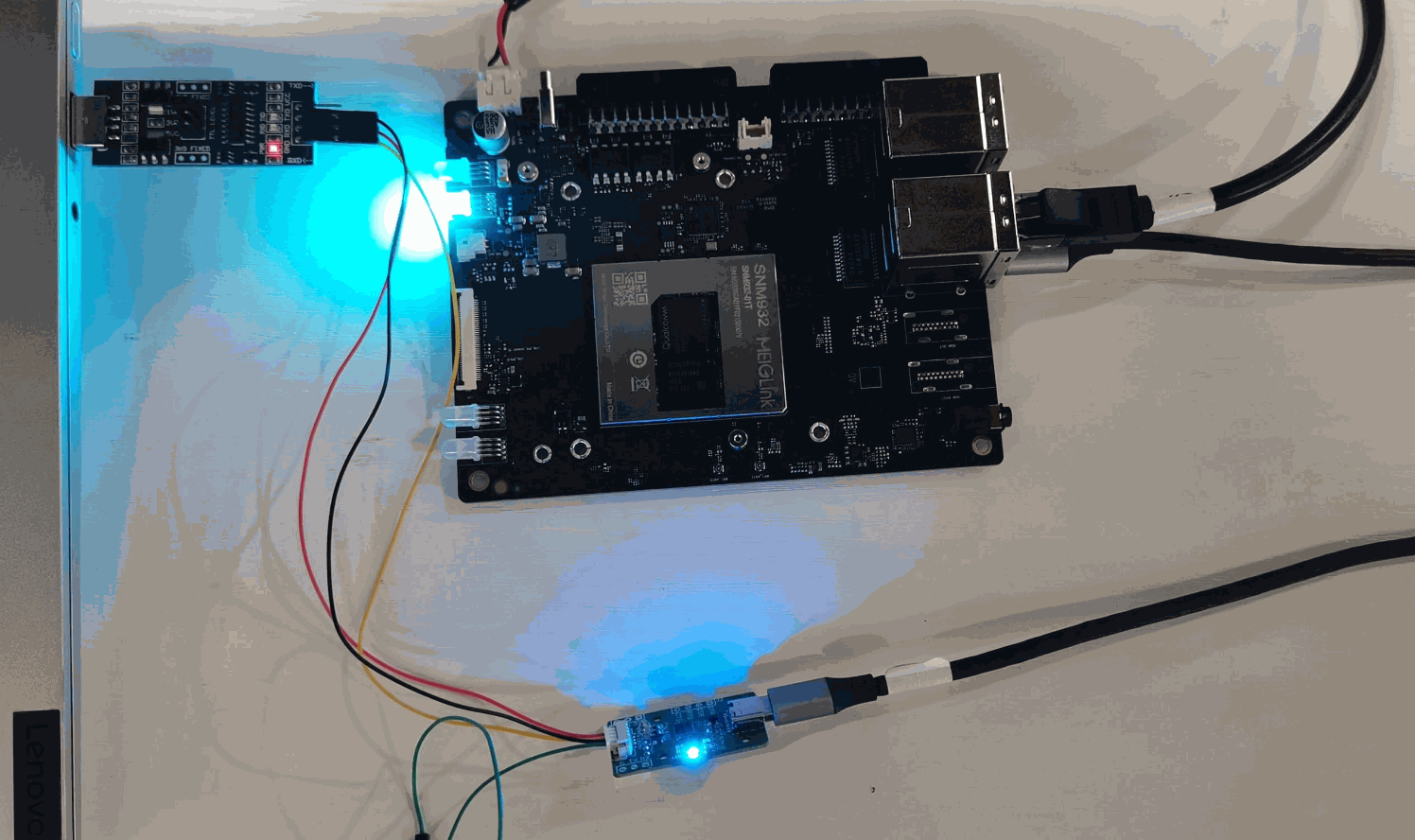
- Connect the development board via USB to the CH9102 device. Connect the CH340 test board to the Windows PC USB port and the CH9102 device.
Connect CH9102 RXD/TXD/GND to CH340 TXD/RXD/GND.
Test
💡 Note
When running commands in the AidLux desktop terminal, if prompted for the password, enter aidlux.
After obtaining the device IP, log in to the AidLux web desktop.
In the AidLux terminal, run the following command to verify the CH9102 serial device is recognized:
ls -l /dev/ttyC*
- Configure the serial port with
stty:
chmod 777 /dev/ttyCH343USB0                              # grant permission
stty -F /dev/ttyCH343USB0 115200                         # set baud rate
stty -F /dev/ttyCH343USB0 -isig -icanon iexten -echo     # set other options
On Windows, open the serial terminal tool and open the same port with the same baud rate.
Test sending and receiving messages in both directions.
Send command:
echo 'demo123' > /dev/ttyCH343USB0Receive command:
cat /dev/ttyCH343USB0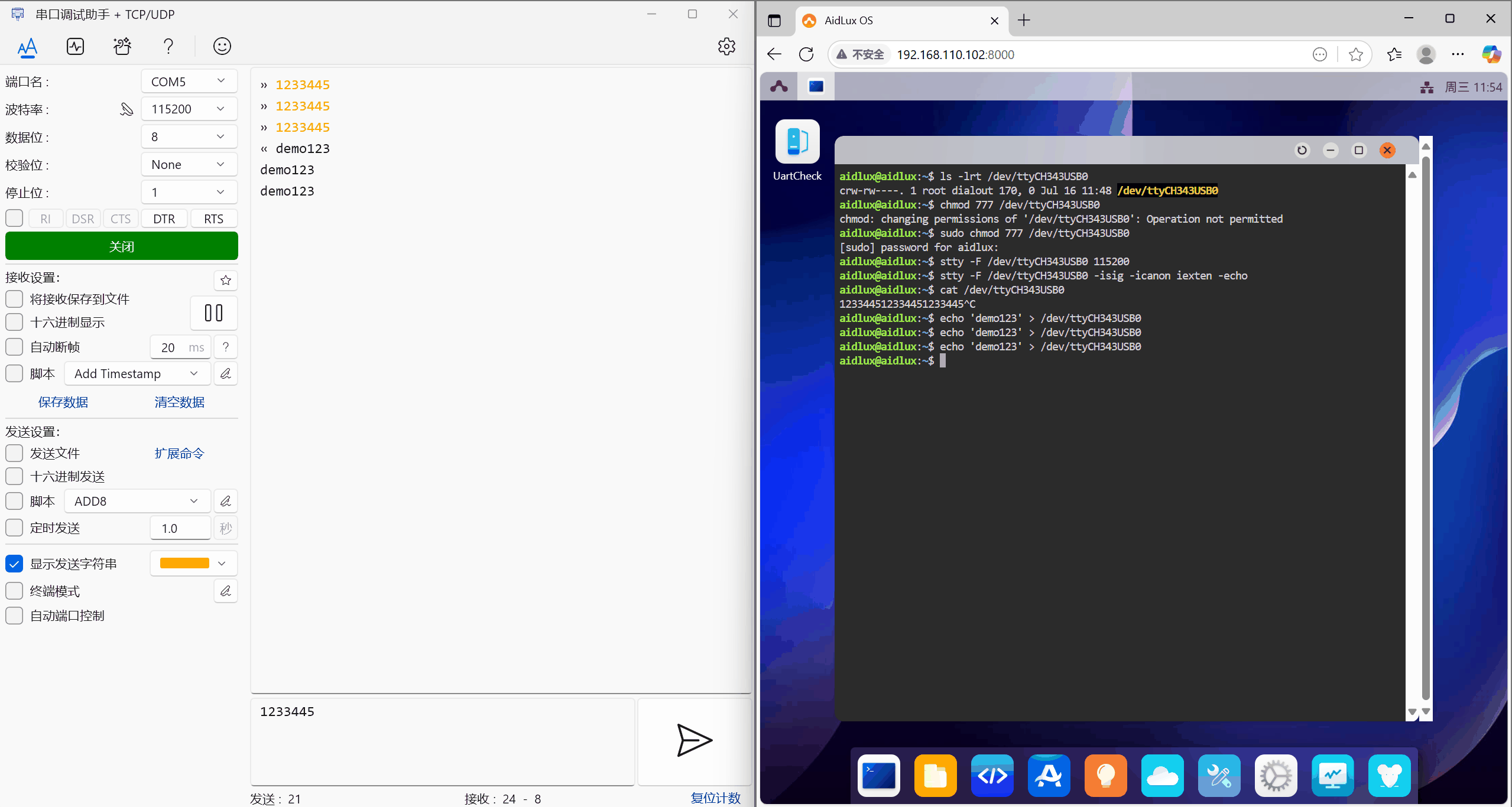
CP2102
- Official documentation: CP2102
Preparation
- Rhino Pi A1
- CP2102 serial device
- CH340 USB TO TTL test board
- Dupont wires
- Windows PC
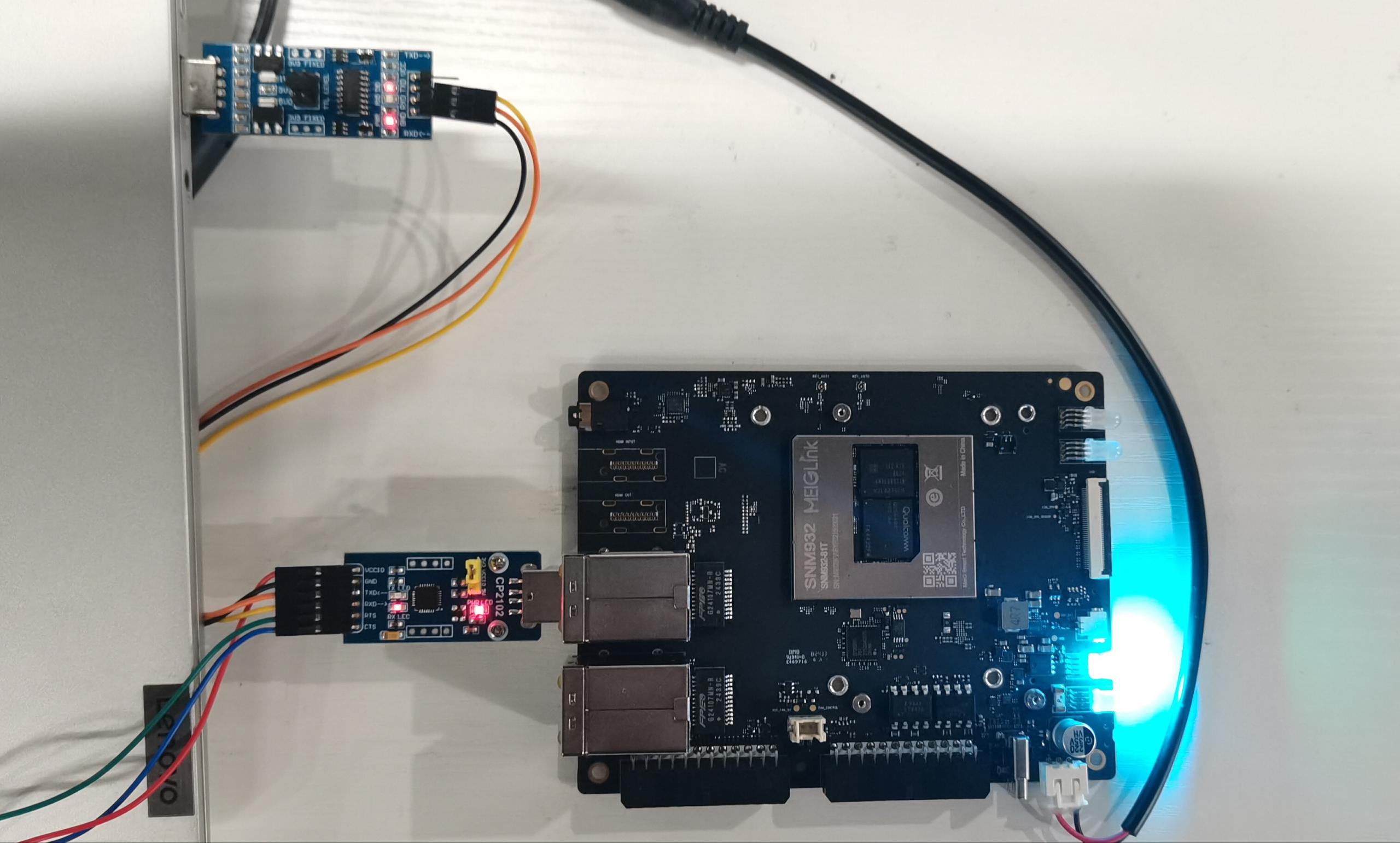
Hardware Connection
- Connect the development board via USB to the CP2102 device. Connect the CH340 test board to the Windows PC USB port and the CP2102 device.
Connect CP2102 RXD/TXD/GND to CH340 TXD/RXD/GND.
Test
💡 Note
When running commands in the AidLux desktop terminal, if prompted for the password, enter aidlux.
After obtaining the device IP, log in to the AidLux web desktop.
In the AidLux terminal, run the following command to verify the CP2102 serial device is recognized:
ls -l /dev/ttyU*
- Configure the serial port with
stty:
chmod 777 /dev/ttyUSB0                              # grant permission
stty -F /dev/ttyUSB0 115200                         # set baud rate
stty -F /dev/ttyUSB0 -isig -icanon iexten -echo # set other options- On Windows, open the serial terminal tool and open the corresponding port.
Make sure the baud rate matches the stty setting on Rhino Pi A1 (for example, 115200).
- Test sending and receiving messages in both directions.
Use echo to send data to the serial device and verify that Windows receives it; send data from Windows and verify that Rhino Pi A1 receives it with cat.
Send command:
echo 'demo111' > /dev/ttyUSB0Receive command:
cat /dev/ttyUSB0