Remote Desktop
VNC Connection to Gnome Desktop
Start the VNC Service
After the device is connected to the network and has obtained an IP address, open a browser and go to IP:8000. On the AidLux web page, click ubuntu-desktop to start the VNC service. If ubuntu-desktop is not installed, click install and follow the system prompts to install it.

Connect to Ubuntu Desktop (Gnome Desktop) via VNC
VNC Tool Download:
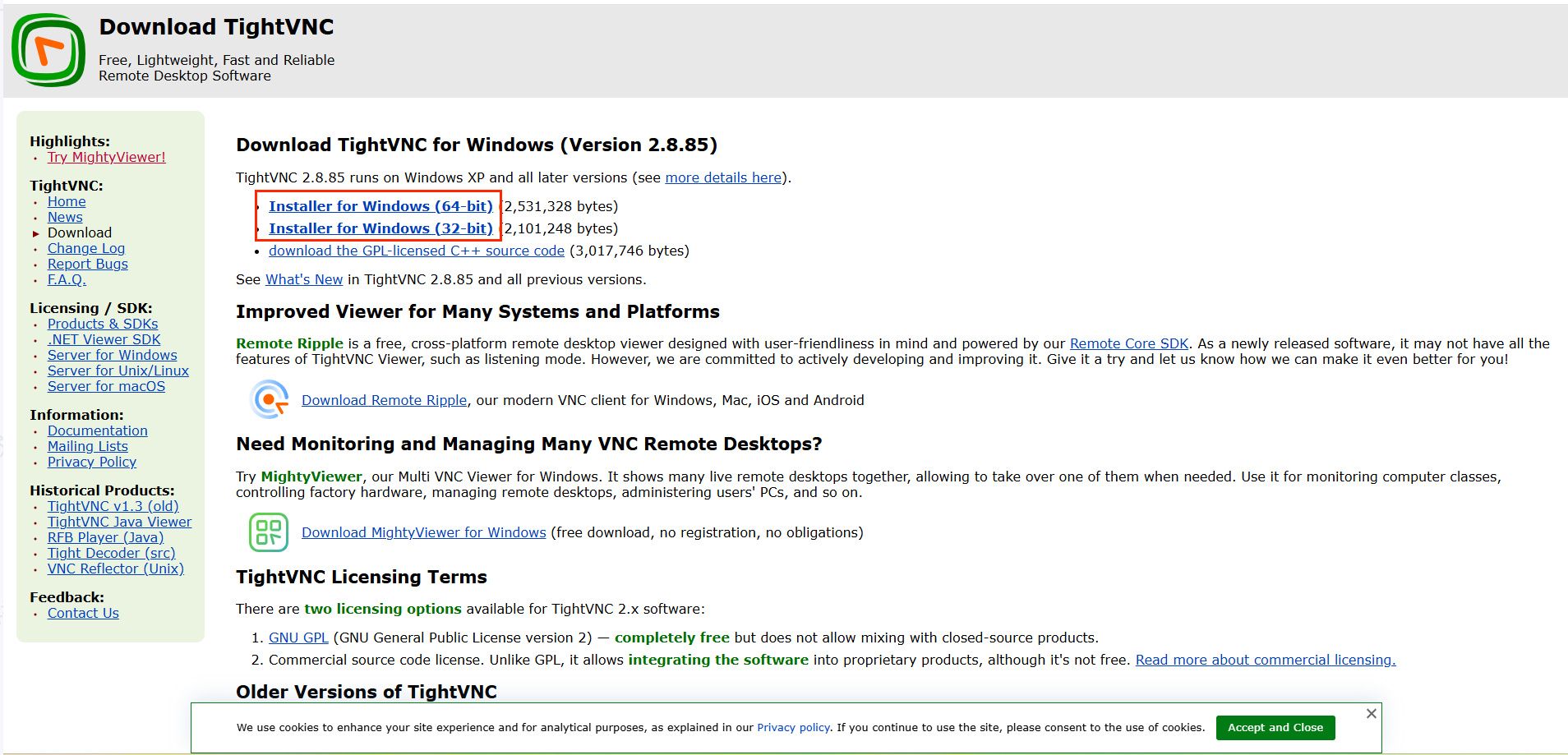
You can download the TightVNC tool from the link below, or use another VNC client.
Download link: https://www.tightvnc.com/download.php
- Choose the version that matches your development computer's operating system, then download and install it.
Open the VNC Tool and Connect to the Gnome Desktop
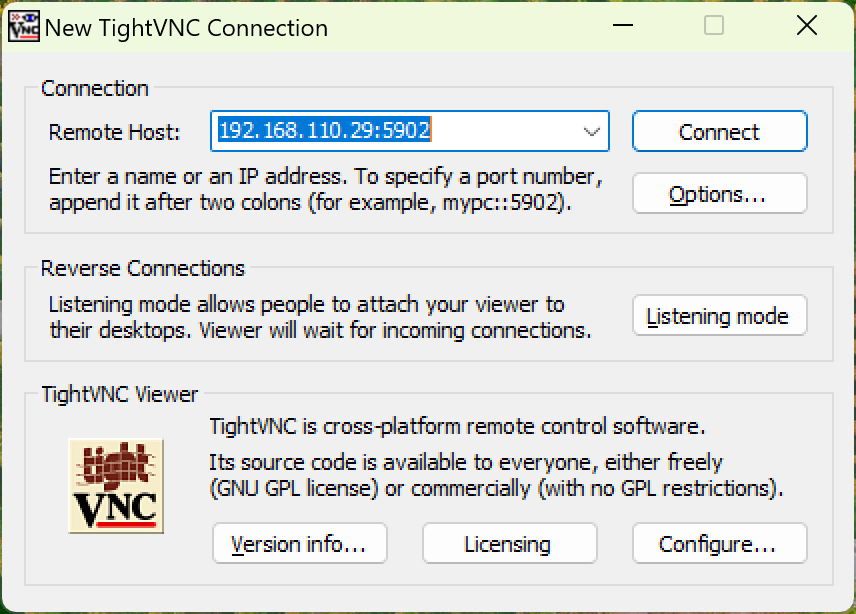
- Open TightVNC, enter the device address
IP:5902, and clickconnect.
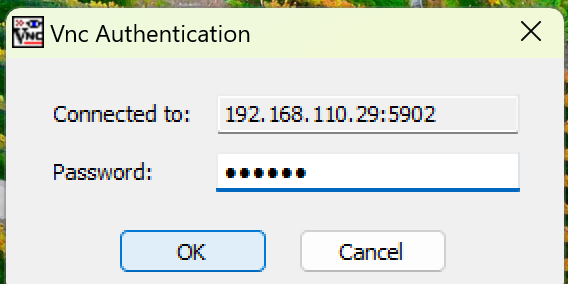
- When prompted for a password, enter
aidlux, then clickokto connect.