Browser Login
If your network has a DHCP server and can assign IP addresses to downstream devices, you can log in to the system through a browser.
Hardware Preparation
- Mainboard: Rhino Pi A1
- Power supply: DC12V 3A power adapter
- Input device: USB Type-A to Type-C cable
- Communication device: standard Ethernet cable
Software Preparation
Refer to Tool Installation and install the required tools below. Skip if they are already installed.
- USB driver
- ADB tools
Power On the Board
The board comes with Ubuntu preinstalled. After connecting a 12V power adapter, the system starts automatically.
- During boot: the RGB green LED stays on and blinks.
- Use a USB Type-A to Type-C cable: connect Type-A to the Windows PC USB port and Type-C to the board Type-C port.
- Boot completed: the RGB green LED stays on without blinking.
Get the IP Address
- Connect an Ethernet cable to any wired network port on Rhino Pi A1.
- On Windows, press WIN + R, type
cmd, and run the following commands to query the IP address:
bash
# Enter the device
adb shell

# Get IP address
ifconfig eth0
The output is similar to:
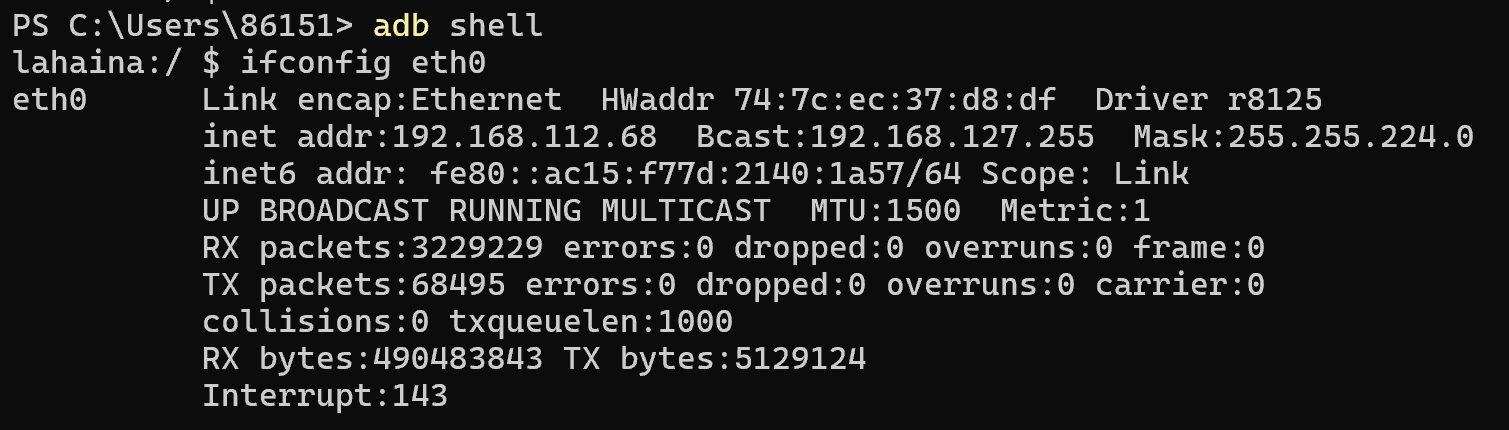
The inet addr field is the device IP address.
Log In to the Web Page
After obtaining the device IP address, log in to the Ubuntu AidLux Web interface as follows:
- Ensure the PC and board are in the same LAN.
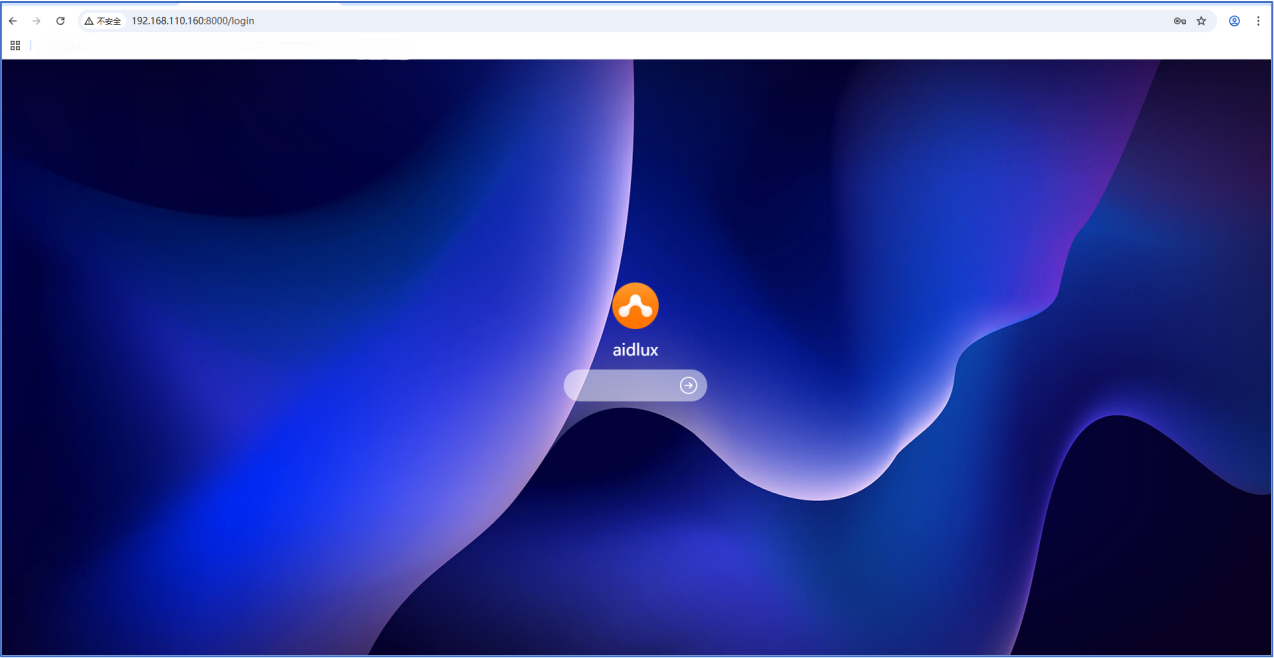
- Enter
http://ip:8000/loginin your browser, and replaceipwith the actual device IP address. - Username/password: aidlux/aidlux
Use the System
After successful startup, you can start using Ubuntu 24.04 on Rhino Pi A1.