Firmware Flashing
Reminder
Flashing will format the system. Back up your data in advance.
Flashing Tool Installation
Before using A8625, developers need to preinstall required software on a local Windows PC:
- USB driver: USB_Driver_qud.win.1.1_installer_10061.1.zip
- System flashing tool: QPST_2.7.496.zip
- ADB tools: platform-tools.zip
Software download link: Software Tool Package Download Link
USB Driver Installation
- Extract
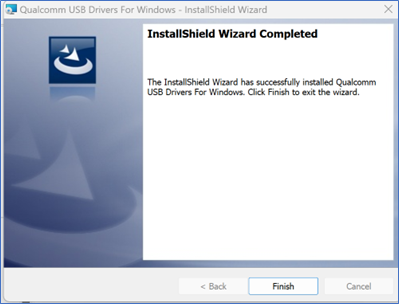
USB_Driver_qud.win.1.1_installer_10061.1.zip. - After extraction, double-click
setup.exe. When theQualcomm USB Driversinstaller appears, clicknextas prompted.
System Flashing Tool Installation
- Extract
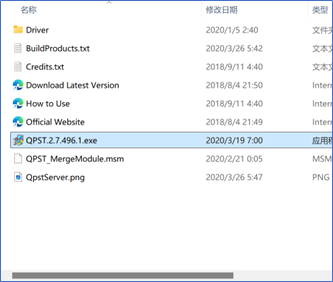
QPST_2.7.496.zipto the current folder. - Enter the extracted
QPST_2.7.496directory, then double-clickQPST.2.7.496.1.exeto install.
- Follow the prompts and keep clicking
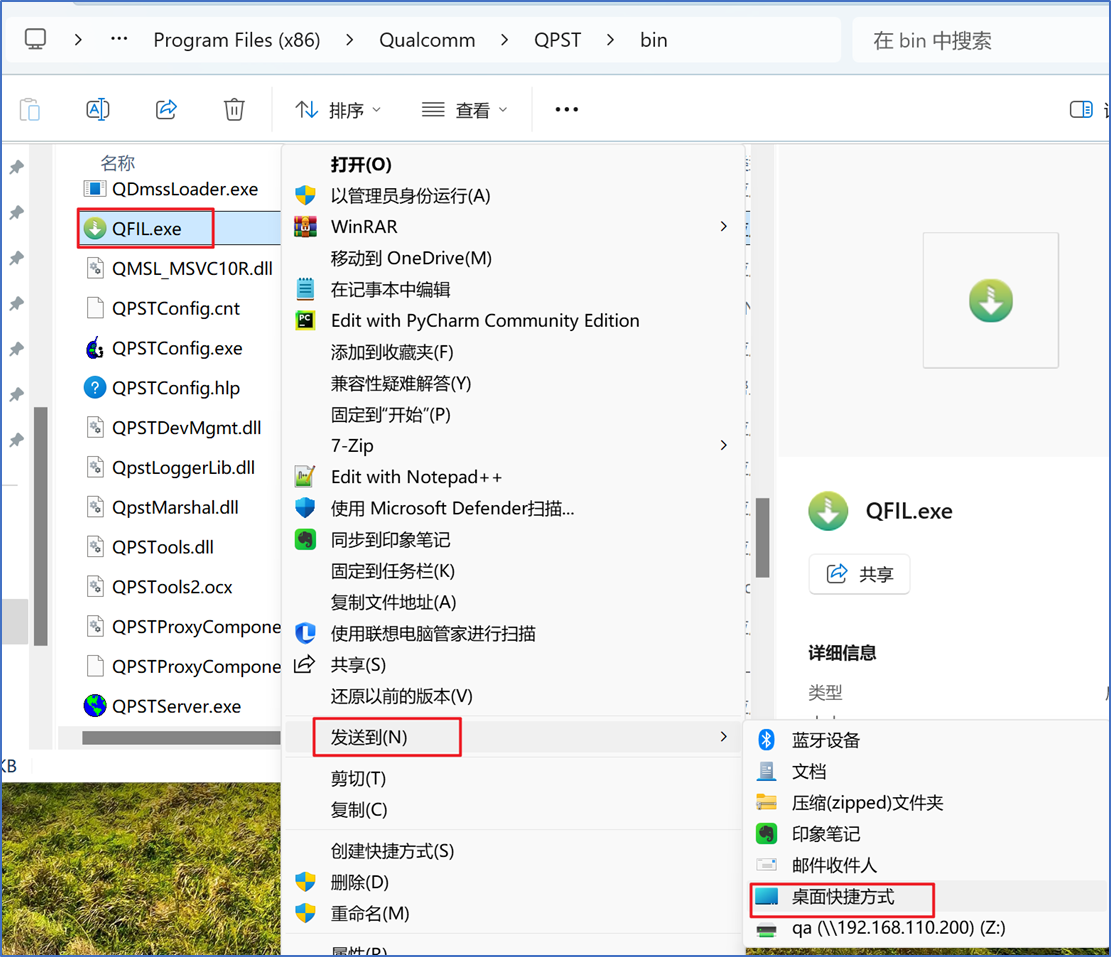
nextto complete installation. - Default installation path after completion:
C:\Program Files (x86)\Qualcomm\QPST\bin. - You can enter this directory and send
QFIL.exeto the desktop.
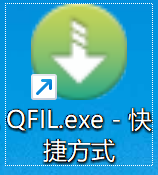
- Desktop icon shown below.
ADB Tool Installation
- Extract
- Extract
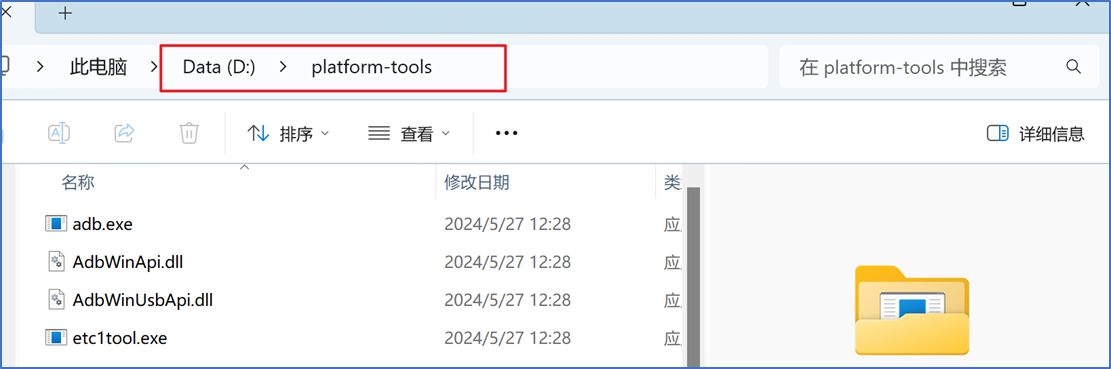
platform-tools.zipto drive D.
- Configure ADB environment variables
- Copy the extracted
platform-toolspath.
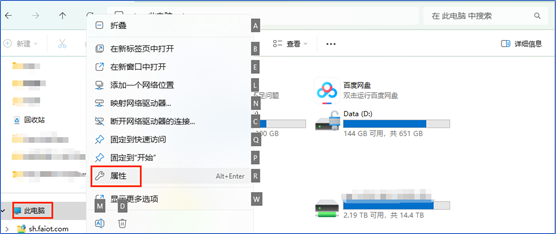
- Right-click "This PC - Properties".
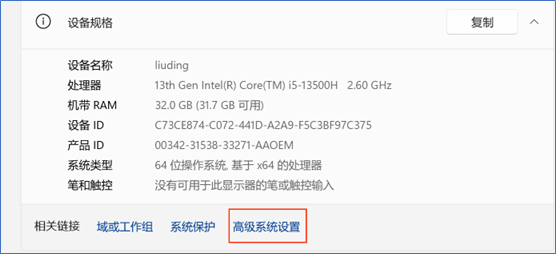
- In the settings window, click "Advanced system settings".
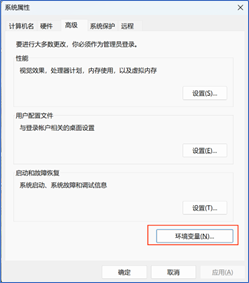
- In the System Properties window under Advanced, click "Environment Variables".
- In the Environment Variables window, select
Pathunder "System variables" and click "Edit".
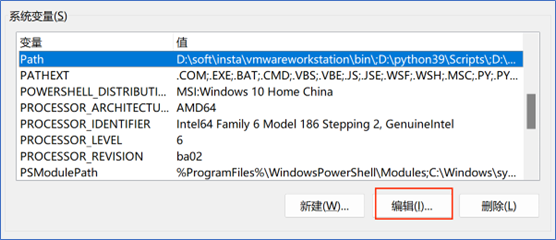
- In the Edit environment variable window, click "New" and add the
platform-toolspath copied above.
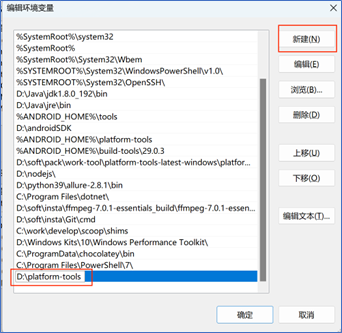
- Click "OK" to save and exit.
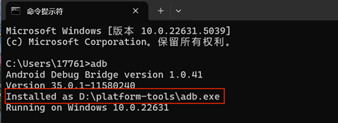
- Verify ADB environment
- Open a
cmdwindow, runadb, and ensure no error is reported.
Ubuntu System Installation
Switch to Flash Mode
- After the device boots, connect the PC and device with a USB Type-A to Type-C cable. Type-A connects to the PC USB port, and Type-C connects to the device.
- After connection, press WIN+R on Windows, enter
cmd, and runadb devicesin the opened window. Connected devices will be listed. If not shown, wait a while, or replug the Type-C cable and run the command again.
shell
adb devices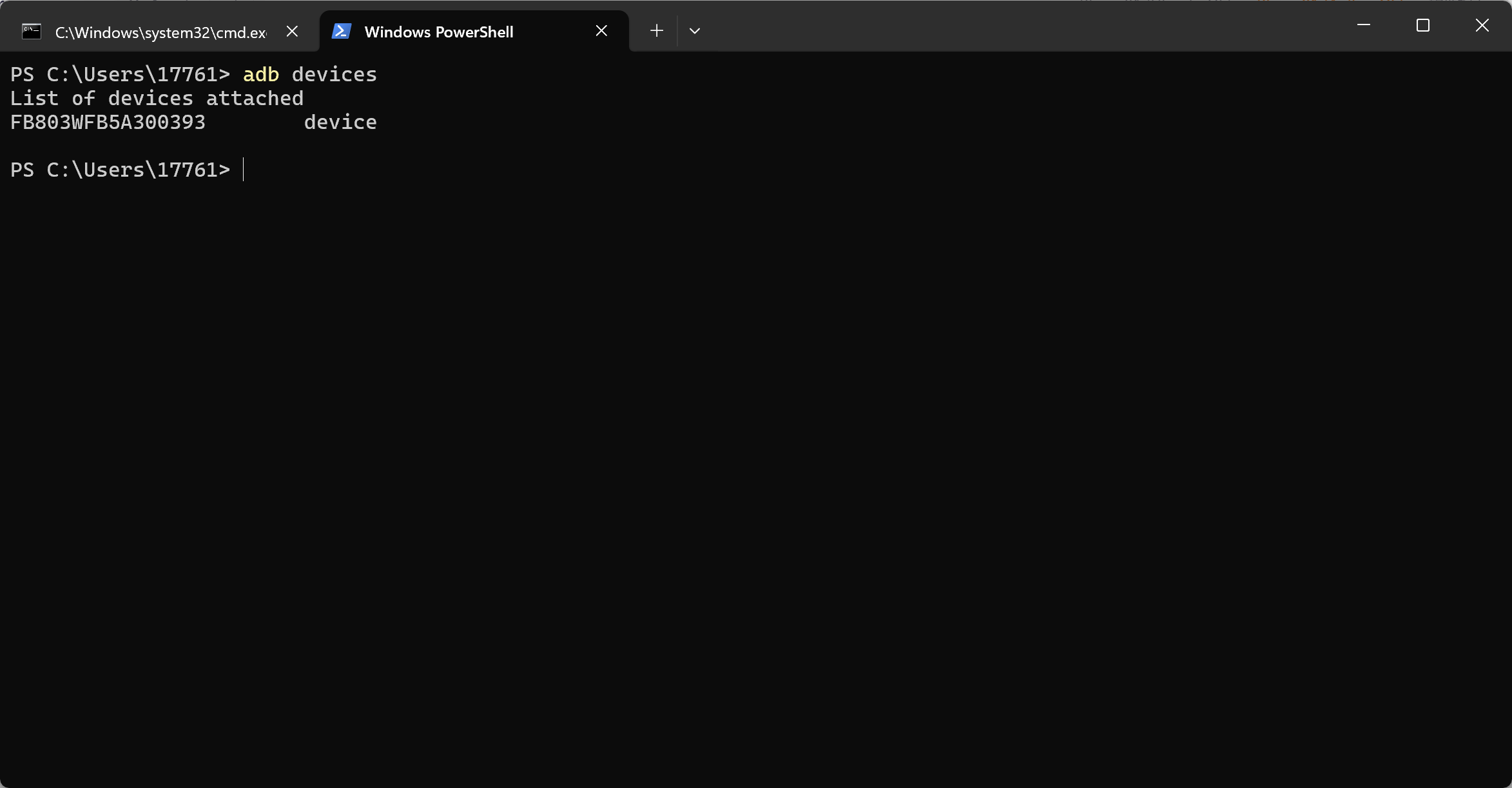
- Switch to flash mode by running
adb root;adb reboot edl.
shell
adb root
adb reboot edl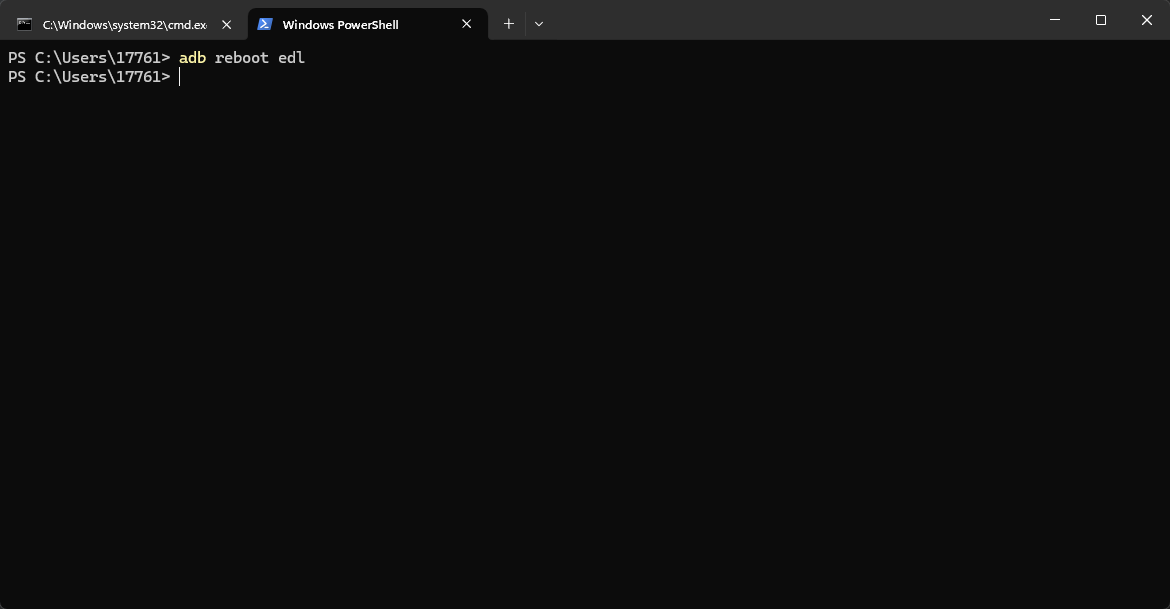
- If using the debug baseboard in kit mode, the board has a built-in DIP switch to force flash mode, as shown below:
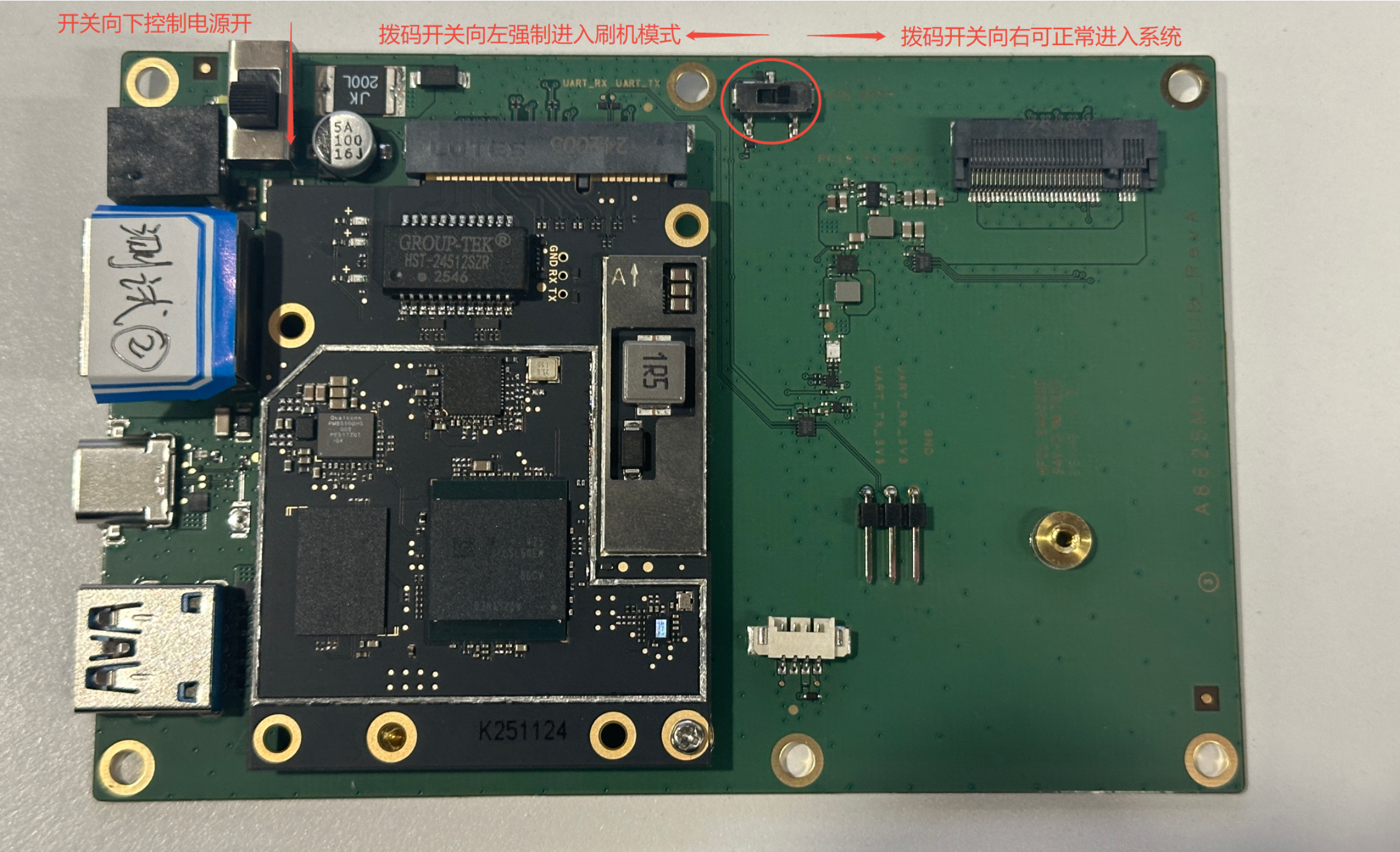
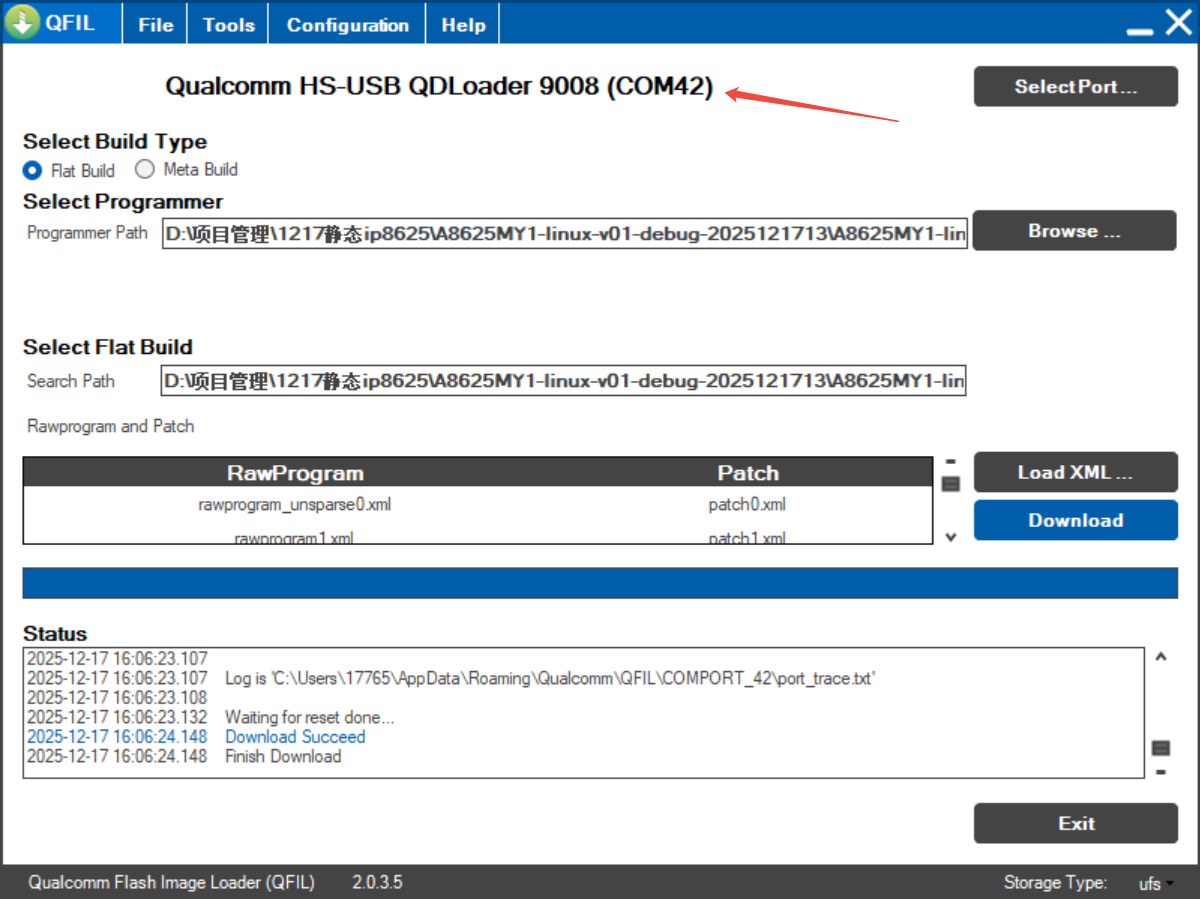
Set the device DIP switch to force flashing mode and power-cycle (using the power switch or unplug/replug power cable). If port 9008 is detected, setup is successful.
Configure QFIL Configuration Item
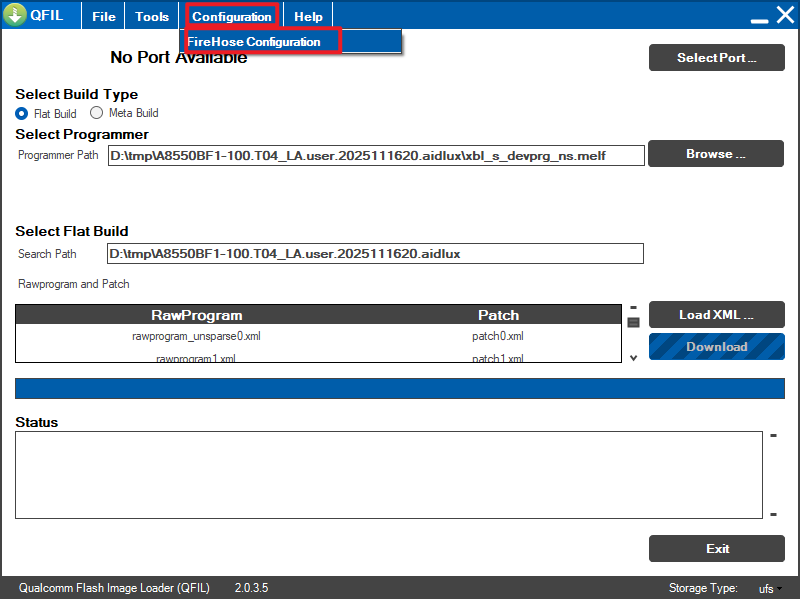
- Open QFIL and click Configuration - FireHose Configuration.
- In the Download Configuration window, set the following:
Set Download Protocol to 0-Sahara
Set Device Type to ufs
Enable Reset After Download
Keep other options consistent with the screenshot below.
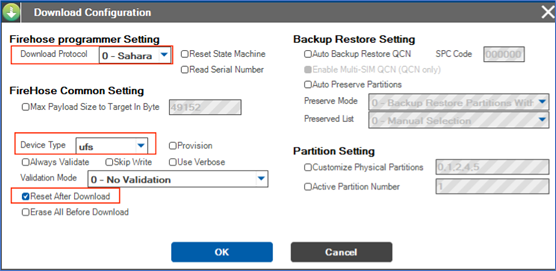
- After configuration, click OK to save.
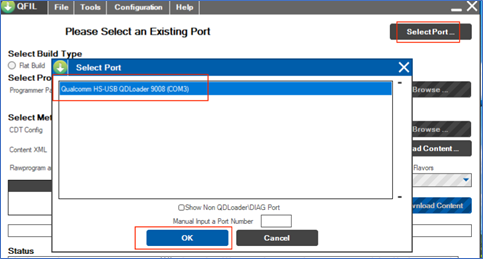
Select Flash Port
- Click
Select Port, then in the popup select port9008and clickOK. - After switching via the Switch to Flash Mode section, this window should show port 9008 automatically. If it does not appear, power-cycle and switch again, then wait for it to appear.
Select Build Type
- Find
Select Build Typeand chooseFlat Build.
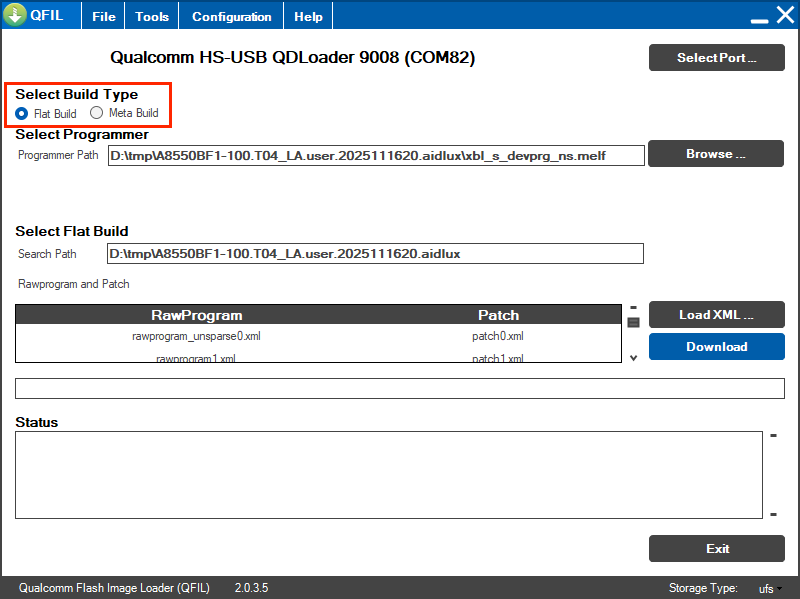
Select Flash Files
- Extract the ROM package. The example below uses version
A8625MY1-ubuntu_7DE921EA6.25_U06_260410. - Find
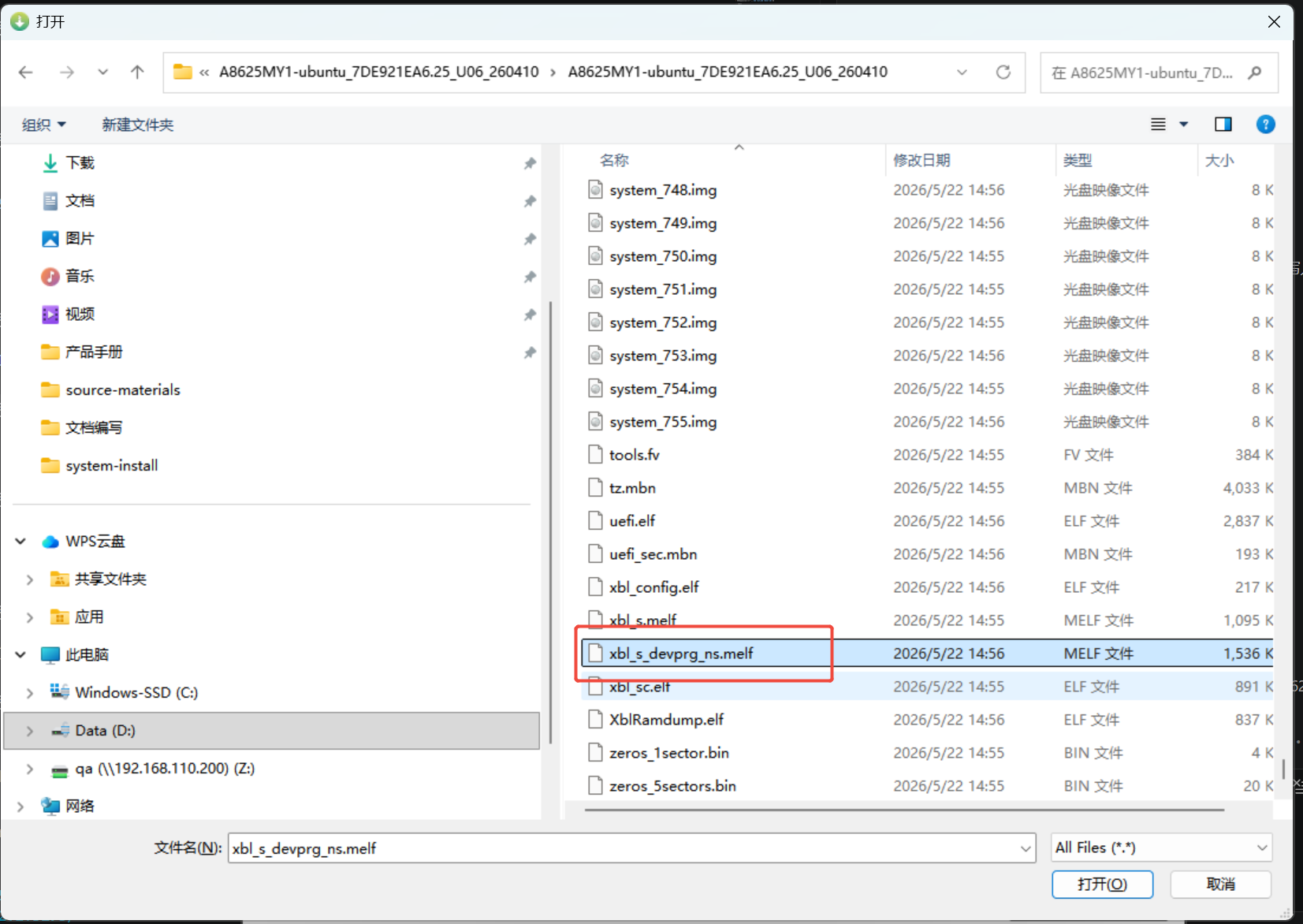
Select Programmer, clickBrowse...afterProgrammer Path, and select files in the extracted ROM path.
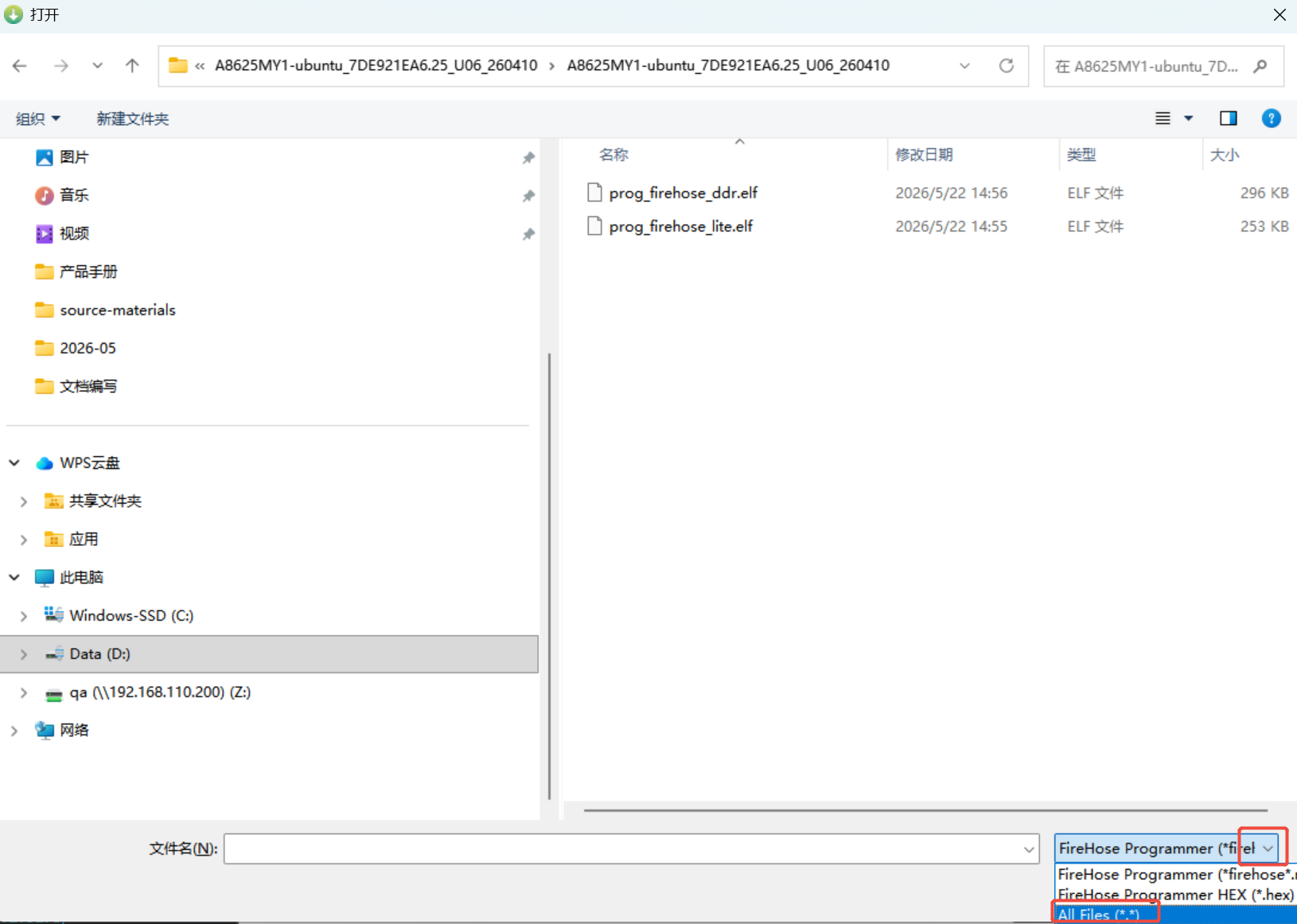
- Change the file type filter to
All Files (*.*).
- Select
xbl_s_devprg_ns.melf, then clickOpen.
Select Flash XML Files
- Find
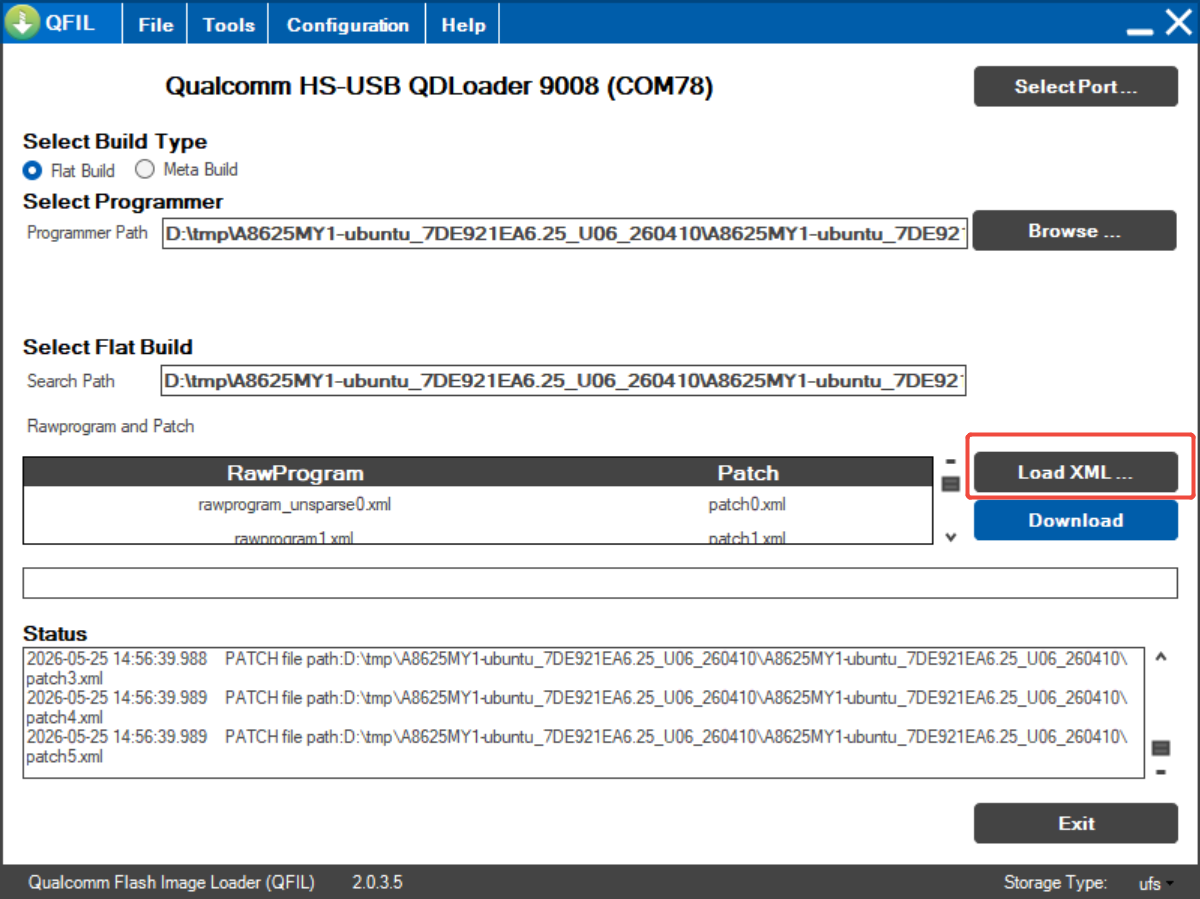
Select Flat Build, clickLoad XML..., and select flash XML files.
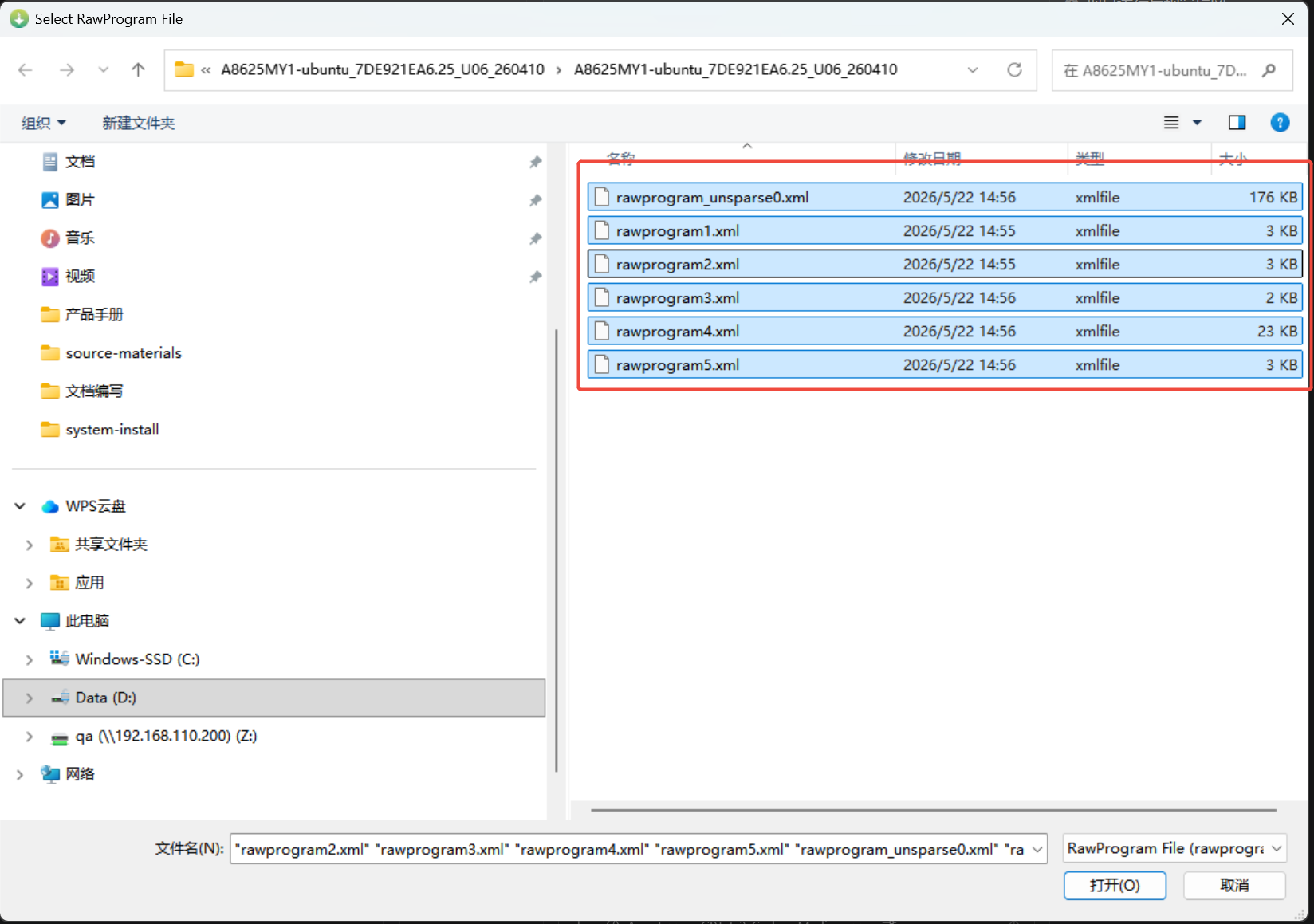
- In the popup, select all files and click
Open.
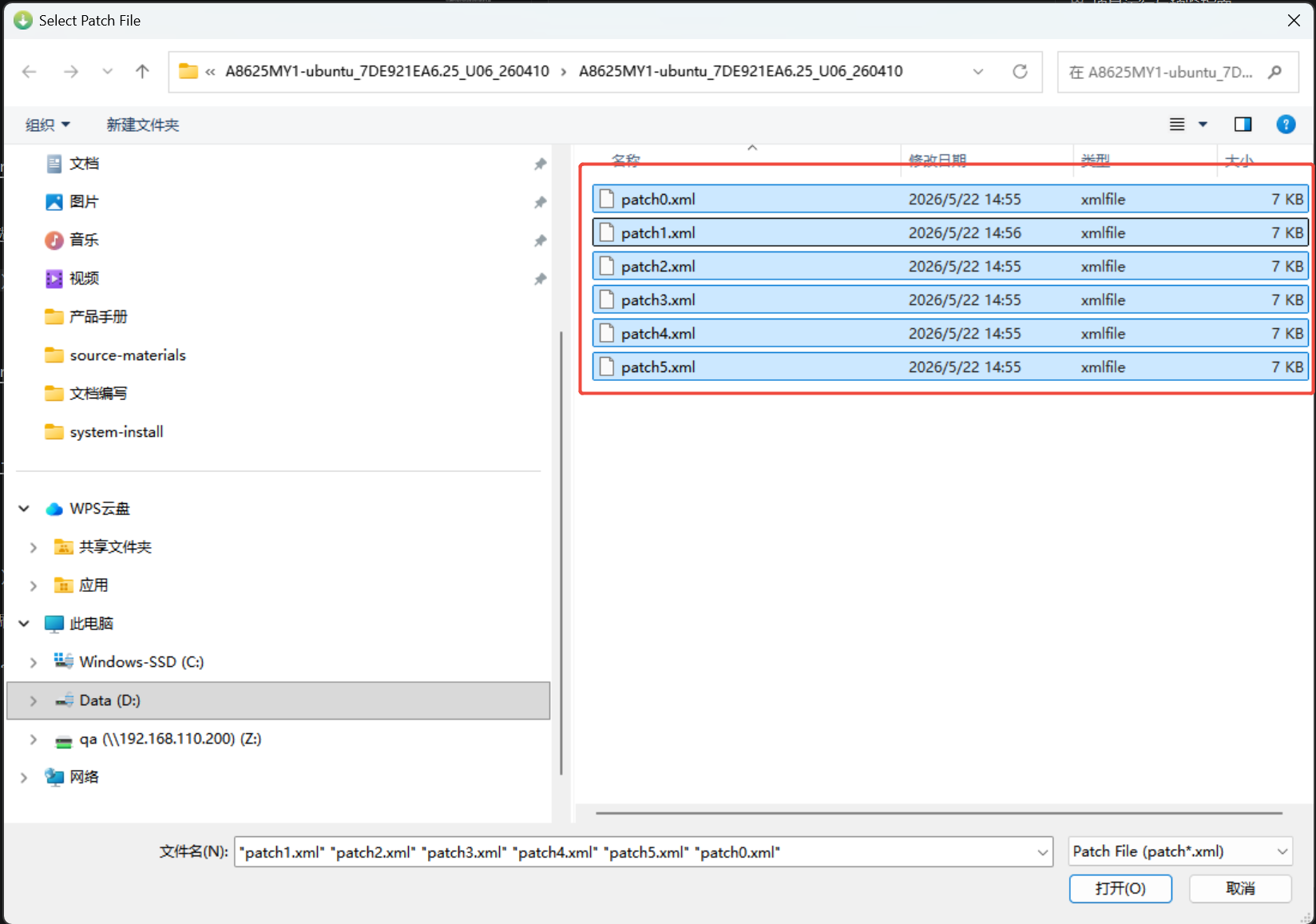
- Another popup appears automatically. Select all files and click
Open.
Start Flashing
- After all options are selected, click
Downloadto start flashing.
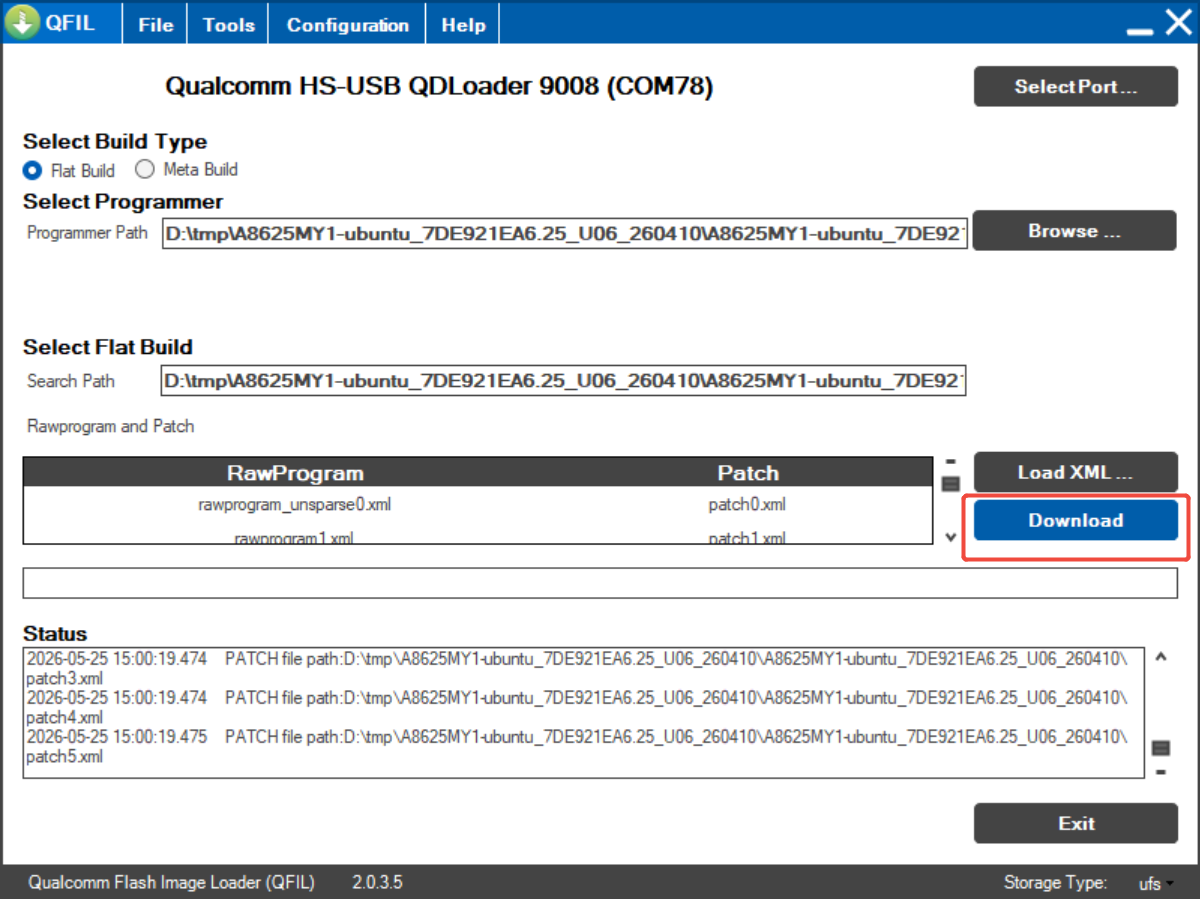
- Wait about 5 minutes. When
successfulappears, flashing is complete. If flashing fails, contact APLUX after-sales support.
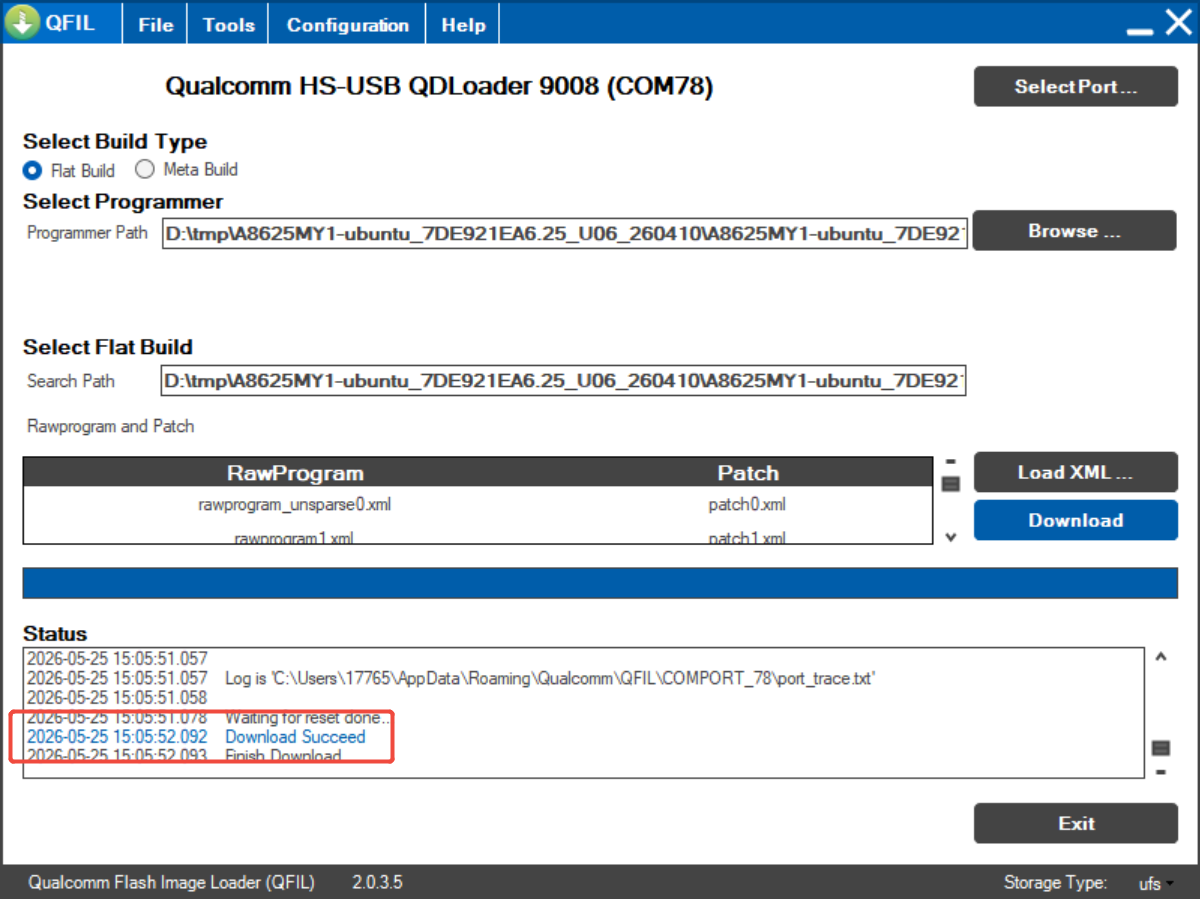
- After flashing, the system reboots automatically.
Warning
If you entered 9008 flashing mode using the debug baseboard DIP switch, power off the device after successful flashing, switch the force-flash toggle back to the opposite direction, then power on again.