Developer Documentation
Introduction
AidStream SDK is a streaming media data processing toolkit for building AI-based video analytics applications and services. It fully leverages hardware acceleration technologies such as GPU, VPU, and NPU to accelerate end-to-end applications. Its goal is to provide developers with simple APIs for predefined streaming-processing tasks and hide the complexity of underlying technologies such as hardware acceleration.
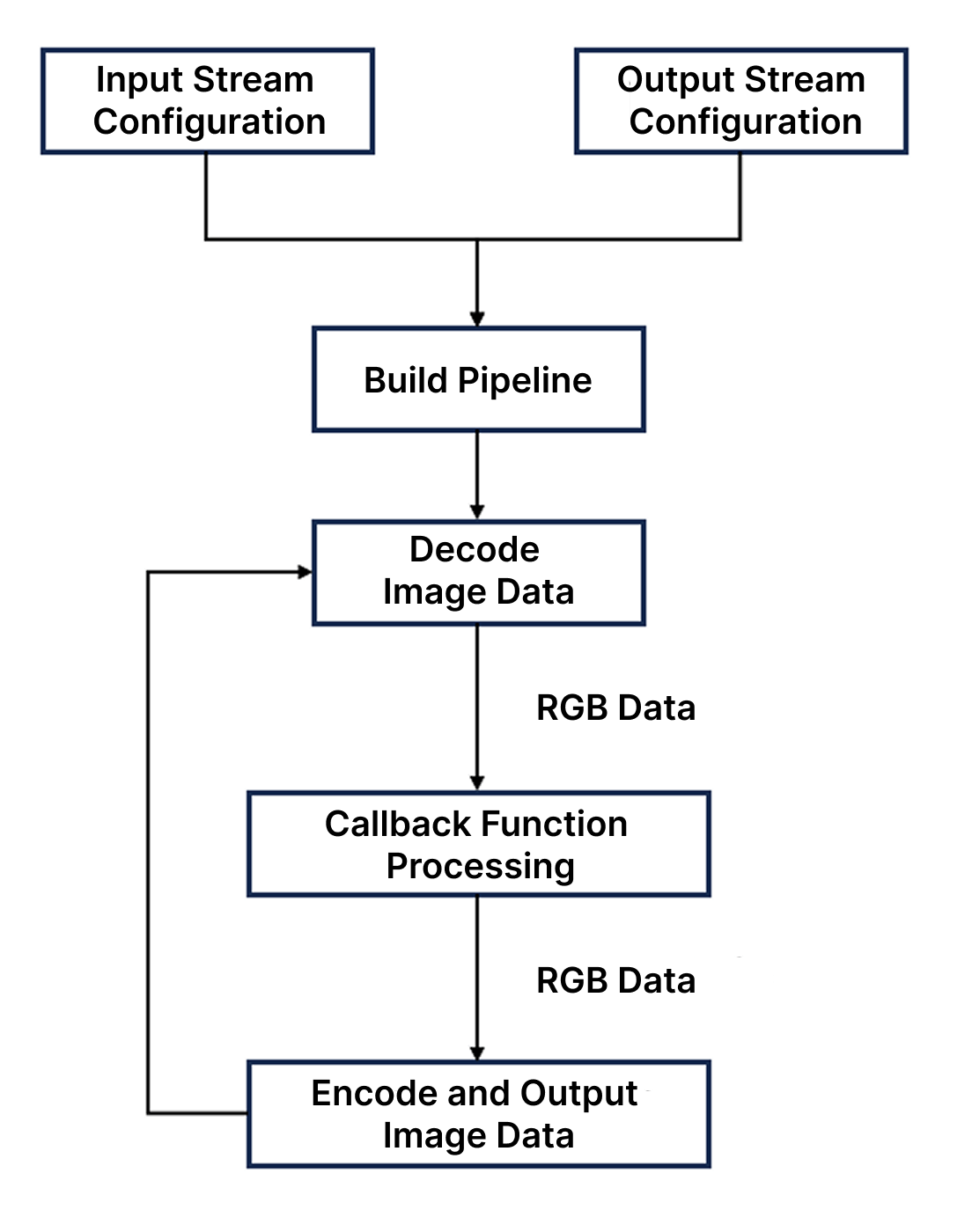
AidStream is based on the concept of pipelines. Developers can build predefined streaming data processing pipelines and combine custom processing tasks, such as AI model inference, with built-in tasks such as video encoding and decoding, stream pushing and pulling, and video stream storage to form a complete data processing chain.
In a complete pipeline, data enters from the Input Stream. Developers can use the AidStream API to obtain the corresponding RGB data and send the processed result to the Output Stream. For example, developers can insert custom callback functions between the input and output ends to obtain RGB data and other information. Data preprocessing, AI analysis, and post-processing can then be completed inside the callback before the data is returned to the pipeline for the remaining output stages.
The AidStream workflow is shown below:
Supported Combinations
Input Stream and Output Stream support different data types. A pipeline can be built successfully only when the selected combination of Input Stream and Output Stream is supported by AidStream. The currently supported combinations are shown in the table below:
| Input / Output | RTSP (H.264) | RTSP (H.265) | File | Screen |
|---|---|---|---|---|
| RTSP (H.264) | ✅ | ❌ | ✅ | ❌ |
| RTSP (H.265) | ✅ | ✅ | ✅ | ❌ |
| File | ✅ | ❌ | ✅ | ✅ |
| MIPI Camera | ✅ | ❌ | ✅ | ✅ |
| USB Camera | ✅ | ❌ | ✅ | ✅ |
- RTSP (H.264): RTSP stream encoded with H.264
- RTSP (H.265): RTSP stream encoded with H.265
- File: Local video file
- MIPI Camera: MIPI camera
- USB Camera: USB camera
- Screen: Device display
Supported Platform
| Platform | Runtime Environment |
|---|---|
| IQ9075 | Ubuntu 24.04 |
Prerequisites
- IQ9075 hardware
- Ubuntu 24.04 system
System Dependency Configuration
Configure the AidLux Package Source
# Download the correct public key
sudo wget -O- https://archive.aidlux.com/ubuntu24/public.key | gpg --dearmor | sudo tee /etc/apt/trusted.gpg.d/private-aidlux.gpg > /dev/null

# Edit the source list file
sudo vim /etc/apt/sources.list.d/private-aidlux.list

# Add the repository provided by AidLux to the source file
deb [arch=arm64 signed-by=/etc/apt/trusted.gpg.d/private-aidlux.gpg] https://archive.aidlux.com/ubuntu24 noble main

# Update the package cache
sudo apt update
After the update is complete, you can use the following command to list the SDK dependencies officially provided by AidLux:
sudo apt list | grep aid | grep unknown# Install software
# Must be installed first because they are not included in the system by default
sudo apt install python3 python3-pip libopencv-dev python3-opencv net-tools
# Must be installed before aidlite
sudo apt install aidlux-aistack-base aidrtcm
# Install aidlite and its dependencies
sudo apt install aid-lms aidlms-sdk aidlite-sdk cmake
sudo apt-get install libfmt-dev nlohmann-json3-dev
sudo apt install aidlite-*
# Enable DSP support
sudo apt-get install qcom-fastrpc1
sudo apt-get install qcom-fastrpc-dev
# Install aidgen-sdk
sudo apt install aidgen-sdk
# Install the mms service
sudo apt install aid-mms
# Enable GPU support
sudo apt-add-repository -s ppa:ubuntu-qcom-iot/qcom-ppa
sudo apt install qcom-adreno-cl1
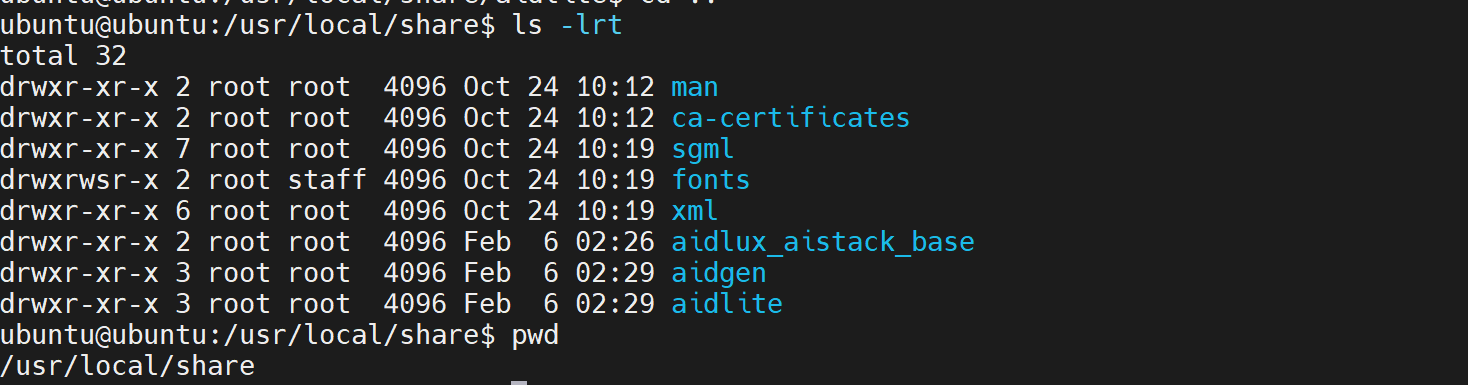
sudo ln -s /usr/lib/aarch64-linux-gnu/libOpenCL.so.1 /usr/lib/aarch64-linux-gnu/libOpenCL.soAfter the installation is complete, check that the aidlite and aidgen directories have been added under /usr/local/share.
Device Authorization
Get the Device SN
cat /sys/devices/soc0/serial_numberGet the License File
Provide the SN to APLUX technical support so that they can generate the device-specific license file. Place the generated file under /etc/opt/aidlux/license/AidLuxLics.
Activate the License
sudo /opt/aidlux/cpf/aid-lms/manager.sh restartDevelopment Example
Step 1: Deploy aidstream-gst
sudo apt-add-repository -s ppa:ubuntu-qcom-iot/qcom-ppa
sudo apt update
sudo apt install weston-autostart

sudo apt install gstreamer1.0-qcom-sample-apps
sudo reboot

sudo apt-get install libgstreamer1.0-dev gstreamer1.0-plugins-ugly gstreamer1.0-libav gstreamer1.0-alsa gstreamer1.0-gtk3

sudo apt-get install -y libjsoncpp-dev

sudo ln -s /usr/lib/aarch64-linux-gnu/libjsoncpp.so /usr/lib/aarch64-linux-gnu/libjsoncpp.so.1

sudo apt install gstreamer1.0-rtsp

sudo apt install aidstream-gst
Example programs are located in /usr/local/share/aidstream-gst/example/cxx/.
Step 2: Edit the Stream Configuration File
The stream configuration file aidstream-gst.conf is located under /usr/local/share/aidstream-gst/conf/. For details about the configuration file, refer to Stream Configuration File.
Step 3: Compile the Example Code
cmake -DV4L2=2404-9075 ..
make
Step 4: Run the Demo
After successful compilation and linking, four executable programs are generated: demo, qnn_rtsp, rtsp, and start.
# Quickly start a stream
start {stream id}

# Quickly start a stream with the built-in algorithm
# The model is located at: /usr/local/share/aidstream-gst/example/datas/
qnn_rtsp {stream id}

# Quickly start multi-thread push-pull streaming
# The current example is configured to use 2 threads
rtsp
Stream Configuration File
When using the interface int start_stream(string stream_id, GetImageCB &cb), you can configure the input and output streams through /usr/local/share/aidstream-gst/conf/aidstream-gst.conf.
Requirements:
- The configuration file must use JSON format.
- Parameters marked as required must be configured.
- Parameter names are case-sensitive.
| Parameter Name | Type | Required | Description |
|---|---|---|---|
| streamsId | string | Yes | Stream ID, which uniquely identifies a set of stream configurations |
| inputType | string | Yes | Protocol type of the input stream. Supported values: rtsp / rtmp / file. Unsupported types or invalid addresses will cause failure. |
| inputAddr | string | Yes | Address of the input stream. |
| outputType | string | Yes | Protocol type of the output stream. Supported values: rtsp / wayland / empty. Unsupported output types should be set to empty, which sends the output stream to fakesink. |
| outputAddr | string | Yes | Address of the output stream. |
| decodeType | string | No | Hardware decoding format. Supported values: H264 / H265 |
| encodeType | string | No | Hardware encoding format. Supported values: H264 / H265 |
Configuration file example:
TIP
The input and output stream addresses are defined by the developer as needed. The following content is for reference only.
{
"streams": [
    {
    "streamsId": "1",
    "properties": {
            "inputType": "rtsp",
            "inputAddr": "rtsp://admin:aidlux123@192.168.110.234:554/h264/ch1/main/av_stream",
            "outputType": "rtsp",
            "outputAddr": "rtsp://192.168.111.115:8554/aidstream-gst-rtsp-test-1",
            "decodeType": "H264",
            "encodeType": "H264"
            }
    },
    {
    "streamsId": "2",
    "properties": {
            "inputType": "file",
            "inputAddr": "./test_kobe.mp4",
            "outputType": "rtsp",
            "outputAddr": "rtsp://192.168.111.115:8554/aidstream-gst-rtsp-test-2",
            "decodeType": "H264",
            "encodeType": "H264"
            }
    },
    {
    "streamsId": "3",
    "properties": {
            "inputType": "rtmp",
            "inputAddr": "rtmp://192.168.111.115:1935/live/stream",
            "outputType": "rtsp",
            "outputAddr": "rtsp://192.168.111.115:8554/aidstream-gst-rtmp-test-3",
            "decodeType": "H264",
            "encodeType": "H264"
            }
    },
    {
    "streamsId": "4",
    "properties": {
            "inputType": "file",
            "inputAddr": "./test_kobe.mp4",
            "outputType": "wayland",
            "outputAddr": "",
            "decodeType": "H264",
            "encodeType": "H264"
            }
    },
    {
    "streamsId": "5",
    "properties": {
            "inputType": "rtsp",
            "inputAddr": "rtsp://admin:aidlux123@192.168.110.234:554/h264/ch1/main/av_stream",
            "outputType": "rtsp",
            "outputAddr": "rtsp://192.168.111.115:8554/aidstream-gst-rtsp-test-5",
            "decodeType": "H265",
            "encodeType": "H265"
            }
    }
]
}