Deploy LLM HTTP Server with AidGenSE
Introduction
Edge deployment of Large Language Models (LLMs) refers to the process of compressing, quantizing, and deploying models that originally ran in the cloud onto local devices. This enables offline, low-latency natural language understanding and generation. Based on the AidGenSE inference engine, this chapter demonstrates how to deploy an LLM HTTP service (OpenAI API compatible) on edge devices.
In this case, the LLM inference runs on the device side. HTTP APIs are used to call relevant interfaces to receive user input and return conversation results in real-time.
- Device: IQ8275
- System: Ubuntu 24.04
- Model: Qwen2.5-0.5B-Instruct
Supported Platforms
| Platform | Operation Mode |
|---|---|
| IQ8275 | Ubuntu 24.04 |
Prerequisites
IQ8275 hardware
Ubuntu 24.04 system
System Dependency Configuration
Configure the AidLux Package Source
# Download the correct public key
sudo wget -O- https://archive.aidlux.com/ubuntu24/public.key | gpg --dearmor | sudo tee /etc/apt/trusted.gpg.d/private-aidlux.gpg > /dev/null

# Edit the source list file
sudo vim /etc/apt/sources.list.d/private-aidlux.list

# Add the repository provided by AidLux to the source file
deb [arch=arm64 signed-by=/etc/apt/trusted.gpg.d/private-aidlux.gpg] https://archive.aidlux.com/ubuntu24 noble main

#  Update the package cache
sudo apt update
After the update is complete, you can use the following command to retrieve the official AidLux SDK dependencies:
sudo apt list | grep aid | grep unknown# Install software
# Must be installed first (not included with the system)
sudo apt install python3 python3-pip libopencv-dev python3-opencv net-tools
# Must be installed before aidlite
sudo apt install aidlux-aistack-base aidrtcm
# Install aidlite and dependencies
sudo apt install aid-lms aidlms-sdk aidlite-sdk cmake
sudo apt-get install libfmt-dev nlohmann-json3-dev
sudo apt install aidlite-*
# DSP support
sudo apt-get install qcom-fastrpc1
sudo apt-get install qcom-fastrpc-dev
# Install aidgen-sdk
sudo apt install aidgen-sdk
sudo apt install aidgen-qnn236
sudo apt install aidgen-qnn240
# Install mms service
sudo apt install aid-mms
# GPU support
sudo apt-add-repository -s ppa:ubuntu-qcom-iot/qcom-ppa
sudo apt install qcom-adreno-cl1
sudo ln -s /usr/lib/aarch64-linux-gnu/libOpenCL.so.1 /usr/lib/aarch64-linux-gnu/libOpenCL.soAfter installation, check that the aidlite and aidgen directories have been added under /usr/local/share:
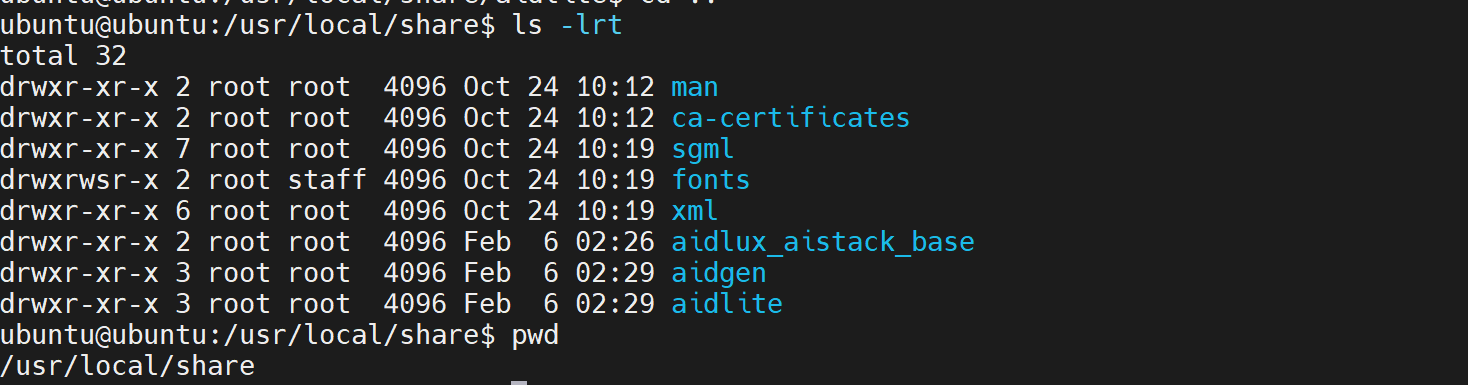
Device Authorization
Obtain the Device Serial Number
cat /sys/devices/soc0/serial_numberObtain the License File
Provide the serial number to APLUX technical staff to generate a device-specific License file, then place it in the /etc/opt/aidlux/license/AidLuxLics directory.
Activate the License
sudo /opt/aidlux/cpf/aid-lms/manager.sh restartCase Deployment
Step 1: Install AidGenSE
# Configure the virtual runtime environment
sudo apt install -y python3-pip python3-venv > /dev/null 2>&1
sudo python3 -m venv /opt/aidlux/aid-python3

# Create the aid-python3 command
echo '#!/bin/bash
exec /opt/aidlux/aid-python3/bin/python3 "$@"' | sudo tee /usr/bin/aid-python3 > /dev/null
sudo chmod +x /usr/bin/aid-python3

# Create the aid-pip3 command
echo '#!/bin/bash
exec /opt/aidlux/aid-python3/bin/python3 -m pip "$@"' | sudo tee /usr/bin/aid-pip3 > /dev/null
sudo chmod +x /usr/bin/aid-pip3

# Install aidgense
sudo apt install aidgense
sudo aidllm system --sys linux --soc 8550
sudo apt install aid-pkg
sudo aidllm install ui
Step 2: Query and Obtain Models
- View supported models:
# View supported models
aidllm remote-list api

#------------------------ Sample output ------------------------

Current Soc : 8550

Name                                 Url                                          CreateTime
-----                                ---------                                    ---------
qwen2.5-0.5B-Instruct-8550           aplux/qwen2.5-0.5B-Instruct-8550             2025-03-05 14:52:23
qwen2.5-3B-Instruct-8550             aplux/qwen2.5-3B-Instruct-8550               2025-03-05 14:52:37
...- Download Qwen2.5-0.5B-Instruct:
# Download the model
aidllm pull api aplux/qwen2.5-0.5B-Instruct-8550

# View downloaded models
aidllm list api
Step 3: Start the HTTP Service
# Start the OpenAI API service for the corresponding model
aidllm start api -m qwen2.5-0.5B-Instruct-8550

# Check the status
aidllm status api

# Stop the service: aidllm stop api

# Restart the service: aidllm restart api
💡Note
The default port is 8888
Step 4: Conversation Testing
Test with Web UI
# Install the UI front-end service
sudo aidllm install ui

# Start the UI service
aidllm start ui

# Check UI service status: aidllm status ui

# Stop the UI service: aidllm stop ui
After the UI service starts, visit http://ip:51104
Test with Python
import os
import requests
import json

def stream_chat_completion(messages, model="qwen2.5-0.5B-Instruct-8550"):

    url = "http://127.0.0.1:8888/v1/chat/completions"
    headers = {
        "Content-Type": "application/json"
    }
    payload = {
        "model": model,
        "messages": messages,
        "stream": True    # Enable streaming
    }

    # Send a request with stream=True
    response = requests.post(url, headers=headers, json=payload, stream=True)
    response.raise_for_status()

    # Read and parse SSE format line by line
    for line in response.iter_lines():
        if not line:
            continue
        # print(line)
        line_data = line.decode('utf-8')
        # SSE lines start with "data: " prefix
        if line_data.startswith("data: "):
            data = line_data[len("data: "):]
            # End marker
            if data.strip() == "[DONE]":
                break
            try:
                chunk = json.loads(data)
            except json.JSONDecodeError:
                # Print and skip on parse errors
                print("Unable to parse JSON:", data)
                continue

            # Extract the model's output token
            content = chunk["choices"][0]["delta"].get("content")
            if content:
                print(content, end="", flush=True)

if __name__ == "__main__":
    # Example conversation
    messages = [
        {"role": "system", "content": "You are a helpful assistant."},
        {"role": "user", "content": "Hello."}
    ]
    print("Assistant:", end=" ")
    stream_chat_completion(messages)
    print()  # newline