IQ9075 Introduction
Introduction
The Qualcomm Dragonwing™ IQ9 series provides superior AI performance and design flexibility for demanding industrial applications. It features high-compute power and energy efficiency, capable of handling heavy workloads in extreme environments. By adding support for extended junction temperature operation from -40°C to +115°C, the Qualcomm IQ9 series perfectly meets the most stringent, high-compute industrial application requirements in extreme conditions. Additionally, the IQ-9075 features a developer-friendly design, supporting multiple operating systems such as the Qualcomm Linux® software stack and Ubuntu, and provides a long lifecycle support of over 10 years. Developers can easily build, test, and deploy solutions on this platform with the confidence that their designs will receive continuous support for many years to maintain longevity.
Product Appearance
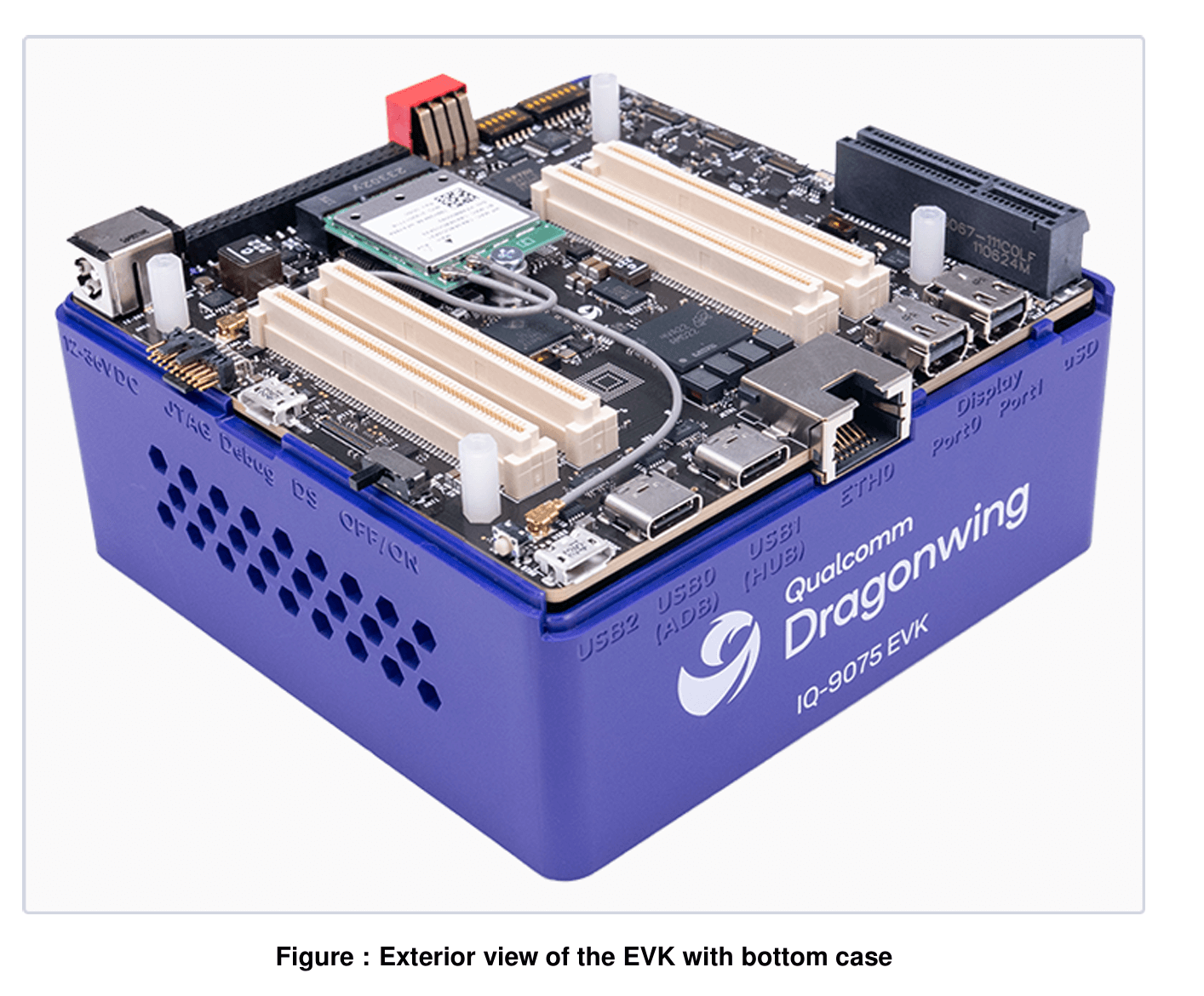
Environment Preparation
- Computer with Windows 10 or above
- 9075 chip device
- USB Type-A to mini USB [for serial debugging]
- Power adapter (12V 3A)
- DP adapter cable
- Type-C to USB expansion dock [for connecting mouse and keyboard]
- HDMI Type-D & DP cable [HDMI Type-D interface connects to the board, DP interface connects to the monitor]
The IQ9075 device needs to be deployed with the official Qualcomm Ubuntu 24.04 system. For specific flashing and deployment methods, please refer to the Qualcomm official website.
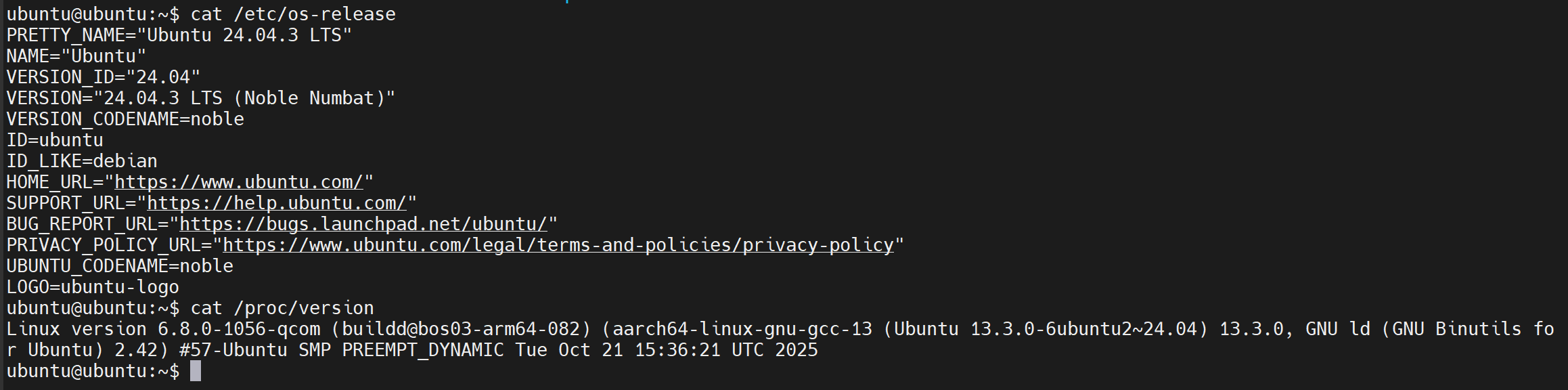
Device Power-on & Configuration
Power Cable Connection Connect the DC12V3A power adapter to the DC port of the board; it will automatically start by default. Observe that upon powering up, the power indicator light stays solid green and the fan is rotating (booting completed).
Peripheral Connection
Option 1: Monitor, expansion dock, USB mouse, keyboard, and other peripherals are available
- HDMI Type-D & DP cable [HDMI Type-D interface connects to the board, DP interface connects to the monitor]
- Type-C to USB expansion dock, USB expansion dock connects to USB mouse and keyboard
After the board starts, observe the system login screen on the monitor, enter the username/password (ubuntu/ubuntu), and then the developer can access the development board system according to specific development environment scenarios.
Option 2: Laptop and USB Type-A to mini USB (included with the board) are available
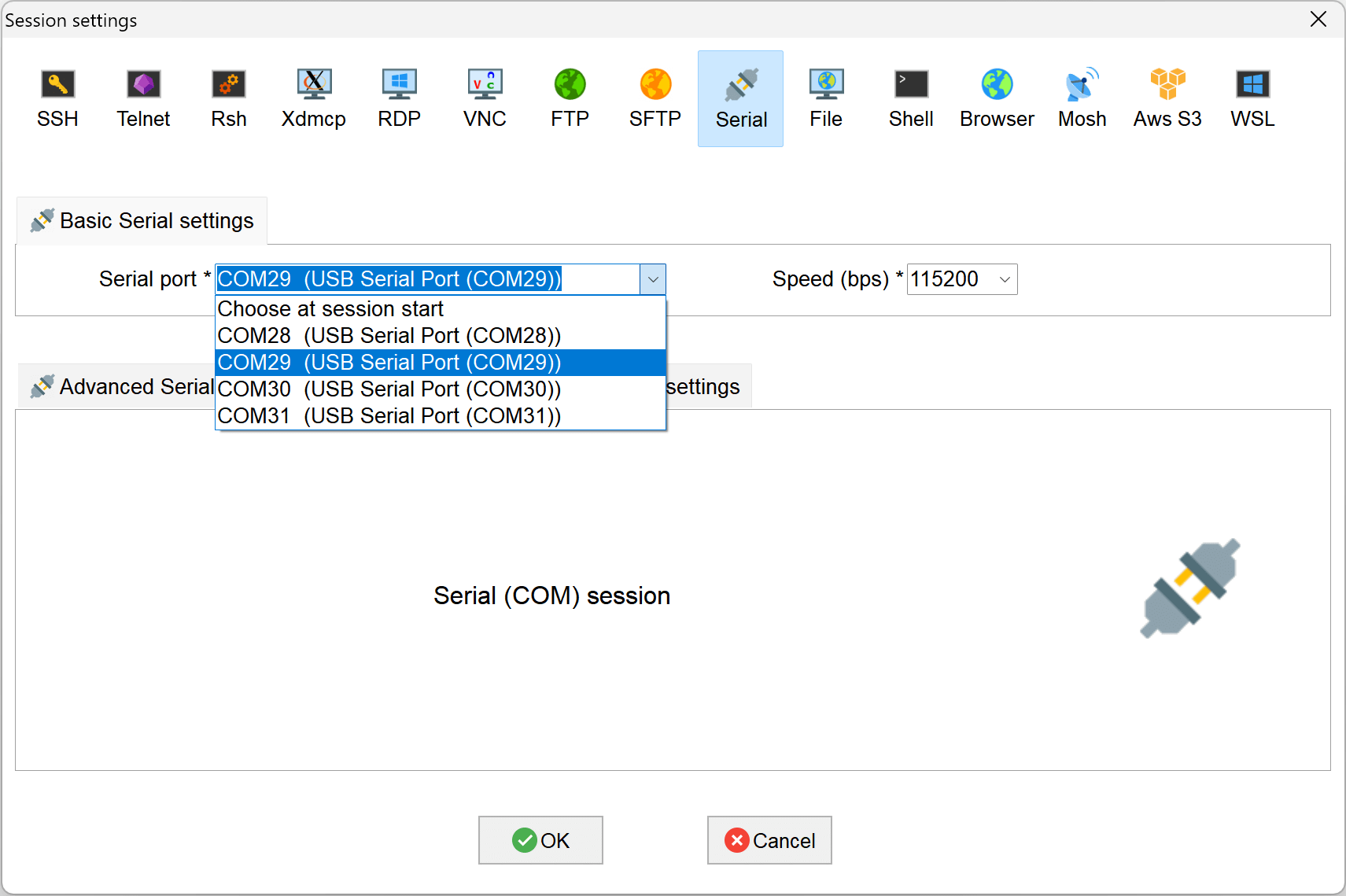
- Connect USB Type-A to mini USB to the board and personal terminal. Use MobaXterm on the personal terminal to open the serial port debugging tool and connect to the serial port (default is the second one) as follows:
Board Wi-Fi Configuration
sudo nmcli dev wifi connect <wifi_name> password <wifi_password>